28
Advanced Functions
Playing various musical instrument sounds (Voices)
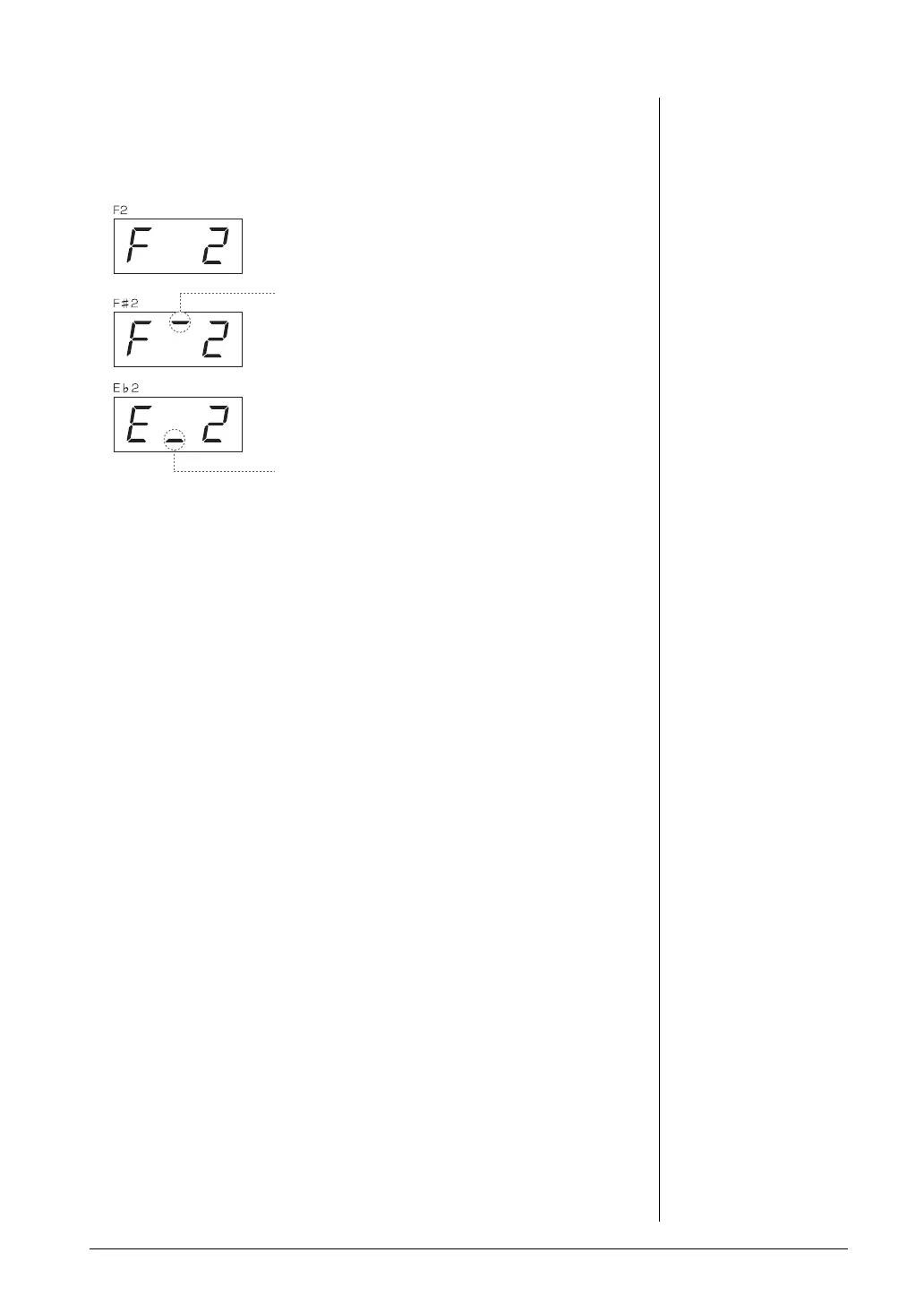
The name of the current split-point key appears on the display while the
[SPLIT] button is held.
3. Select a Voice for the right hand.
Press a Voice button.
To turn the variation on or off for the right-hand split Voice, press the
[VARIATION] button or the currently selected Voice button.
4. Select a Voice for the left hand.
Press the corresponding Voice button while holding the [SPLIT] button.
(The indicator of the Left Voice button will light while the [SPLIT] button
is pressed.)
To turn the variation on or off for the left-hand split Voice, hold the
[SPLIT] button and press the [VARIATION] button or the currently
selected Voice button.
Try playing the keyboard and listen to the resulting sound.
5. Exit Split mode and return to normal play mode.
Press the [SPLIT] button again so that its indicator goes out.
High bar indicates sharp note
Low bar indicates flat note
Example of split-point key display
NOTE
[VARIATION] in Split Mode
Normally, the Voice indicator of
the right Voice lights in Split
mode. The [VARIATION] can be
used to turn the variation for the
right Voice on or off as required.
While the [SPLIT] button is held,
however, the Voice indicator of the
left Voice lights. In this state the
[VARIATION] button turns the
variation for the left Voice on or
off.
[REVERB] in Split Mode
An optimum reverb type for the
split Voices is assigned
automatically.
[EFFECT] in Split Mode
Depending on the conditions, one
effect type will take priority over
the other. To change the effect
depth, press the [-/NO] or [+/YES]
button while holding the [EFFECT]
button. This will be applied to the
right Voice only. The depth can
also be changed in the Function
mode (page 51).



 To Next Page