EasyManua.ls Logo

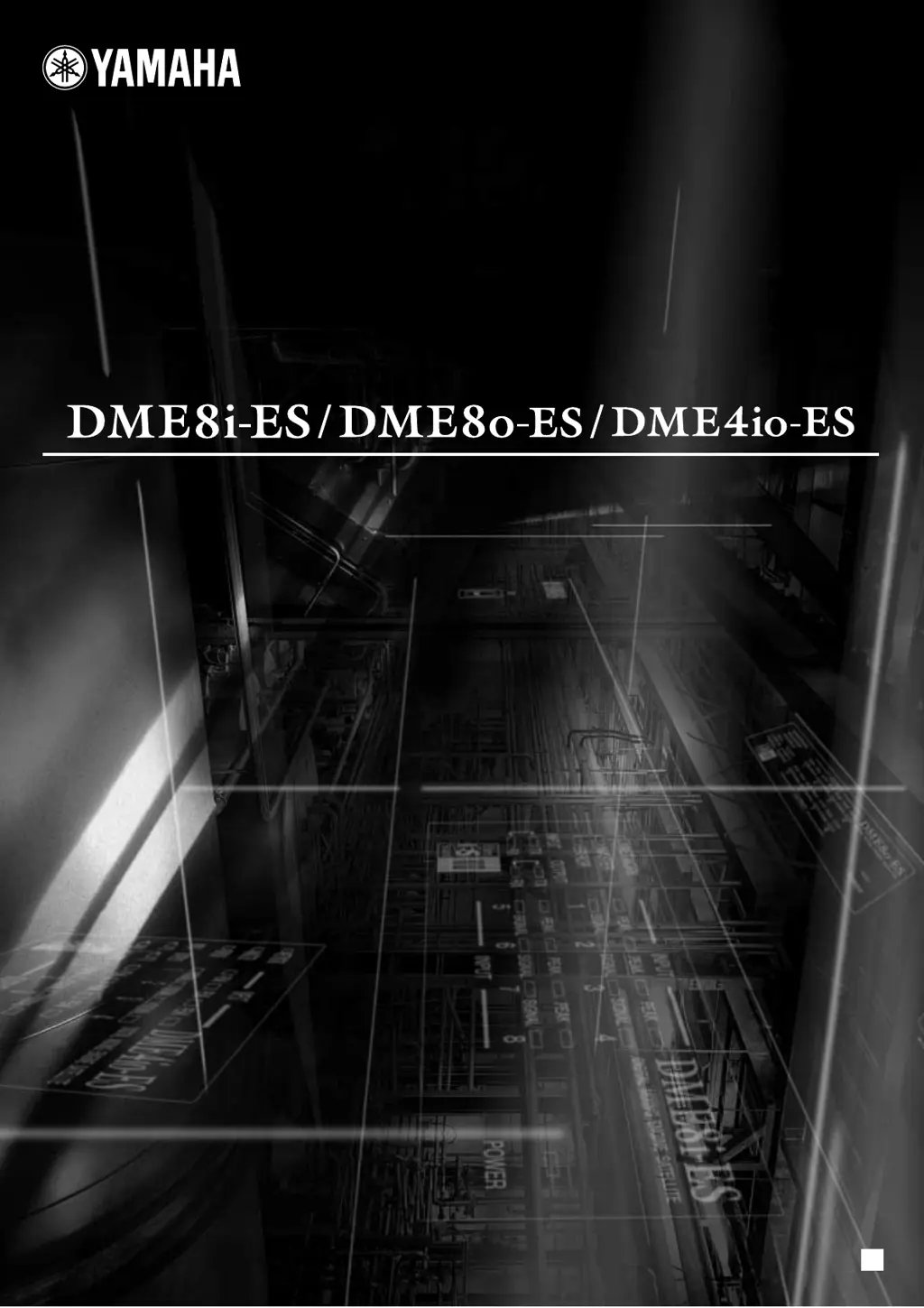
Yamaha DME4io-ES - User Manual

Yamaha DME4io-ES
48 pages
Print Icon
To Next Page IconTo Next Page
Loading...
EN
Owners Manual
DIGITAL MIXING ENGINE SATELLITE

Table of Contents

Other manuals for Yamaha DME4io-ES

Questions and Answers

  • K
    Katrina MayAug 14, 2025
    What to do if no audio is output from my Yamaha Music Mixer?
    • K
      Katherine KennedyAug 14, 2025
      If your Yamaha Music Mixer isn't outputting audio, ensure the cables are properly connected. Also, verify that you've configured EtherSound settings correctly using AVS-ESMonitor. Check that the output level in DME Designer isn't too low and that the Mute setting is set to Off. Ensure that you haven't designed a scene in DME Designer that mutes audio output. Finally, confirm you're not using a 96 kHz configuration on a device that doesn't support it.
  • K
    kylepayneAug 17, 2025
    How to turn on Yamaha Music Mixer if it's not working?
    • A
      adamwhiteAug 17, 2025
      If your Yamaha Music Mixer is not turning on, make sure the power cord is correctly connected and the [POWER] switch is turned ON. If it still doesn't turn on, it is recommended to contact a Yamaha dealer.
  • K
    Karen PriceAug 21, 2025
    What to do if there is no audio input on Yamaha Music Mixer?
    • C
      campbellemilyAug 21, 2025
      If there's no audio input on your Yamaha Music Mixer, ensure the cable is properly connected and that signals are being received from the external device. Verify EtherSound settings like routing with AVS-ESMonitor. Adjust the gain of the internal or external head amplifier to the appropriate level.
  • J
    John HayesAug 25, 2025
    Why can't my Yamaha Music Mixer transmit or receive MIDI messages?
    • J
      juancampbellAug 25, 2025
      If MIDI messages can't be transmitted or received by your Yamaha Music Mixer, first ensure the MIDI device is powered on. Then, set the MIDI port, receive, and transmit channels correctly.
  • P
    pricedarleneAug 27, 2025
    What to do if the selected scene changes unexpectedly on my Yamaha Music Mixer?
    • A
      amy81Aug 27, 2025
      If scenes are unexpectedly changing on your Yamaha Music Mixer, use DME Designer to check the MIDI Program Change and GPI input assignments.
  • K
    Kayla AtkinsonAug 31, 2025
    How to recall scenes via MIDI Program Change messages on Yamaha Music Mixer?
    • P
      pughkendraAug 31, 2025
      To recall scenes via MIDI Program Change messages on your Yamaha Music Mixer, use DME Designer to adjust the settings so the required MIDI Program Change messages are received properly. Also, make the appropriate Program Change Table settings via DME Designer.
  • S
    Sandra BennettSep 3, 2025
    How to control parameters via MIDI Control Change messages on Yamaha Music Mixer?
    • E
      Elizabeth LozanoSep 3, 2025
      To control parameters via MIDI Control Change messages on your Yamaha Music Mixer, use DME Designer to correctly set the parameters to allow Control Change message reception. Also, make the appropriate MIDI Control Change Table settings via DME Designer.
  • K
    Kayla GuzmanSep 7, 2025
    How to edit parameters via MIDI Parameter Change messages on Yamaha Music Mixer?
    • M
      Mr. Gary Moore MDSep 7, 2025
      To edit parameters via MIDI Parameter Change messages on your Yamaha Music Mixer, use DME Designer to set the parameters correctly to allow Parameter Change message reception. Also, make the appropriate MIDI Parameter Change Table settings via DME Designer.
  • J
    Joseph ChungSep 10, 2025
    How to fix no communication between DME Satellite and DME Designer on Yamaha Music Mixer?
    • P
      Paul TaylorSep 10, 2025
      To establish communication between the DME Satellite and the DME Designer application software, ensure the cable is properly connected. Verify that the USB-MIDI Driver is correctly installed. If using the [NETWORK] connector, confirm the DME-N Network Driver is set correctly. Adjust the "MIDI Setup" settings, ensure the DME Designer version is 3.0 or later, and configure the Port setting.

Summary

Important Safety Instructions

Regulatory and Safety Notices

Operational Precautions and Warnings

Power Supply and Cord Safety

Guidelines for safe use of power cords, including voltage and grounding.

Device Handling and Environmental Safety

Precautions against opening the device, heat, dust, and unstable placement.

General Handling and Maintenance

Connection and Handling Procedures

Instructions for connecting devices and safe handling practices.

Getting Started and Initial Setup

Power Connection and Operation Guide

Steps for connecting power and turning the unit on/off safely.

Understanding Scenes

DME Designer Software

System Integration and Control

Explains DME Designer's role in integrating, configuring, and controlling the system.

Front Panel Controls and Indicators

Front Panel Indicators and Power Switch

Rear Panel Connectors and Features

AC Power Input and Grounding

Details the AC IN connector and the importance of grounding.

Rear Panel Connections and Rack Mounting

Remote, EtherSound, and GPI Connectors

Details the REMOTE, EtherSound, and GPI connectors for control and signals.

Connecting to a Computer via USB

USB Connection Setup Procedure

Instructions for connecting the DME Satellite to a computer using USB.

Computer Network Configuration

Assigning IP Addresses

Guide to assigning unique IP addresses for network setup.

Setting Master and Slave Roles

Explains how to set master/slave roles within a device group.

Ethernet Network Connection

Connecting via [NETWORK] Connector

Instructions for connecting the DME Satellite via Ethernet.

Computer Control Scenarios

Cross-Subnet Computer Control

Managing Multiple Device Groups

Digital Audio I;O Connections

EtherSound Connection for Digital Audio

Explains using EtherSound connectors for digital audio and control signals.

Analog Audio I;O Connections

Euroblock Connector Wiring Procedure

Step-by-step guide for connecting Euroblock plugs.

Connecting to External Devices

Remote Connection Setup

Details connecting to AD8HR/AD824 head amps, mixers, or controllers via REMOTE.

Controlling External Head Amplifiers

Explains remote control of head amplifier settings from DME Designer.

External Device Control Methods

EtherSound for External Control

Network Controllers and Protocols

GPI Control Interface

Other Functions

DME Satellite Initialization Procedures

Procedures for initializing the DME Satellite's memory.

Optional Controllers

Troubleshooting Guide

Power and Communication Issues

Solutions for power-on failures and communication issues with DME Designer.

Audio and Scene Change Problems

Troubleshooting audio issues and unexpected scene changes.

MIDI and Parameter Control Issues

Addressing problems with MIDI messages and parameter control.

MIDI Data Format and Setup

MIDI Functions: Scene Change & Parameter Control

Explains how MIDI handles scene recall and parameter control.

MIDI Message Specifications

MIDI Transmit and Data Details

Display Messages and Error Handling

Error Message Indicators and Actions

Explains error indicators and corrective actions for system errors.

Warning Message Indicators and Actions

Describes warning indicators and actions for low battery or data loss.

Yamaha DME4io-ES Specifications

General IconGeneral
Audio Inputs4
Audio Outputs4
Sample Rate44.1 kHz, 48 kHz, 88.2 kHz, 96 kHz
Maximum Sampling Frequency96 kHz
Bit Depth24-bit
Weight1.5 kg
TypeDigital Mixing Engine
Control InterfaceEthernet
ConnectivityEthernet
Power SupplyAC100 - 240 V, 50/60 Hz

Related product manuals