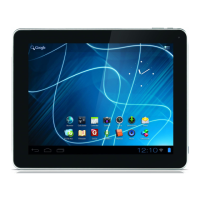
Press "Apps" to view all installed apps.
Press and hold the desired app to have the home screen show up and release the shortcut to
any empty spot on the Home Screen.
To remove widgets and/or app shortcuts from your Home Screen, press and hold them and drag
them to the appeared "Remove" dustbin icon on top of your Home Screen.
3.2 Setting a Wallpaper
To change the Home Screen wallpaper, press and hold the Home Screen until the “Select
Wallpaper from” menu comes up.
You can choose from "Live Wallpapers" (animated wallpapers), "Super-HD Player" (photo/video
gallery) or "Wallpapers" (default static images).
3.3 Application Menu
Press the app and widget button in the top right corner of your Home Screen:
When the system displays the widgets, press "Apps" to view all installed apps.
Here you can find all the pre-installed programs or “apps” as well as additional apps that you
install.
You can launch any app by just pressing the corresponding icon.


 To Next Page