EasyManua.ls Logo

YATWIN C24 Series - User Manual

Default Icon
5 pages
Print Icon
To Next Page IconTo Next Page
Loading...
Wireless
Security Camera
User
Manual
YATWI N
Smart Home Version 2.3
Welcome
Please read this manual carefully before using and keep it
properly for future reference.
Thank you for purchasing YATWIN Wireless Security Camera.
Here you will find useful information about the camera’s
installation, operation, features and functions as well as
information to aid in troubleshooting.
Important Security Warning
In order to keep your YATWIN camera secure and prevent
unauthorized access, please make sure to follow the steps
below:
Always make sure that your camera has the latest
firmware.
Always change the default password for your camera.
Always ensure that your password is at least 8-10 characters
long and contains a combination of lowercase characters,
uppercase characters as well as numbers.
1. Getting Started
1.1 Device Overview
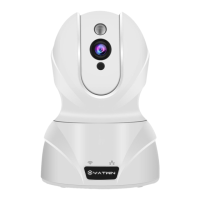
The diagram below shows the camera’s profile and rear
panel.
The camera’s indicator light status:
- Light is solid green and steady:
The camera is connected to the network and work normally.
- Light is green and blinking quickly:
The camera is connecting to the network or ready
- The light goes out:
The camera isn’t connected to the network.
1.2 APP Download
You need the EyeCloudapp to set up your
camera.
To download the EyeCloud
app for Android, scan QR code or search for
EyeCloud on Google Play.
To download the EyeCloud app for iOS, scan
the QR code or search for EyeCloud on App
Store.
1.3 Register
Install the EyeCloud app and click “Register Now. Create and
input user name and password to finish registration.
2. Camera Access Setup
This section of the guide will provide the user with
information on how to setup access to the camera through
any of the following methods:
1.2 Wi-Fi Connection
For purposes of this guide, we will use Android, although
both apps have the similar interface. (
The App Interface may
differ slightly from the screenshots below)
(1) Enter the EyeCloud app, tap the + icon on the home
age, tap “Scan QR Codeto scan the QR code on the
bottom of the camera. After scanning successfully, tap
Wireless Installation”.
Note: If you can not scan the QR code, please tap
Other”, tap IP camera”, tap Wireless Installation to
proceed WiFi configuration.
(2) Please power on the camera and wait for about 30
seconds. The camera will rotate to perform a self-test
Question and Answer IconNeed help?

Do you have a question about the YATWIN C24 Series and is the answer not in the manual?

Summary

Important Security Warning

Getting Started

Device Overview

Provides a diagram and description of the camera's physical components and ports.

APP Download

Instructions on how to download the required "EyeCloud" mobile application for setup.

Register

Guide to creating a new account and logging into the EyeCloud application.

Camera Access Setup

Wi-Fi Connection

Steps for connecting the camera to a Wi-Fi network using the EyeCloud app.

Wired Connection

Instructions for connecting the camera to a network via an Ethernet cable.

Viewing Your Camera

Snapshot and Record

How to capture still images and record video clips from the camera feed.

Talkback and Listen

Using the two-way audio feature to communicate through the camera.

Auto-Cruise and Pre-set Position Bookmarks

Setting up automatic camera movement and saving specific viewing positions.

Night Vision

Information on the camera's infrared night vision capabilities and range.

Pan;Tilt Control

How to remotely control the camera's horizontal and vertical movement.

Playback

Accessing and viewing recorded video footage from the SD card.

Setting Your Camera

Camera Setting

Manage basic camera information, password, Wi-Fi, and firmware.

Video Viewing Setting

Configure night vision, mirror view, and image adjustments.

SD Card Recording Setting

Configure recording schedules, motion detection, and audio options.

Alarm Setting

Enable and configure motion detection alarms and sensitivity.

FAQs;Troubleshooting

Multiple Account Access

Guide on how to allow multiple users to access the camera.

Firmware Upgrade

Instructions on how to update the camera's firmware.

Password Reset

Procedure to reset the camera to factory default settings if password is forgotten.

Wi-Fi Connection Issues

Tips and solutions for common Wi-Fi connectivity problems.

Login Issues

Troubleshooting steps for problems logging into the EyeCloud APP.

Outdoor Usage

Clarification on the camera's suitability for outdoor use.

Blurred Picture

Solutions for addressing a blurred camera image.

Night Vision Issues

Troubleshooting steps for when night vision is not working.

Motion Detection Issues

Information regarding motion detection recording and notifications.

Return Policy and Warranty

30-Day Return

Policy for returning the camera for refund or replacement within 30 days.

12-Month Warranty

Details on the 12-month warranty for quality-related issues.

Lifetime Technical Support

Information on the availability of lifetime technical support.

Customer Support

Contact Information

Provides phone, email, and Skype details for customer support.

Setup Videos

Links to YouTube videos for detailed setup and installation guidance.

YATWIN C24 Series Specifications

General IconGeneral
Night VisionYes
Two-Way AudioYes
Motion DetectionYes
Power SupplyDC 5V/1A
AudioBuilt-in microphone and speaker
WirelessYes (Wi-Fi)
Lens3.6mm
Operating Temperature-10°C to 50°C
StorageMicroSD card (up to 128GB)
Resolution1920x1080 (Full HD)

Related product manuals