Need help?
Do you have a question about the Yealink UH38 and is the answer not in the manual?
Lists all items included in the headset package, including the headset, USB cables, carrying case, and quick start guide.
Details the functions of each button on the headset, including Bluetooth, Mute, PC Talk, Volume, and Teams/Voice Assistant buttons.
Explains the meaning of the busylight indicator on the headset, indicating call status and ring status.
Details the indicator lights for Bluetooth connection status, pairing mode, and call status on mobile and PC.
Describes the indicator lights for Teams client connection status and missed calls/voice messages.
Provides instructions on how to connect the headset to a PC or Yealink IP phone using the USB cable.
Explains the process for pairing and connecting the headset to a mobile device using Bluetooth.
Details how to disable the Bluetooth connection on the headset.
Instructions on how to wear the headset on the left or right side, including microphone rotation.
Guidance on how to adjust the microphone boom for optimal comfort and sound pickup.
Instructions on how to secure the microphone cable to clothing for convenience.
Allows manual checking of the headset's remaining talk time and device connection status.
Explains how to answer, end, reject, redial, and hold calls, and play/pause music.
Describes how to mute or unmute the microphone by moving the boom up or down.
Details how to handle multiple incoming calls, including switching and conferencing.
Instructions for updating the headset firmware using the Yealink USB Connect software.
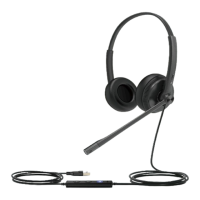
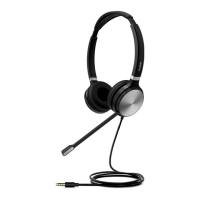
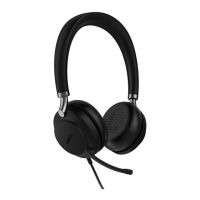
The Yealink UH38 Wired Headset is a versatile audio device designed for communication and multimedia use, offering both wired and wireless connectivity options. It comes in two main variants: a dual headset with a built-in battery and a mono headset without a built-in battery, catering to different user preferences and needs. The headset is primarily connected to PCs or Yealink IP Phones via a USB cable, providing a stable and reliable connection for calls and other audio tasks. Additionally, the dual headset variant features built-in Bluetooth, allowing it to connect wirelessly to mobile devices, offering greater flexibility and mobility.
The UH38 headset serves as a comprehensive communication tool, integrating various functions to enhance user experience. It features a control unit with multiple buttons for managing calls, adjusting volume, and interacting with voice assistants or communication platforms. The headset's core function revolves around facilitating clear audio communication, whether for business calls, online meetings, or personal conversations. Its microphone is designed for optimal sound pickup, ensuring that the user's voice is transmitted clearly.
For wired connections, the headset utilizes a USB 2.0 cable (USB-A to USB-C or USB-C to USB-C) with a length of 1.2 meters, providing ample reach to connect to a PC or IP phone. This wired connection ensures consistent audio quality and power supply for the headset.
The Bluetooth functionality, available on the dual headset, expands its utility by enabling wireless pairing with mobile phones or other Bluetooth-enabled devices. This allows users to seamlessly switch between different devices and environments without being tethered by a cable. The headset provides voice prompts to guide users through Bluetooth pairing, connection status, and battery life, making the wireless experience intuitive.
A notable feature is the "Busylight Indicator" located on both sides of the headset. This indicator visually signals the user's availability, flashing red for incoming calls and glowing solid red during an active call. This helps to minimize interruptions in busy office environments, informing colleagues that the user is occupied.
The "Mobile/PC Button Indicator" provides visual feedback on the headset's Bluetooth status and call activity. It indicates when Bluetooth is enabled, in pairing mode, disabled, or successfully paired. It also shows incoming calls, active calls, and calls on hold for both mobile and PC connections, using different light patterns and colors (green, red, blue).
For users of Microsoft Teams, a dedicated "Teams Edition" button is available. This button allows users to activate Cortana (requiring Microsoft's support) or invoke the Teams client, streamlining workflows for Teams users. A "UC Edition" variant offers a Voice Assistant Button to activate the voice assistant. The "Teams/Voice Assistant Indicator" provides visual cues related to missed calls, voice messages, meeting notifications, and the connection status with the Teams client.
The UH38 headset is designed for user comfort and adaptability. It supports both left and right-wearing styles, especially for the mono headset, where the microphone can be flipped up to 300 degrees to accommodate either ear. For the dual headset, users need to distinguish between the left and right sides, and the microphone's rotation angle is limited to 150 degrees.
Adjusting the microphone is straightforward; the boom can be bent to position the microphone closer to the mouth for better sound pickup, optimizing voice clarity during calls. To manage the microphone cable, a clothespin is provided, allowing users to fix the cable to their clothes. This keeps the cable in a convenient position, especially when using a mobile phone away from the PC.
Call management is intuitive with dedicated buttons. The "Mobile" button controls Bluetooth device calls, allowing users to answer, reject, end, redial, and hold/resume mobile calls. Similarly, the "PC Talk" button manages calls from devices connected via USB, handling answering, rejecting, ending, redialing, and holding/resuming PC/desk phone calls. Volume adjustment is done via the "Volume Up/Volume Down" buttons. The "Mute/Unmute" button allows users to quickly silence or unmute the microphone, with an LED indicator showing the mute status. The headset also features a mute detection feature that prompts "Muted" if the user speaks while the microphone is muted.
The headset supports multiple calls, allowing users to handle new incoming calls while already on an active call. This includes options to answer and hang up the current call, reject the new call and continue the current one, or answer the new call and hold the current one. It also facilitates switching between USB cable calls and Bluetooth calls, or between different Bluetooth devices. For advanced users, the headset offers conference call capabilities, enabling users to merge USB cable and Bluetooth calls into a single conference, or split ongoing conference calls.
The UH38 headset incorporates features that aid in its maintenance and longevity. The "Status Check" function allows users to manually check the remaining talk time and device connection status by pressing and holding the "Mobile" button for 2 seconds in idle state. This provides essential information about the headset's operational readiness.
Firmware updates are a key maintenance feature, ensuring the headset remains up-to-date with the latest performance enhancements and features. These updates are managed through "Yealink USB Connect," a computer software designed to manage Yealink USB devices. Users can connect the headset to a PC's USB port, and then use the software to check for and install updates, either automatically or manually.
"Yealink USB Connect" also provides an overview of connected Yealink USB devices, allowing users to manage their devices and even provide feedback to Yealink. This software acts as a central hub for device management, ensuring optimal performance and troubleshooting.
In case of issues, the headset offers a "Recovery Factory Setting" option. By pressing and holding the mute button and the Teams/voice assistant key for 6 seconds, users can reset the headset to its factory defaults. This action clears the list of paired devices and resets all settings, which can be useful for resolving software-related problems or preparing the headset for a new user. The voice prompt "Factory reset. Bluetooth on, remaining talk time xx hours, pairing mode" confirms the reset, and the mobile button indicator flashes red and blue alternately to enter pairing mode.
The recommendation to use only the included accessories highlights a crucial maintenance aspect: ensuring compatibility to prevent operational issues. This guidance helps users avoid potential problems that could arise from using third-party accessories.
 General
| Cable length | 0.8 m |
|---|---|
| Headset type | Monaural |
| Product type | Headset |
| Certification | FCC |
| Product color | Black |
| Wearing style | Handheld |
| LED indicators | Yes |
| Operating keys | Answer/end call, Mute, Reject call, Volume +, Volume - |
| Control unit type | In-line control unit |
| Recommended usage | Calls/Music |
| Compatible products | T41S/T42S/T46S/T48S/T42U/T43U/T46U/T48U/ T53/T53W/T54W/T57W/T58A/VP5 |
| Storage temperature (T-T) | -5 - 70 °C |
| Operating temperature (T-T) | 0 - 45 °C |
| Sustainability certificates | CE |
| USB connector | USB Type-A |
| Wireless range | 10 m |
| Bluetooth version | 5.1 |
| Connectivity technology | Wired & Wireless |
| Impedance | 32 Ω |
| Driver unit | 35 mm |
| Ear coupling | Supraaural |
| Headphone frequency | 20 - 20000 Hz |
| Maximum input power | 10 mW |
| Headphone sensitivity | 115 dB |
| Microphone type | Built-in |
| Microphone frequency | 100 - 14000 Hz |
| Microphone sensitivity | -44 dB |
| Microphone direction type | Unidirectional |
 Weight and Dimensions
| Weight | 110 g |
|---|

 To Next Page