!
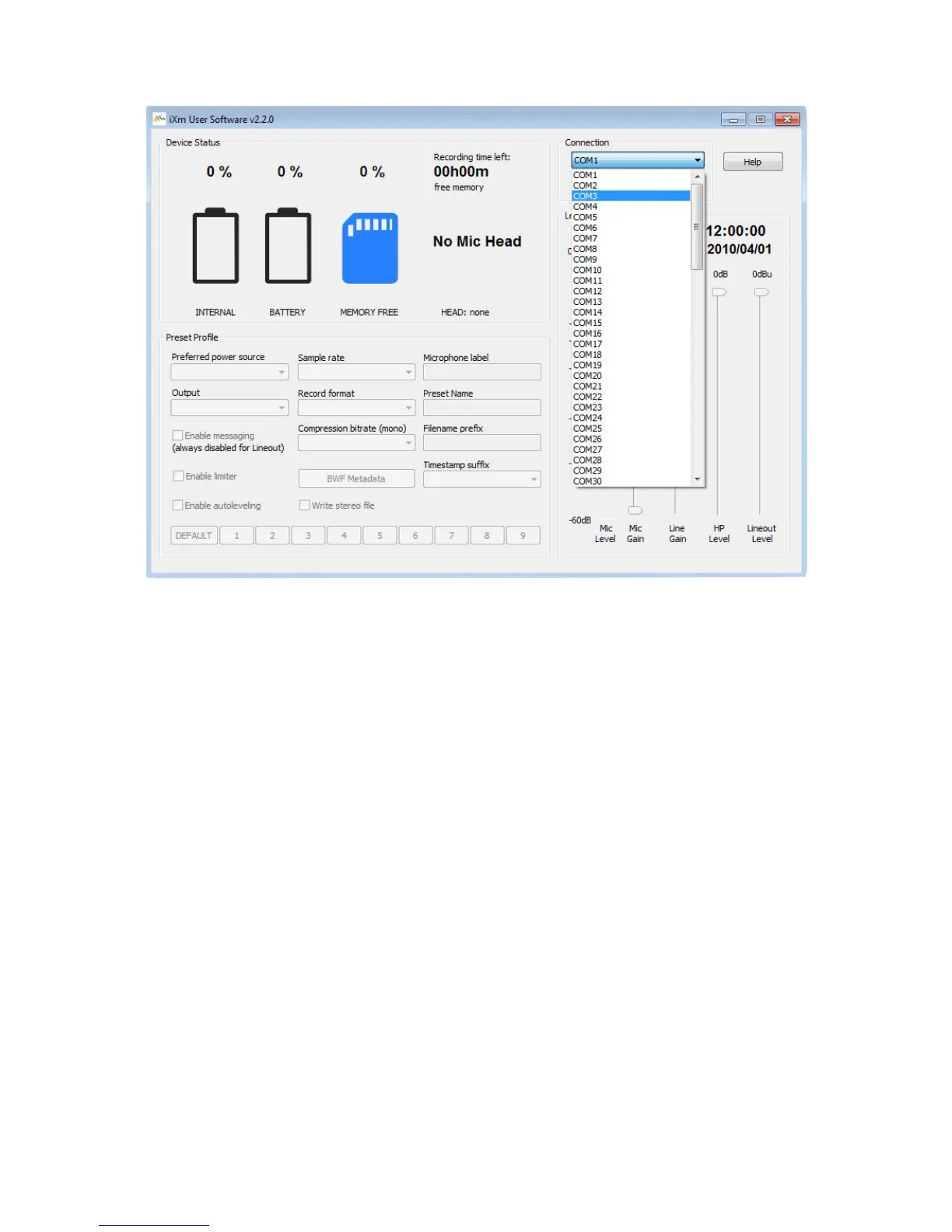
The upper screenshot displays that COM3 has been assigned for communication with iXm.
You will need to set the appropriate COM port in User or Admin So!ware (see User So!ware
below).
The User So!ware will connect with the device once you have selected the proper COM port
and pressed Connect.
This setting will be stored and if you close the application and open it next time the COM Port
will automatically be the one you used last time, no matter if you start the Admin or the User
So!ware.


 To Next Page