EasyManua.ls Logo

Yottamaster DF5U3 - User Manual

Default Icon
15 pages
Print Icon
To Next Page IconTo Next Page
Loading...
Tech Support: supports@yottamaster.com
Official Web: www.yottamaster.com

Quick Installation Guide



First, stop the read and write operations of the hard drive, then click the small USB icon
on the task-bar, and select the drive drive which you want to eject.

First, stop the read and write operations of the hard drive, and then drag the drive drive
to the Recycle Bin to complete drive ejection.


If you want to replace one of the drives in the enclosure with a new one, or one of the
drives is damaged (the corresponding indicator will turn red and the enclosure will beep
to warn. ), here are tips for replacing a hard drive.

1. Find the bad drive. Eject and power off the enclosure in order.
2. Pull out the bad drive. Format the new drive on another device first. Then insert the
new drive ( the same capacity or bigger ) to the original position and turn on the enclosure.

How to rebuild RAID
(1) Find the bad drive. Eject and power off the enclosure in order.
(2) Pull out the bad drive. Format the new drive on another device first. Then insert the
new drive ( the same capacity or bigger ) to the original position and turn on the
enclosure.
(3) You can download our Software RAID Manager on our Website. Note: this step is not
necessary.
(4) The enclosure will start rebuilding current raid mode automatically. The light will
flash red and blue. You can see the RAID is rebuilding from the notes or logs on the
RAID Manager software. The rebuilding time depends on the capacity of all drives,
please wait patiently while rebuilding.
(5) When the rebuilding is finished, the light will turn solid blue. And the RAID Manager
will indicate the status.

Situation A: The enclosure is in PM(Normal) mode, please follow 2 to 3.
Situation B: If it is in RAID Mode, please follow 1 to 5.
(1) Backup all your important data in your drives in advance.
(2) Safely eject the enclosure from your computer and then turn off the enclosure.
(3) If the drive you want to add is a brand new drive, please format it on another device.
Then insert it into the enclosure. Do not change the drive order.
(4) Toggle the RAID switch to the PM(Normal) mode. Press and hold the Set button.
While holding the Set button then press and release the Power button to turn it on.
(Ensure the enclosure is back to PM mode.) Please refer to the content of 5.5.1.
(5) Turn off the enclosure. Toggle the RAID switch to the RAID mode you want. Please
refer to the content of 5.5.2.

(1) If there is no data processing within ten minutes, the device will enter into sleep
mode automatically. The hard drive will stop running while in sleep mode.
(2) Please go to https://www.yottamaster.com/?route=common/driver and select
"Sleep Time Setting Firmware update for 4/5 Bay HDD Enclosure" to download the
firmware. And follow the steps in the attached document. Please note that the
firmware update does not support Mac OS and Linux systems.

Note: New hard drive needs to be initialized and formatted before operation, or it won't
be recognized. To mount a new hard drive, please follow the step below.

(1) Please make sure that the Yottamaster hard drive enclosure is installed correctly and
connected to the computer.
(2) Right click on "Computer". Select "Manage". Select "Drive Management". A pop-up
will come up, suggesting a new hard drive needs to be initialized. Select "MBR" or
"GPT" partition type and click "OK".
Question and Answer IconNeed help?

Do you have a question about the Yottamaster DF5U3 and is the answer not in the manual?

Summary

Appearance

Hard Drive Installation

Connection

Format Hard Drive

Set Up RAID

Setting RAID Modes

Provides steps for setting up RAID by hardware using control switches and the SET button.

Changing RAID Modes

Details the process to revert to PM (Normal) mode before changing RAID modes.

RAID Mode Setting and Description

Remove the Hard Drive

Frequently Asked Question

How to Replace A Hard Drive

Guidance on replacing a damaged or new hard drive in PM (Normal) or RAID modes.

Adding A New Hard Drive Into the Enclosure

Instructions for adding a new drive when the enclosure is in PM (Normal) or RAID mode.

Canceling; Adjusting Auto-sleep Time

How to cancel or adjust the automatic sleep mode timer for the enclosure.

Initialize and Format New Drives

Under Microsoft Windows

Step-by-step guide to initialize and format new drives using Windows Disk Management.

Under Mac OS

Instructions for initializing and formatting new drives using Mac OS Disk Utility.

Overview

This document provides a comprehensive quick installation guide for the Yottamaster Y-Defender Series, including models DF4U3, DF4RU3, DF5U3, and DF5RU3. It covers essential aspects from physical appearance and hard drive installation to advanced RAID configurations and troubleshooting, ensuring users can effectively set up and maintain their hard drive enclosures.

Function Description

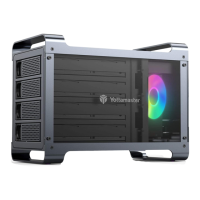
The Yottamaster Y-Defender Series enclosures are designed to house multiple SATA hard drives, providing external storage solutions with various RAID capabilities. These devices allow users to combine multiple hard drives into a single logical unit, enhancing data performance, redundancy, or capacity depending on the chosen RAID mode. The enclosures support both 2.5" and 3.5" SATA hard drives, making them versatile for different storage needs. They connect to a computer via a USB3.0 interface, ensuring high-speed data transfer. The primary function is to provide a robust and flexible external storage system for data backup, archiving, and high-performance applications.

The enclosures come in two main configurations: 4-bay (DF4U3, DF4RU3) and 5-bay (DF5U3, DF5RU3), allowing for scalable storage solutions. Each bay is equipped with an LED indicator to show the status of the individual hard drives. A power switch controls the device's operation, and a SET button is used in conjunction with RAID switches for configuring different RAID modes. Cooling holes are integrated into the design to ensure optimal operating temperatures for the enclosed hard drives, contributing to their longevity and stable performance.

Usage Features

Hard Drive Installation: The installation process is straightforward, demonstrated with the DF4RU3 model. It involves sliding a black button to release the tray door, pulling out the tray, inserting either a 2.5" or 3.5" SATA hard drive, and securing it with screws. For 2.5" drives, four smaller screws are used at the bottom, while 3.5" drives are fixed with four screws on both sides. Once the drive is secured, the tray is reinserted into the enclosure, and the door is closed to complete the physical installation.

Connection: The enclosure requires a direct connection to a computer or laptop using the provided data cable (avoiding USB hubs) and an effective power supply via the power cable. This ensures stable operation and data transfer.

Hard Drive Formatting: New hard drives must be initialized and formatted before they can be recognized and used by the computer. The guide provides detailed steps for both Microsoft Windows and Mac OS.

  • Windows: Users need to access "Disk Management" via "Computer Management," where a pop-up will prompt initialization. Users can choose between MBR (for drives less than 2TB) or GPT (for drives larger than 2TB) partition types. After initialization, users right-click on the unallocated drive to create a "New Simple Volume," set its size, assign a drive letter, and format it with a chosen file system (NTFS or FAT32) and volume label. A quick format is recommended.
  • Mac OS: Users open "Disk Utility," right-click on the drive, and select "Erase." They can rename the drive and select "APFS" as the partition type. For partitioning, users select the erased drive, click "Partition," choose "APFS" partition type, customize the volume name and size, and then click "Apply."

RAID Configuration: The Y-Defender Series supports various RAID modes, which are configured using physical switches and the SET button. It's crucial to prepare at least two hard drives for RAID setup and to back up all data before changing RAID modes, as this will erase all files.

  • Setting RAID Modes: The default mode is PM (Normal). To set a RAID mode, users toggle the "RAID control switch" to the desired mode, then hold the "SET" button while powering on the enclosure. The RAID mode is successfully set after approximately 15 seconds. The HDD or HDD group will then be displayed on the computer, ready for initialization, partitioning, and formatting.
  • Changing RAID Modes: To change modes, first switch back to PM (Normal) mode by turning off the enclosure, setting the RAID control switch to "Normal," holding the "SET" button, and powering on. After confirming it's in PM mode, turn off the enclosure and then follow the steps for setting a new RAID mode.

RAID Modes and Descriptions:

  • RAID 0 (Quick Mode): Combines the capacity of all hard drives and speeds up read/write operations. (Switch setting: Down-Down-Down-Up)
  • RAID 1 (Mirror Mode): Provides data redundancy. If one hard drive fails, data can still be recovered from the other. (Switch setting: Down-Down-Up-Up)
  • RAID 3: Offers better data security. (Switch setting: Down-Up-Up-Up)
  • RAID 5: Balances data safety with maximum capacity utilization. (Switch setting: Up-Down-Up-Up)
  • RAID 10: Combines the data security of RAID 1 with the high-speed read/write of RAID 0, suitable for high-security requirements. (Switch setting: Down-Down-Up-Up)
  • PM/Normal (Default Mode): All hard drives operate independently without forming a RAID array. (Switch setting: Up-Up-Up-Up)
  • SPAN/JBOD: Bundles all hard drive capacities together. Data will be lost if one drive fails. (Switch setting: Down-Up-Down-Up)

Auto-sleep Function: The device automatically enters sleep mode if there's no data processing for ten minutes, stopping hard drive operation. Users can adjust or cancel this auto-sleep time by downloading specific firmware from the Yottamaster website and following the provided instructions. Note that firmware updates are not supported on Mac OS and Linux systems.

Maintenance Features

Removing Hard Drives: Proper removal of hard drives is essential to prevent data loss.

  • Windows OS: Stop read/write operations, click the USB icon on the taskbar, and select the drive to eject.
  • Mac OS: Stop read/write operations, drag the drive to the Recycle Bin to complete ejection.

Replacing a Hard Drive: The guide outlines procedures for replacing a hard drive, whether due to damage or an upgrade.

  • PM (Normal) Mode: Identify the faulty drive, eject it, power off the enclosure, pull out the drive, format the new drive on another device, insert the new drive (same or larger capacity) into the original position, and power on the enclosure.
  • RAID Mode (Rebuilding RAID): Identify the faulty drive, eject it, power off the enclosure, pull out the drive, format the new drive on another device, insert the new drive (same or larger capacity) into the original position, and power on the enclosure. The enclosure will automatically start rebuilding the RAID mode, indicated by flashing red and blue lights. The rebuilding time depends on the total capacity of all drives. Once complete, the light will turn solid blue, and the RAID Manager software will indicate the status.

Adding a New Hard Drive: Steps vary depending on whether the enclosure is in PM (Normal) or RAID mode.

  • PM (Normal) Mode: Safely eject and turn off the enclosure. If the new drive is brand new, format it on another device first. Insert the new drive without changing the drive order.
  • RAID Mode: Back up all important data. Safely eject and turn off the enclosure. If the new drive is brand new, format it on another device. Insert the new drive without changing the drive order. Toggle the RAID switch to PM (Normal) mode, press and hold the SET button, then press and release the Power button to turn it on (ensuring it's in PM mode). Finally, turn off the enclosure and toggle the RAID switch back to the desired RAID mode.

Tech Support and Official Web: For any issues or further assistance, users can contact Yottamaster tech support at supports@yottamaster.com or visit their official website at www.yottamaster.com for additional resources and software downloads.

Yottamaster DF5U3 Specifications

General IconGeneral
InterfaceUSB 3.0
Drive Bays5
Power SupplyExternal Power Adapter
ColorBlack
UASP SupportYes
CompatibilityWindows, macOS, Linux
Supported Drive Types2.5"/3.5" SATA HDD/SSD
MaterialAluminum
RAID0, 1, 10, JBOD
CoolingBuilt-in cooling fan

Related product manuals