Need help?
Do you have a question about the Yottamaster PS500C3 and is the answer not in the manual?
Visual layout and component identification for the Y-Pioneer Series 1-Bay enclosure.
Visual layout and component identification for the Y-Pioneer Series 2-Bay enclosure.
Visual layout and component identification for the Y-Pioneer Series 4-Bay enclosure.
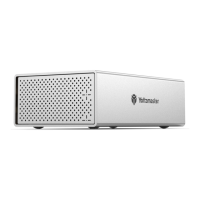
Visual layout and component identification for the Y-Pioneer Series 5-Bay enclosure.
Steps to connect the enclosure to power and a computer for operation.
Requirement to format new drives for system recognition.
Procedure for configuring RAID modes via hardware switches.
Instructions for switching between different RAID configurations.
Explanation of RAID 0, RAID 1, RAID 3, and RAID 5 modes.
Details on RAID 10, PM/Normal/Clear-RAID, and SPAN/JBOD modes.
Safe methods for ejecting drives from Windows and Mac OS.
Guide for replacing drives in PM (Normal) and RAID modes.
Steps for inserting and configuring a new drive into the enclosure.
How to modify sleep settings using firmware updates.
Step-by-step guide for initializing and formatting drives in Windows.
Step-by-step guide for initializing and formatting drives in Mac OS.
This document outlines the features, installation, and maintenance of the Yottamaster Y-Pioneer Series, a range of external hard drive enclosures designed for various storage needs. The series includes 1-bay, 2-bay, 4-bay, and 5-bay models, offering flexibility for individual users and professionals alike.
The Yottamaster Y-Pioneer Series enclosures serve as external housings for 2.5" and 3.5" SATA hard drives, connecting them to a computer via USB 3.0 or Type-C interfaces. Their primary function is to expand storage capacity, provide data backup solutions, and facilitate data transfer. Depending on the model, these enclosures can operate in various RAID (Redundant Array of Independent Disks) modes, offering enhanced data security, improved performance, or a combination of both.
The 1-bay models (PS100U3, PS100C3) are straightforward external drive enclosures, ideal for single drive applications such as personal backups or portable storage. They feature a simple door mechanism for easy drive installation, a USB 3.0 or Type-C interface for connectivity, a power switch, a DC input, and an LED indicator to show operational status. These models prioritize simplicity and direct access to a single hard drive.
The multi-bay models (2-bay: PS200U3, PS200C3, PS200RU3, PS200RC3; 4-bay: PS400U3, PS400C3, PS400RU3, PS400RC3; 5-bay: PS500U3, PS500C3, PS500RU3, PS500RC3) extend functionality by allowing multiple hard drives to be housed and managed within a single unit. A key feature of the "RU3" and "RC3" variants in the multi-bay series is their support for RAID configurations. These models include additional controls such as a RAID button and a SET button, which are crucial for configuring and managing the RAID modes. The LED indicators on these multi-bay units provide visual feedback on the status of individual drives and the overall RAID array, including potential errors or rebuilding processes.
The RAID functionality allows users to combine multiple drives into a single logical unit, offering different benefits:
The enclosures are designed to be compatible with both Windows and Mac operating systems, ensuring broad usability across different computing environments.
The Yottamaster Y-Pioneer Series emphasizes ease of use, from hard drive installation to RAID configuration and drive management.
Hard Drive Installation: The installation process is designed to be straightforward. For all models, users simply press the right center of the door to open it, pull out the disk tray, insert either a 2.5" or 3.5" SATA hard disk into the tray, and secure it with screws. The tray is then reinserted into the enclosure, and the door is closed to complete the physical installation. This tool-less or minimal-tool design simplifies the process for users of all technical levels.
Connection: Once drives are installed, connecting the enclosure to a computer is simple. The power adapter or AC power cable is connected to the enclosure and a power source, and the data cable (USB 3.0 or Type-C) is connected to the enclosure and a compatible port on the computer. The device is then ready for use.
Hard Drive Formatting: For new hard drives, initialization and formatting are necessary for the computer to recognize them. The manual provides detailed steps for both Microsoft Windows and Mac OS, guiding users through the process of creating new volumes and assigning drive letters. This ensures that even novice users can prepare their drives for use.
RAID Setup: Setting up RAID modes on the "RU3" and "RC3" models involves a combination of physical switch toggling and button presses. Users select the desired RAID mode using the "RAID control switch," then press and hold the "SET" button while powering on the enclosure. This hardware-based RAID configuration simplifies the process by eliminating the need for complex software interfaces for basic setup. For more advanced management, RAID Manager software is available for download, though it has specific OS compatibility notes (e.g., not compatible with Mac OS 11 and above for certain models).
Changing RAID Modes: The process for changing RAID modes is similar to the initial setup, requiring the enclosure to be turned off, the RAID control switch to be adjusted, and the "SET" button to be held while powering on. A critical notice emphasizes the importance of backing up all data before changing RAID modes, as this action will erase all files on the hard drives.
Drive Removal: The manual provides clear instructions for safely removing hard drives from both Windows and Mac OS, emphasizing the importance of stopping read/write operations and ejecting the drive through the operating system's interface to prevent data corruption.
Adding New Drives: For multi-bay enclosures, adding a new hard drive is supported. In PM (Normal) mode, users can simply format the new drive on another device and insert it. For RAID modes, the process is more involved, requiring data backup, safe ejection, formatting the new drive, and potentially reconfiguring the RAID mode, highlighting the importance of careful planning.
Auto-sleep Functionality: The enclosures feature an auto-sleep function, where the device enters sleep mode after ten minutes of inactivity, stopping hard drive operation to conserve power and extend drive lifespan. Users have the option to cancel or adjust this auto-sleep time by downloading specific firmware updates from the Yottamaster website, although this feature has OS limitations (e.g., not supported on Mac OS).
The Yottamaster Y-Pioneer Series includes features and guidelines that contribute to the longevity and reliability of the device and the data it stores.
Data Backup Emphasis: Throughout the manual, there is a strong emphasis on the importance of timely data backup, particularly before performing operations that could lead to data loss, such as changing RAID modes or replacing drives in a RAID array. This proactive advice helps users protect their valuable information.
RAID Rebuilding: In RAID modes that offer redundancy (RAID 1, RAID 3, RAID 5, RAID 10), the enclosure supports automatic RAID rebuilding if a drive fails. The manual describes the process: identifying the faulty drive, safely ejecting it, inserting a new (formatted) drive of the same or larger capacity, and then restarting the enclosure. The enclosure will then automatically begin rebuilding the RAID array, with visual indicators (flashing red and blue lights) and, for compatible models, status updates via the RAID Manager software. This automatic rebuilding capability minimizes downtime and ensures data integrity even in the event of a drive failure.
Clear Indicator Lights: The LED indicators on the enclosures serve as crucial maintenance tools. They provide immediate visual feedback on the operational status of the device, individual hard drives, and RAID array processes. For instance, a red indicator light or an audible beep can warn users of a damaged drive, prompting them to take corrective action. During RAID rebuilding, the flashing red and blue lights clearly signal that the process is underway.
Firmware Updates for Customization: The availability of firmware updates, such as those for adjusting or canceling auto-sleep time, demonstrates a commitment to allowing users to customize the device's behavior to suit their specific needs. While these updates may have OS limitations, they offer a way to fine-tune the enclosure's power management features.
Troubleshooting Guidance: The "Frequently Asked Question" section addresses common scenarios like replacing a hard drive or adding a new one, providing step-by-step guidance for both PM (Normal) and RAID modes. This section acts as a self-help resource, empowering users to resolve minor issues without needing to contact support immediately.
Dedicated Tech Support: The inclusion of contact information for tech support (supports@yottamaster.com) and the official website (www.yottamaster.com) ensures that users have access to assistance for more complex issues or when troubleshooting steps in the manual are insufficient. This provides a safety net for users, knowing that expert help is available.
In summary, the Yottamaster Y-Pioneer Series offers a robust and user-friendly solution for external data storage, with a focus on flexible RAID configurations, easy installation, and features designed to maintain data integrity and device longevity.
 General
| Color | Black |
|---|---|
| Transmission Rate | Up to 10Gbps |
| Installation | Tool-free |
| Capacity | Up to 2TB |
| Supported System | Windows, macOS, Linux |
| Storage Temperature | -20°C to 70°C |
| Power Supply | USB Bus-powered |
| Material | Aluminum |
| Interface | USB3.2 Gen2 Type-C |
| Supported SSD | M.2 NVMe SSD |
| Operating Temperature | 0°C to 40°C |
| Ports | USB Type-C |


 To Next Page