EasyManua.ls Logo

Zavio B5110 - User Manual

Zavio B5110
13 pages
Print Icon
To Next Page IconTo Next Page
Loading...
Zavio B5110 Quick Installation Guide
Please follow the installation steps below to set up your B5110 Outdoor 15M IR IP Camera.
Check the package contents against the list below. See P.1
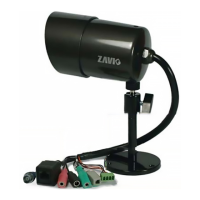
Physical overview. See P.1
Install the hardware and connect all cables. See P.2
Microsoft OS: Use the software CD to install Intelligent IP Installer. See P.2
Access the IP Camera using Intelligent IP Installer. See P.3
Mac OS using Safari Browser. See P.5
Change lighting environment setting. See P.5
Change the Web Interface into your preferred language. See P.6
Use IP Camera via Mobile Phone. See P.6
Windows Live Messenger Setting. See P.6
Access to Internet via Static IP, Dynamic IP or both. See P.8
Application of IP Camera. See P.10
For more information, please check the User Manual available in the Software CD or you can download the latest
software from http://www.zavio.com
Package Contents
Camera
B5110 Outdoor 15M IR IP Camera
Quick Installation Guide
Brief product information and quick installation
Software CD
IP Surveillance Software
Intelligent IP Installer
User Manuals
Language Packs
Mounting Bracket
Three screws, Lock ring, Brace, and Base plate
Adaptor
12V DC, max 6W
Physical overview
Alarm Out Alarm In
Infrared LEDs
IR Houisng
I/O Terminal Block
Network Connector
Video Out
Audio In
Reset button
12V Power
Audio Out
Reset: When the device is empowered, press the Reset Button to reboot the device, or hold the Reset Button for 10
seconds to set the settings back to factory default.
1
Question and Answer IconNeed help?

Do you have a question about the Zavio B5110 and is the answer not in the manual?

Summary

Package Contents

Physical Overview of Zavio B5110 Camera

Hardware Installation and Cable Connection

Wall and Ceiling Mounting

Steps for securely mounting the camera, using screws and adjusting the angle with a lock ring.

Connecting Network and Power Cables

Instructions for connecting the IP camera with PoE or a power adapter and network cable.

Install Intelligent IP Installer (Microsoft OS)

Access IP Camera with Intelligent IP Installer

Configure Browser Internet Properties

Adjusting security and privacy settings, including pop-up blocker, for proper camera access.

Launch and Select Camera in Installer

Opening the installer application and selecting the camera from the detected device list.

Login to IP Camera Interface

Entering username and password to access the IP camera interface; default credentials are admin/admin.

View Live Video Feed via Browser

Install ActiveX Control for Live View

Installing the necessary ActiveX control via the browser's information bar for live video streaming.

Confirm Live Video Display

Verifying that the IP camera's live video is successfully displayed in the web browser.

Access IP Camera via Mac OS Safari Browser

Use Bonjour Function for Camera Discovery

Utilizing the Bonjour function in Safari to find and select the camera for network access.

Login and Monitor Camera Feed

Entering login credentials to access the IP camera and view the live monitor image.

Adjust Lighting Environment Setting

Change Web Interface Language

Mobile Phone Access for IP Camera

iPhone Access via Safari

Accessing the IP camera using iPhone Safari by entering the IP address and login credentials.

3 G Mobile Phone Video Streaming

Streaming live video on 3G phones using RTSP format with camera IP and RTSP port.

2.5 G Mobile Phone Viewing Options

Viewing the IP camera on 2.5G phones via WAP or browser using specific URL formats.

Windows Live Messenger Integration

Enable Messenger Feature in Settings

Activating the Messenger option within the camera's network settings to enable integration.

Configure Messenger Account and Login

Setting up a dedicated MSN Messenger account for the camera and configuring its login details.

View Camera Webcam via MSN Chat

Initiating a webcam view from MSN Messenger to see the IP camera's live feed and access its control panel.

Internet Connectivity Configuration (DHCP;PPPoE)

Configure DHCP for Internet Access

Setting up the camera for internet access using DHCP by inputting IP, subnet mask, and gateway.

Configure PPPoE for Internet Access

Setting up internet access via PPPoE by entering ISP username and password for a direct connection.

Internet Connectivity Configuration (UPnP;Port Forwarding)

Enable UPnP for Automatic Network Access

Activating UPnP on compatible routers for automatic camera detection and access.

Manual Port Forwarding Setup

Configuring port forwarding on non-UPnP routers for external IP camera access.

IP Camera Application Scenarios

Overview

The Zavio B5110 is an outdoor 15M IR IP camera designed for surveillance and monitoring across various environments. This device offers a comprehensive set of features for installation, configuration, and remote access, making it suitable for both personal and professional security applications.

Function Description

The primary function of the Zavio B5110 is to capture and transmit video surveillance footage over an IP network. Equipped with infrared LEDs, it provides clear visibility even in low-light or no-light conditions up to 15 meters. The camera supports both Power over Ethernet (PoE) and traditional power adapter connections, offering flexibility in deployment. It integrates with existing network infrastructure, allowing users to access live video streams and manage settings remotely via a web browser or dedicated software.

The camera's core capabilities include real-time video streaming, motion detection, and event-triggered notifications. It can be configured to send alerts and record footage when specific events occur, enhancing its utility as a security device. The Zavio B5110 also features audio input and output, enabling two-way audio communication or audio monitoring, depending on the setup. An I/O terminal block is provided for integrating external alarm devices, such as sensors or sirens, further expanding its surveillance capabilities.

For network connectivity, the camera supports various methods, including DHCP for automatic IP address assignment, static IP configuration, and PPPoE for direct internet access through an Internet Service Provider. It also leverages UPnP (Universal Plug and Play) for simplified network setup with compatible routers, automatically detecting and adding the camera to the network. This ensures that the camera can be accessed from local networks and over the internet, providing remote monitoring capabilities from anywhere.

The Zavio B5110 is designed to be user-friendly, offering an Intelligent IP Installer software for Windows OS that simplifies the initial setup and configuration process. For Mac OS users, access is facilitated through the Safari browser. The device also supports mobile phone viewing, allowing users to monitor their premises on the go via 3G or 2.5G mobile networks using RTSP streaming or WAP/browser access.

Usage Features

The Zavio B5110 offers a range of usage features that enhance its versatility and ease of operation.

Installation and Setup:

  • Physical Mounting: The camera can be wall or ceiling mounted using the supplied screws, base plate, and lock ring, which allows for adjustment of the camera's angle.
  • Cable Connection: It supports both PoE (Power over Ethernet) for simplified cabling and traditional power adapter connections. A standard RJ-45 network cable connects the camera to a hub, switch, or router.
  • Software Installation: For Windows users, the included Software CD contains the Intelligent IP Installer, which guides users through the installation of necessary firmware and software.
  • Initial Access: After installation, the Intelligent IP Installer lists all active camera devices. Users can select their camera and access it via Internet Explorer. Initial login requires a default username and password (admin/admin).
  • Browser Configuration: Before accessing the camera, users are advised to adjust browser security settings, specifically ensuring that pop-up blockers are unchecked and ActiveX controls can be installed. This is crucial for the camera's web interface to function correctly and display live video.

Remote Access and Monitoring:

  • Web Interface: The camera's web interface provides comprehensive control over settings, including image setup, client settings, and system configurations. Live video is displayed directly in the web browser.
  • Language Selection: The web interface language can be changed to the user's preferred language by uploading language packs from the Software CD.
  • Mobile Access: The Zavio B5110 can be accessed via mobile phones. iPhone users can enter the IP address in Safari, while 3G mobile phone users can stream video using RTSP (e.g., rtsp://<IP>:<PORT>/video.3gp). 2.5G mobile phone users can access the camera via WAP (http://<IP>/mobile.wml) or a web browser (http://<IP>/mobile.htm).
  • MSN Messenger Integration: A unique feature allows live video from the IP camera to be displayed via Microsoft Live Messenger. Users can create a dedicated MSN Messenger account for the camera, which then sends its public and private IP addresses to contacts. This enables contacts to view the camera's webcam feed and even access a control panel for snapshot and image setup functions.
  • Internet Connectivity: The camera supports various internet connectivity options:
    • Information Section: Users can manually input IP address, subnet mask, default gateway, and DNS server addresses.
    • PPPoE: For direct internet access, users can configure PPPoE settings with their ISP username and password.
    • UPnP: If the router supports UPnP, the camera can automatically configure port forwarding, simplifying remote access setup.
    • Port Forwarding/Mapping: For routers without UPnP, manual port forwarding or mapping is required to enable internet access.

Image and Environment Settings:

  • Lighting Environment: Users can adjust the lighting environment settings (Auto, 50Hz, 60Hz) to match the country's electrical frequency, ensuring optimal image quality and preventing flickering.
  • Reset Functionality: A reset button on the device allows users to reboot the camera or restore factory default settings by holding it for 10 seconds.

Maintenance Features

The Zavio B5110 incorporates several maintenance-related features and guidelines to ensure its longevity and optimal performance.

  • Housing Integrity: Users are advised not to open the camera housing unnecessarily to prevent moisture from invading the internal components. If the housing must be opened, it should be restored within 5 minutes to minimize exposure.
  • Moisture Management: In cases where fog appears on the lens, indicating internal moisture, the cover of the IP camera should be opened, and the device exposed to a dry environment (50~70℃) for approximately 2 hours to dry the wetted inside. This prevents potential damage to the optics and electronics.
  • Firmware Updates: The device's functionality can be enhanced or issues resolved through firmware updates. While the manual mentions installing firmware via the CD, users are encouraged to download the latest software from the Zavio website (http://www.zavio.com) for up-to-date features and security patches.
  • Factory Reset: The reset button serves as a crucial maintenance tool. Holding it for 10 seconds restores the camera to its factory default settings, which can be useful for troubleshooting configuration issues or preparing the device for a new installation.
  • Software CD Resources: The included Software CD contains not only the Intelligent IP Installer but also user manuals and language packs, providing comprehensive resources for troubleshooting and configuration.
  • Network Configuration Management: The ability to configure various network settings (DHCP, Static IP, PPPoE, UPnP) allows for flexible network integration and simplifies troubleshooting of connectivity issues. If network settings are changed, especially PPPoE, the camera often requires a reboot to apply the new configurations.
  • IP Notification: The IP Notification option, when enabled, allows the camera to send its public and private IP addresses to users, which is particularly useful in environments where IP addresses are dynamically assigned, simplifying remote access management.

By adhering to these installation, usage, and maintenance guidelines, users can ensure reliable and effective operation of their Zavio B5110 IP camera for continuous surveillance needs.

Zavio B5110 Specifications

General IconGeneral
WirelessNo
WeatherproofIP66
Power SupplyDC 12V
Day/NightYes
Video CompressionH.264
Frame Rate30fps
EthernetYes
Minimum Illumination0 Lux (IR on)
Dimensions90mm x 90mm x 90mm