EasyManua.ls Logo

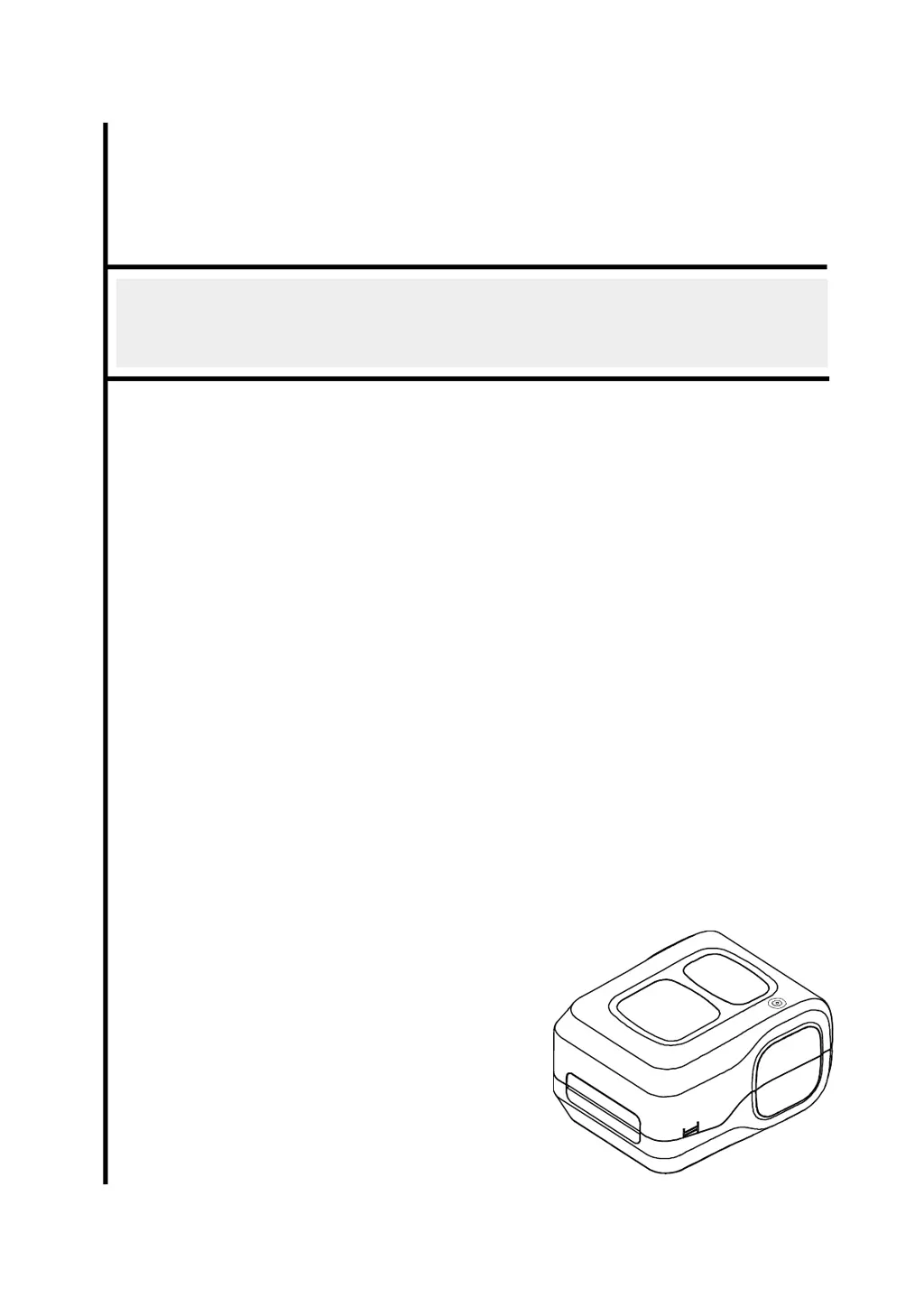
zenpert 4T520 Series - User Manual

zenpert 4T520 Series
33 pages
Print Icon
To Next Page IconTo Next Page
Loading...
i
USERS
MANUAL
4T520/ 4T530 Series
THERMAL TRANSFER/DIRECT THERMAL
BAR CODE PRINTER

Questions and Answers

  • G
    Grant WilsonAug 19, 2025
    Why is my zenpert 4T520 Barcode Reader not printing?
    • B
      Bonnie MooreAug 19, 2025
      If your zenpert Barcode Reader isn't printing, several factors could be the cause: * Ensure the cable is securely connected to the serial, USB interface, or parallel port. * If using a serial port, the cable pin configuration may not be correctly connected; try a new cable. * Verify that the ribbon and media are compatible and that the ribbon's inked side is correctly oriented. * Try reloading the ribbon. * Clean the print head to remove any dust or adhesive accumulation. * Adjust the print density setting if it's incorrect. * Turn off the printer and reconnect the print head's harness connector. * Check your program to ensure there is a PRINT command at the end of the file and that each command line ends with CRLF.
  • M
    Mr. Andrew BrowningAug 21, 2025
    How to improve print quality on zenpert 4T520?
    • B
      barnesemilyAug 21, 2025
      If your zenpert Barcode Reader is producing poor print quality, consider the following: * Ensure that the ribbon and media are loaded correctly. * Clean the print head to remove any dust or adhesive. * Adjust the print density and print speed settings to properly set the printhead pressure.
  • M
    Matthew MontgomeryAug 25, 2025
    Why does my zenpert Barcode Reader skip labels when printing?
    • J
      Jeremy MccoyAug 25, 2025
      If your zenpert Barcode Reader is skipping labels during printing, it might be due to: * Incorrect label size specification. Check if the label size is set up correctly. * Improper sensor sensitivity settings. Calibrate the sensor using Auto Gap or Manual Gap options. * Dust covering the media sensor. Clean the GAP/Black mark sensor with a blower.
  • B
    brandonericksonAug 26, 2025
    What to do if zenpert Barcode Reader power indicator does not illuminate?
    • Z
      Zachary ThompsonAug 26, 2025
      If the power indicator on your zenpert Barcode Reader does not illuminate, check the following: * Ensure the power cord is properly connected to both the printer and the outlet. * Make sure the printer is switched on.
  • R
    robertsmithAug 28, 2025
    Why zenpert 4T520 shows 'Out of Paper' and red LED blinking?
    • C
      Corey AndrewsAug 28, 2025
      If the DiagTool shows “Out of Paper” and the LED is blinking red on your zenpert Barcode Reader, it could be due to: * Running out of labels: Supply a new label roll. * Incorrect label installation: Please refer to the steps on section 3.3 to reinstall the label roll. * Uncalibrated sensor: Calibrate the gap/black mark sensor.
  • D
    Devin ClayAug 30, 2025
    What to do if zenpert 4T520 Barcode Reader shows 'Paper Jam' and red LED blinking?
    • M
      maria18Aug 30, 2025
      If the DiagTool shows 'Paper Jam' and the LED is blinking red on your zenpert Barcode Reader, consider: * The gap/black mark sensor may not be set properly: Calibrate the gap/black mark sensor. * The label size may not be set properly: Set the label size correctly.
  • T
    Travis PriceSep 1, 2025
    Why zenpert 4T520 Barcode Reader shows 'Ribbon End Err' or 'Ribbon Encoder Err'?
    • B
      Bryan PatelSep 1, 2025
      If the DiagTool shows “Ribbon End Err.” or “Ribbon Encoder Err.” and the LED is blinking red on your zenpert Barcode Reader, the problem may be: * Running out of ribbon: Replace with a new ribbon roll. * Incorrect ribbon installation: Please refer to the steps on section 3.2 to re-install the ribbon.
  • M
    Michele AguilarSep 3, 2025
    How to fix incorrect printing position of small label on zenpert Barcode Reader?
    • T
      Terry BurtonSep 3, 2025
      If the printing position of small labels is incorrect on your zenpert Barcode Reader, check the following: * The media sensor sensitivity may not be set properly: Calibrate the sensor sensitivity again. * The label size may be incorrect: Set the correct label size and gap size. * The vertical offset setting in the driver may be incorrect: If using the software BarTender, please set the vertical offset in the driver.
  • J
    Jose GeorgeSep 5, 2025
    Why zenpert 4T520 Barcode Reader shows 'Head Open' and red LED blinking?
    • C
      Carol HendersonSep 5, 2025
      If the DiagTool shows “Head Open” and the LED is blinking red on your zenpert Barcode Reader, the printer carriage is open. Please close the print carriage.
  • D
    Dylan JordanSep 7, 2025
    Why is printing missing on the sides of labels with zenpert 4T520 Barcode Reader?
    • S
      Sylvia HendersonSep 8, 2025
      If printing is missing on the left or right side of the label when using your zenpert Barcode Reader, the wrong label size setup might be the cause. Set the correct label size.

Summary

Agency Compliance and Approvals

Introduction

Product Introduction

Introduces the zenpert bar code printer, its features, and applications.

Product Features

Operations Overview

Unpacking and Inspection

Details the process of unpacking the printer and inspecting its contents and packaging.

Printer Overview

Front View

Identifies and describes the components visible on the front of the printer.

Interior View

Rear View

Setup

Setting up the Printer

Provides step-by-step instructions for connecting and powering on the printer.

Loading the Ribbon

Loading the Media

Loading the Roll Labels

Details the procedure for loading roll labels into the printer.

LED and Button Functions

LED Indicator

Explains the meaning of different LED colors and patterns indicating printer status.

Regular Button Functions

Describes the functions of the printer's button, such as feeding labels and pausing jobs.

Power-on Utilities

Outlines utilities accessed by holding the button during power-on for setup and testing.

Gap;Black Mark Sensor Calibration

Gap;Black Mark Calibration, Self-test and Dump Mode

Printer Initialization

Set Black Mark Sensor and Calibrate

Set Gap Sensor and Calibrate

Skip AUTO.BAS

Diagnostic Tool

Start the Diagnostic Tool

Guides users on how to launch and access the diagnostic software.

Printer Function

Calibrating Media Sensor

Auto Calibration

Explains the automated process for calibrating the media sensor using the diagnostic tool.

Troubleshooting

Common Problems

Lists common issues encountered during printer operation and their solutions.

Maintenance

zenpert 4T520 Series Specifications

General IconGeneral
Resolution203 DPI (8 dots/mm)
Processor32-bit RISC CPU
Print MethodThermal Transfer / Direct Thermal
Max Print Speed152 mm (6") / second
Memory8 MB Flash, 8 MB SDRAM
SensorsTransmissive sensor, Head open sensor
InterfaceUSB, Serial, Ethernet
Max Print Width108 mm (4.25")

Related product manuals