Need help?
Do you have a question about the Zetronix TRURO PRO and is the answer not in the manual?
Instructions and notes for inserting and formatting the memory card before camera use.
Steps for turning the camera on and off using the designated button, including indicator feedback.
Important notes on memory card detection, formatting, and handling for correct camera operation.
Detailed instructions to start and stop video recording, including indicator light signals.
Procedure for capturing still photos with the camera, including button actions and indicator feedback.
Guide to turn camera indicator LEDs on or off, with memory function for the setting.
Instructions to download the '4K Cam' application from app stores for iOS and Android devices.
Steps to enable WiFi mode, locate the camera's hotspot, and connect a smartphone.
Procedure to add the camera device to the '4K Cam' app via Wi-Fi Connect for streaming.
Overview of the app's main sections including preview, settings, and media replay functions.
Guide to browse photos/videos in the memory card and download them to a smartphone.
Three methods to view recorded videos and images: USB, card reader, or 4K Cam App.
Troubleshooting guide for power, playback, charging, and LED indicator problems.
Guidelines for heat dissipation, ventilation, and avoiding damp environments.
User responsibility regarding local laws for video and audio recording.
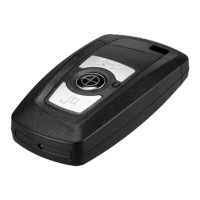
The TRURO PRO zKChain-4K-WiFi is a compact and versatile camera designed for discreet video recording and photo shooting, offering a range of features for various applications. Its design, resembling a car key fob, allows for inconspicuous use, making it suitable for personal security, surveillance, or capturing moments without drawing attention.
At its core, the TRURO PRO is a high-definition camera capable of recording video in 4K UHD (3840x2160 at 25FPS), as well as other resolutions like 2.7K at 30FPS, 1080P at 60FPS or 30FPS, and 720P at 120FPS or 60FPS. It utilizes an IMX 179 SONY 8.0MP sensor with WDR (Wide Dynamic Range) for enhanced image quality, even in challenging lighting conditions. The camera supports a frame rate of up to 120fps, allowing for smooth video capture and potential slow-motion playback.
Beyond video, the device also functions as a still camera, offering photo resolutions up to 30M (30 megapixels), with other options including 20M, 14M, 10M, 7M, 5M, and 4M. The video compression format used is H.264, which efficiently stores high-quality video files.
A significant feature of the TRURO PRO is its Wi-Fi streaming capability, allowing users to connect to the camera via an iOS or Android application. This enables remote viewing, control, and management of recordings and settings directly from a smartphone or tablet. The camera can record continuously in 5-minute sequences when in video recording mode.
Operating the TRURO PRO is designed to be straightforward, with a few key buttons controlling its primary functions. The device features a power on/off button, a shooting/indicator button, and a recording/Wi-Fi mode button. LED indicators (Red, Blue, Yellow) provide visual feedback on the camera's status, such as power, recording, shooting, and Wi-Fi mode.
To begin using the camera, a memory card (Class 10 high-speed, FAT 32GB or above) must be inserted. The device supports up to a 128GB memory card, providing ample storage for extensive recordings.
Powering On/Off: The camera is powered on by holding the power button for 3 seconds, indicated by a vibration and a solid yellow LED. To power off, the same button is held for 3 seconds, followed by another vibration.
Video Recording: Once powered on, pressing the recording button initiates video recording, signaled by a flashing red LED. Pressing it again stops the recording, and the yellow LED returns to solid.
Photo Shooting: After powering on, pressing the shooting button once will capture a photo, accompanied by a vibration and a single flash of the red LED.
Indicator LED Control: The indicator LEDs can be turned on or off. After powering on, holding the shooting button for 3 seconds will turn off all indicators. Holding it again for 3 seconds will turn them back on. The camera retains this setting even after being powered off.
Wi-Fi Mode: To enter Wi-Fi mode, the recording button is held for 3 seconds after powering on. The camera will vibrate, and a blue LED will flash slowly, indicating it's in Wi-Fi mode. Users can then connect to the camera's Wi-Fi hotspot via their phone's settings. The default Wi-Fi account is "WIFI_XXXXXX" and the default password is "1234567890".
APP Integration: The "4K Cam" app, available for both iOS and Android, is essential for utilizing the Wi-Fi features. Users can download the app by scanning a QR code or searching for "4K Cam APP" in their respective app stores. The app allows users to add camera devices, view live feeds, browse photos and videos stored on the memory card, download media to their phone, and adjust camera settings such as white balance, date stamp, frequency, and video resolution. In Wi-Fi mode, the camera exclusively supports shooting and recording through the app, and loop recording is not available. The app will notify the user when the memory card is full.
Time Setting: When connected to Wi-Fi, the camera automatically synchronizes its time with the phone's system time. The time setting only needs to be reset if the battery is completely exhausted.
Media Playback: Recorded videos and photos can be viewed in three ways:
Charging: The TRURO PRO is equipped with a 900mAh built-in lithium battery, providing approximately 50-90 minutes of power life when fully charged. Charging is done by connecting the camera to an external 5V adapter, power bank, or computer using the provided USB cable. While charging, the camera automatically powers on; if not in use, it can be powered off, and the red LED will remain on. A full charge typically takes 2-3 hours. The camera can also operate indefinitely while being charged. A low battery is indicated by the yellow LED flashing for several seconds before turning off.
Memory Card Management: The manual emphasizes the importance of using a Class 10 high-speed memory card and formatting it to FAT 32GB or above before use. If a memory card is not detected or is corrupted, the yellow LED will flash or stay solid, respectively. Formatting the memory card can resolve corruption issues. The app also provides a "Format Camera" option for convenient memory card management.
Reset Function: In cases where the camera is not operating normally, a reset function is available. Users can insert a pin into the reset hole and click the reset button once. This will power off the camera, and after turning it back on, it should operate correctly.
Troubleshooting: The manual includes a troubleshooting section to address common issues:
Precautions: Users are reminded that the device will heat up during video recording, which is normal. It should be used in a well-ventilated environment and not wrapped during use to ensure proper heat dissipation. The device is not waterproof and should be kept away from damp environments, rain, or getting drenched.
Important Reminders: Users are responsible for adhering to local laws and regulations regarding video and audio recording when using the TRURO PRO, as with any photographing and recording equipment.
The TRURO PRO zKChain-4K-WiFi is a sophisticated yet user-friendly device, offering advanced recording capabilities and smart connectivity, all within a discreet form factor.
 General
| Field of View | 130° |
|---|---|
| Two-Way Audio | Yes |
| Audio | Built-in Microphone and Speaker |
| Night Vision | Yes |
| Motion Detection | Yes |
| Storage | MicroSD card (up to 128GB) |
| Connectivity | 2.4GHz Wi-Fi |
| Operating Temperature | -20°C to 50°C |
| Storage Temperature | -20°C to 60°C |

 To Next Page