
 Need help?
Do you have a question about the Zircon MultiScanner and is the answer not in the manual?
Details product coverage, exclusions, and Zircon's responsibilities for defects.
Instructions for returning defective products for repair or replacement, including costs and addresses.
Advises on state-specific warranty rights and limitations on incidental/consequential damages.
Instructions for installing a 9-V battery, including door removal and replacement.
Describes how to turn the MultiScanner on and off using the designated button.
Explains how to use the mode selector switch to choose scanning modes.
Details calibrating and scanning for studs, including positioning and detecting edges.
Outlines the process for calibrating and scanning for metal objects with the device.
Details how to select AC Scan mode, calibrate, and detect hot wires.
Specifies voltage and frequency range detected, and limitations.
Warns about potential detection of wiring/pipes and stud spacing.
Provides advice for scanning through wallpaper, plaster, and ceilings.
States compliance with Class B digital device rules and interference correction.
Solutions for flashing display, error indicators, and missed studs.
Tips for detecting other objects, multiple targets, and AC wire proximity.
Guidance for difficulty detecting metal, wide metal images, and wires near windows.
Indicates low battery status and advises on battery replacement.
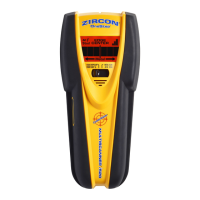
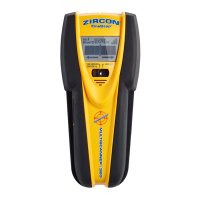
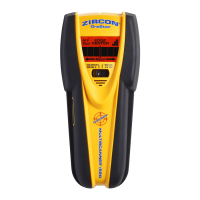
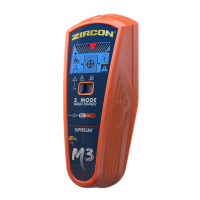
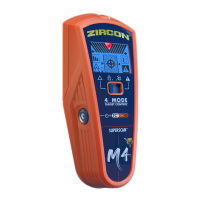
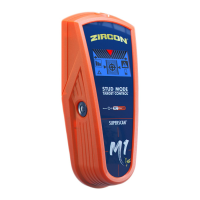
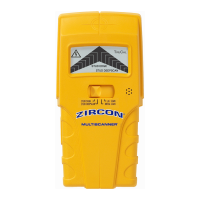
The Zircon MultiScanner® is a versatile handheld device designed to detect studs, metal, and live unshielded AC wiring within walls, floors, and ceilings, as well as rebar in concrete. The MultiScanner® Pro SL model enhances usability with a SpotLite® Pointing System, which projects a beam of light over the edge of a detected stud or near metal/AC objects, aiding in precise marking.
The MultiScanner® operates in four distinct scanning modes: Stud Scan, Stud DeepScan®, Metal Scan, and AC Scan.
To begin, a 9-V battery needs to be installed. This involves pressing down the battery door release with a coin, connecting the battery to the cable, and then replacing the door. A fresh battery typically lasts approximately two years under normal conditions. To power on the device, press and hold the On/Off button located on the left side. Releasing the button turns the device off. The MultiScanner® features an automatic shut-off function after 15 minutes of continuous use to conserve battery life.
Scanning modes are selected using the Mode selector switch. This switch can be operated whether the unit is on or off, allowing users to choose between Stud Scan, Stud DeepScan®, Metal Scan, or AC Scan.
For accurate stud detection, the MultiScanner® must be placed flat against the wall in the desired mode. Press and hold the On/Off button. The TruCal® calibration indicator will appear on the LCD screen, signifying that the device is automatically calibrating, which takes less than one second. It is crucial not to lift or tilt the unit during calibration or scanning.
Once calibrated, slowly slide the unit horizontally across the wall. When a full arrow appears on the LCD and a steady tone sounds, the edge of a stud has been located. This spot should be marked. On the Pro SL model, the SpotLite® Pointing System will illuminate a beam of light at the stud edge. Continue scanning beyond the marked spot until the arrow bars disappear. Without releasing the On/Off button, slide the unit in reverse to locate the other edge of the stud. The middle of the stud is centered between these two marks.
To scan for metal, select Metal mode. Press and hold the On/Off button, then calibrate the MultiScanner® in the air, away from any metal objects, until the TruCal® calibration indicator appears. After calibration, place the MultiScanner® flat on the surface. While holding the On/Off button, slowly move the unit randomly to locate the target. The LCD screen will indicate proximity to metal, with a center arrow pointing to the closest proximity. The Pro SL model will also use its SpotLite® to shine a beam of light at this spot. If the target is wide, reverse the direction to locate and mark the other edge. This helps differentiate between narrow rebar and wider objects like metal studs or junction boxes.
For detecting hot wires, select AC Scan mode. Begin by placing the MultiScanner® at a position away from any suspected hot wiring. While holding the On/Off button, slowly slide the unit across the wall. The AC indicator will appear on the LCD if a hot wire is nearby, and the LCD display will show proximity with a center arrow indicating the closest point. Mark this spot. The Pro SL version will also activate its SpotLite® beam. Continue tracing the wire by observing the indications as the unit moves along other areas of the wall.
Users should always exercise caution when nailing, cutting, or drilling in walls, floors, and ceilings, as these areas may contain electrical wiring or pipes. Studs and joists are typically spaced 16 inches (406 mm) or 24 inches (610 mm) apart and are 1 1/2 inches (38 mm) wide. Any objects found closer together or with different widths may not be studs, joists, or firebreaks. It is always recommended to turn off the power when working near electrical wires.
The MultiScanner® functions normally on walls covered with wallpaper or fabric unless these materials contain metallic foil, metallic fibers, or are wet. In lath and plaster walls, stud detection can be challenging due to plaster thickness irregularities; switching to Metal mode to locate nail heads can be helpful. If plaster has metal mesh reinforcement, the MultiScanner® may not detect anything. For acoustic ceilings with uneven surfaces, placing thin cardboard on the ceiling and scanning over it in DeepScan mode, calibrated with the cardboard in place, is recommended. For wood flooring, subflooring, or gypsum drywall over plywood sheathing, DeepScan mode should be used. The MultiScanner® cannot scan for wood studs and joists through ceramic floor tile or carpeting and pad. In difficult situations, using Metal Scan to locate vertically aligned nails or drywall screws can help pinpoint a stud.
The MultiScanner® comes with a limited 1-year warranty covering defects in materials and workmanship. If a product is found defective within this period, it can be returned to Zircon Corporation for repair or replacement. The warranty covers the electronic circuitry and original case, excluding damage from abuse, unreasonable use, or neglect. For warranty service, the product should be returned freight prepaid with proof of purchase and a handling fee. Out-of-warranty service and repair are available, with charges applied C.O.D.
For further assistance, users can visit the Zircon website and access product support.
 General
| Duplex Scanning | Yes |
|---|---|
| Ultrasonic Double Feed Detection | Yes |
| Detection Technology | Ultrasonic, Infrared |
| Material Detection | Paper, Cardstock, Plastic Cards |
| Power Source | AC Adapter |
| Audio Alerts | Yes |
| Auto-Calibration | Yes |





 To Next Page