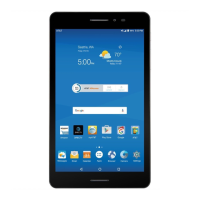
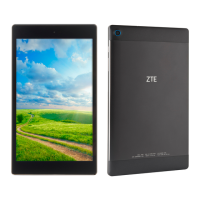
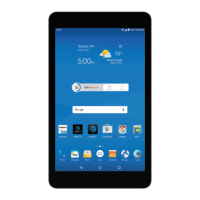
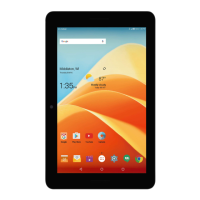
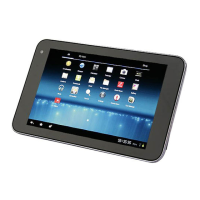
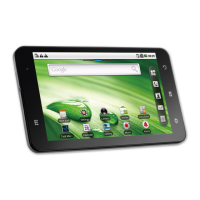
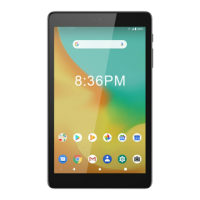
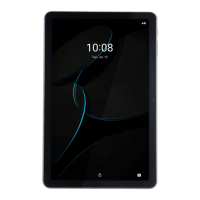
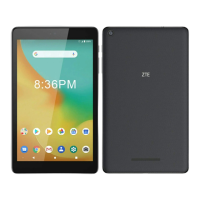
The K92 is a tablet device designed for general use, offering a range of functionalities from basic navigation and communication to entertainment and productivity. It supports a nano-SIM card and a microSDXC card for expanded storage.
Function Description:
The K92 tablet serves as a portable computing device, allowing users to access the internet, manage applications, and engage in various digital activities. It features a touch screen for intuitive interaction and physical keys for essential controls. The tablet is capable of displaying content, playing audio, and capturing images with its front camera. It also includes a DTV key, suggesting support for digital television functionality in certain regions or configurations. The device is designed to be user-friendly, with on-screen prompts guiding initial setup and various gestures for touch screen navigation. It supports wireless connectivity options like Wi-Fi and Bluetooth, enabling internet access and pairing with other devices.
Important Technical Specifications:
- Model: K92
- Version: V1.0
- Edition Time: April 2017
- SIM Card Type: nano-SIM
- Expandable Storage: microSDXC card (not included)
- SAR Limit (FCC): 1.6 W/kg
- Highest Reported SAR Value (near body): 1.20 W/kg
- Operating Temperature Range: Minimum 23 °F (-5 °C) to Maximum 122 °F (+50 °C)
- Charging Port: Charging/USB Type-C™ jack
- Headset Port: Headset jack
- Wireless Connectivity: Bluetooth®, Wi-Fi
- GPS Functionality: Supported
- Audio: Dolby Audio (Manufactured under license from Dolby Laboratories)
- Processor: Qualcomm and Snapdragon (trademarks of Qualcomm Incorporated)
Usage Features:
- Powering On/Off: Press and hold the Power key to turn the tablet on or off. A short press puts the tablet into Sleep mode or wakes it up. For frozen devices, holding the Power key for about 10 seconds forces a power off.
- Initial Setup: Upon first power-on or after a factory reset, users are guided through selecting a language, setting up Wi-Fi, configuring a Google account, and other options.
- Screen Lock/Unlock: Press the Power key to turn the screen off and lock the keys. To unlock, press the Power key to turn the screen on, then press and hold a blank area of the screen. If a pattern, PIN, or password is set, it must be entered.
- Touch Screen Gestures:
- Tap: Select on-screen items, type on the keyboard, or press buttons.
- Press and Hold: Open available options for an item (e.g., message, web link).
- Swipe or Slide: Quickly drag a finger vertically or horizontally across the screen.
- Drag: Press and hold with pressure, then move the finger without releasing to reach a target position.
- Pinch: Zoom in/out in apps like Maps and Gallery by placing two fingers on the screen and pinching them together or spreading them apart.
- Screen Rotation: The screen orientation can automatically change from portrait to landscape by turning the tablet sideways. This feature can be accessed and controlled by sliding down the Status Bar twice and tapping "Auto-rotate."
- Volume Control: The Volume key adjusts the audio output.
- Navigation Keys:
- Home key: Returns to the home screen from any application or screen. Press and hold to access Google Search™ or Google Now™.
- Recent apps key: Displays recently used applications.
- Back key: Navigates to the previous screen.
- DTV Key: Opens a bound application, likely related to digital television.
- Battery Life Extension: Tips include reducing screen backlight time, lowering screen brightness, turning off auto-sync, Wi-Fi, and Bluetooth when not in use, and disabling GPS when not needed.
- Emergency Communications: The tablet should not be relied upon as a primary device for emergency communications.
Maintenance Features:
- Battery Charging: Connect the adapter to the charging jack and then to a standard AC wall outlet. The Status Bar will show a charging icon. Disconnect the charger when fully charged. If the battery is extremely low, charge for at least 20 minutes before attempting to power on.
- Battery Replacement: The built-in rechargeable battery should only be changed by ZTE or a ZTE authorized service provider.
- Accessory Usage: Only ZTE-approved chargers, cables, and accessories should be used to avoid damage or battery explosion. The device should only be connected to CTIA certified adapters or products with the USB-IF logo.
- Care and Handling:
- Keep the device and accessories in a clean, dust-free place.
- Avoid exposure to open flames, lit tobacco products, liquids, moisture, or high humidity.
- Do not drop, throw, bend, or disassemble the device or its accessories. Only authorized personnel should attempt disassembly or repair.
- Do not use harsh chemicals, cleaning solvents, or aerosols for cleaning.
- Do not paint the device or its accessories.
- Avoid contact with anything magnetic to prevent demagnetization.
- Do not touch the SIM card's metal connectors or the antenna unnecessarily.
- Do not short-circuit battery terminals with metallic conductive objects.
- Dispose of used batteries promptly and in accordance with local regulations.
- If the device or battery is dropped, especially on a hard surface, and damage is suspected, take it to a service center for inspection.
- Environmental Considerations:
- Do not dispose of the device in fire.
- Avoid extreme temperatures (outside the 23 °F to 122 °F range).
- Check local regulations for disposal of electronic products.
- Safety Precautions:
- Do not use the device while driving or operating machinery.
- Avoid listening at high volume levels for long periods to prevent hearing damage.
- Keep the device away from pacemakers and other electronic medical devices (maintain a minimum separation of 6 inches from pacemakers).
- Turn off the device in hospitals, medical facilities, aircraft, airports, gas stations, and near explosive materials or liquids.
- Do not place the device in an air bag deployment area.
- Be aware that the device can produce bright or flashing lights, which may affect individuals susceptible to seizures or blackouts.
- To minimize the risk of Repetitive Strain Injury (RSI), press keys lightly, use special features to reduce button presses, and take breaks.
- Supervise children when they use the device.
- Do not carry the device in a back pocket to prevent breakage when sitting.

 Need help?

 To Next Page
 General