EasyManua.ls Logo

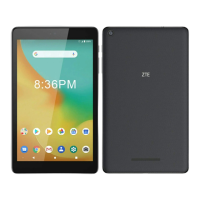
Zte zpad - User Manual

Zte zpad
140 pages
Print Icon
To Next Page IconTo Next Page
Loading...
1
User Manual
U.S. Cellular
®
Customer Service 1-888-944-9400

Table of Contents

Other manuals for Zte zpad

Questions and Answers

  • E
    ejohnsonJul 27, 2025
    What to do if my Zte zpad Tablet cannot be turned on?
    • F
      Franklin AlvarezJul 27, 2025
      If your Zte Tablet can't be powered on, it might be due to a depleted battery. In this case, you should recharge the tablet’s battery. Another potential reason is a malfunction or damage to the 4G LTE nano-SIM card, which requires testing by your service provider. Also, make sure that the 4G LTE nano-SIM card is properly inserted.
  • D
    Derek BradyAug 2, 2025
    What to do if my Zte zpad Tablet is unable to connect to the network?
    • J
      James FloresAug 2, 2025
      If your Zte Tablet is unable to connect to the network, it might be due to an invalid 4G LTE nano-SIM card. Contact your service provider to resolve this. Another reason could be that you are not within the network’s service area; check the service area with your service provider. Poor signal can also cause this issue. Try moving to an open space or closer to a window if you are inside a building.
  • C
    Christopher Howe MDAug 8, 2025
    Why is the reception so poor on my Zte zpad?
    • B
      Brenda UnderwoodAug 8, 2025
      Poor reception on your Zte Tablet can occur if the network signal is weak at your location, such as in a basement or near a tall building. To solve this, move to a location where the network signal can be properly received. It can also happen when the network is busy. In this case, avoid using the device during peak times, or try again after waiting a short time. If you are too far away from a base station, you can request a service area map from your service provider.
  • P
    Pamela AndersonAug 14, 2025
    Why does my Zte zpad have a shortened standby time?
    • L
      Luis LambAug 14, 2025
      Shortened standby time on your Zte Tablet can be related to your service provider system configuration. If you are in an area with a weak signal, temporarily power off the device. A depleted battery or high temperature environments can also shorten battery life, so use a new battery. Also, if the device continues to send out signals as it attempts to locate a base station, this consumes battery power. You can change your location to one where the network is accessible, or temporarily turn off your device.
  • S
    Samantha Davis DVMAug 20, 2025
    Why am I unable to select certain features on my Zte zpad?
    • H
      harrislisaAug 20, 2025
      If you are unable to select certain features on your Zte Tablet, it may be because your service provider does not support these features, or you have not applied for services that provide these features. Contact your service provider. It also may be because the battery or battery charger is damaged. Contact the dealer.

Summary

About This Manual

Copyright Information

Details the copyright ownership and rights reserved for the manual's content.

Notice and Disclaimer

Explains ZTE's right to modify content and disclaims warranties for accuracy.

Getting Started with Your Tablet

Tablet Hardware Overview

Identifies physical components like speakers, cameras, and sensors on the tablet.

Key Functions and Controls

Explains the purpose and operation of physical buttons like Power and Volume keys.

SIM and microSDXC Card Installation

Guides users on inserting and managing SIM and external memory cards.

Battery Charging and Life Extension

Provides instructions on charging the battery and tips for conserving power.

Initial Setup and Screen Management

Covers initial device setup, screen locking, and unlocking procedures.

Touch Screen Gestures and Home Screen

Explains touch gestures and the layout of the device's home screen.

Personalizing Your Device

Display and Sound Customization

Guides on changing system language, date, time, ringtones, and volume levels.

Wallpaper, Brightness, and Security Settings

Covers setting wallpapers, adjusting brightness, and securing the tablet.

Screen Locks and Pinning

Explains how to set up PINs, patterns, and screen pinning for device protection.

Essential Device Operations

Monitoring System Status and Notifications

Explains status bar icons and how to manage incoming notifications.

Quick Settings and Text Input

Covers accessing quick settings and using various keyboard input methods.

Managing Icons, Widgets, and Text

Guides on organizing apps, adding widgets, and editing text on the device.

Connectivity and Data Management

Mobile and Wi-Fi Network Connections

Instructions for connecting to cellular networks and Wi-Fi, including advanced settings.

Bluetooth Pairing and Data Transfer

Details on turning Bluetooth on/off, pairing devices, and sending/receiving data.

Computer and USB Connectivity

Explains how to connect the tablet to a computer using USB for file transfer.

microSDXC Card Usage and Data Sharing

Covers using the card as storage and sharing the device's data connection.

Virtual Private Network Setup

Guides on setting up and connecting to VPNs for secure network access.

Application Usage and Management

Contacts and Account Management

Covers adding, editing, and organizing contacts, plus managing web accounts.

Email and Calendar Functionality

Instructions for setting up and using email accounts and managing calendar events.

Web Browsing and Downloads

Explains how to browse the web, manage tabs, and download files.

Camera, Gallery, and Media Playback

Covers taking photos, recording videos, managing media, and playback features.

Music, Radio, and Sound Recorder

Guides on playing music, using FM radio, and recording audio memos.

App Management and System Settings

Covers managing installed applications and configuring system-wide settings.

System Settings and Configuration

Network, Display, and Sound Settings

Details on configuring Wi-Fi, Bluetooth, display brightness, and sound preferences.

Security, Date, and Language Settings

Covers screen lock options, date/time, language, and input method configurations.

Location, Storage, and Battery Management

Explains how to manage location services, storage, and optimize battery usage.

App, Memory, and User Management

Guides on managing apps, monitoring memory, and configuring user accounts.

System Updates and Backup Options

Covers checking for system updates and managing data backup and reset.

Troubleshooting and Safety Information

Troubleshooting Common Device Issues

Provides solutions for common problems like poor reception or battery issues.

General Safety and Handling Precautions

Outlines essential safety guidelines for using and handling the device.

RF Energy, FCC Compliance, and Interference

Information on radio frequency exposure, FCC rules, and potential interference.

Specific Health and Environmental Warnings

Covers warnings related to distraction, operating machinery, and environmental factors.

Zte zpad Specifications

General IconGeneral
BrandZte
Modelzpad
CategoryTablet
LanguageEnglish

Related product manuals