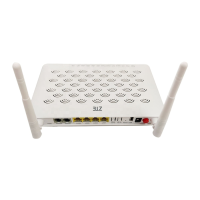
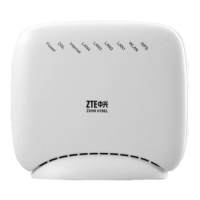
The provided document is a user manual for the ZTE Z1320 Wi-Fi6 Wireless Router. This device is designed to provide wireless internet connectivity and can be configured for various network setups, including a mesh network for extended coverage.
Function Description
The ZTE Z1320 is a Wi-Fi6 wireless router that facilitates internet access and network management. Its primary function is to establish a wireless local area network (WLAN) using the Wi-Fi6 standard, allowing multiple devices such as laptops, mobile phones, and PCs to connect to the internet. The router supports both wired and wireless connections, featuring LAN and WAN ports for physical cable connections to modems, network cable jacks, or other network devices. A key feature of the Z1320 is its ability to be deployed in a mesh network configuration, which extends Wi-Fi coverage across a larger area by using multiple Z1320 routers working in conjunction. It also supports a Repeater mode, enabling it to extend the Wi-Fi signals of an existing router or optical modem. The device is managed through a dedicated mobile application called ZLife Lite, available for both iOS and Android platforms, which simplifies the setup and configuration process. For more advanced configurations, a web-based management interface is accessible.
Important Technical Specifications
While the manual does not explicitly list all technical specifications such as processor speed, RAM, or specific Wi-Fi6 throughput rates, it highlights several important aspects:
- Wi-Fi Standard: Wi-Fi6, indicating support for the latest generation of Wi-Fi technology, which typically offers higher speeds, lower latency, and improved efficiency in dense environments compared to previous standards.
- Connectivity Ports: The device includes LAN1, LAN2, and WAN ports, suggesting multiple Ethernet connections for wired devices and an uplink to the internet. It also features a Power port, Reset button, and WPS button.
- Management Interface: The router can be managed via the ZLife Lite mobile application (for iOS and Android) and a web-based interface accessible at
192.168.50.1.
- Default Login Credentials: For the web interface, the initial username is
admin and the initial password is ZTE_Dipper.
- Wireless Security: When connecting to an existing wireless network in Repeater mode, the manual shows an example of WPA2-PSK-AES encryption, indicating support for robust wireless security protocols.
- Operating Frequencies: An example in the Repeater mode setup shows 5GHz band operation, suggesting the router is dual-band (2.4GHz and 5GHz), which is typical for Wi-Fi6 devices.
- LED Indicators: The router uses LED indicators to show its status, such as solid green for successful configuration and solid blue for successful pairing in a mesh network.
Usage Features
The ZTE Z1320 offers several user-friendly features for installation, configuration, and network expansion:
- Easy Installation: The "Step 1-Install the Device" section illustrates a straightforward physical connection process, involving connecting the router to a power outlet, and then connecting it to a modem or network cable jack via the WAN port. Wired connections for PCs and laptops are also shown using the LAN ports.
- Mobile App Management (ZLife Lite): The ZLife Lite app simplifies the initial setup and ongoing management. Users can download the app, add the device by scanning a QR code on the router's bottom or manually entering Wi-Fi SSID and password, and then follow on-screen prompts for configuration.
- QR Code Setup: For quick device addition, the router features a QR code at its bottom, which can be scanned using the ZLife Lite app.
- Mesh Network Setup: The router supports two methods for setting up a mesh network:
- ZLife Lite App: Users can follow in-app instructions to connect new routers to an existing mesh, with the LED turning solid blue upon successful connection.
- WPS Key: For a more direct approach, users can press the WPS buttons on both the existing and new routers within a minute of each other. The LEDs blinking green and then turning solid blue indicate successful pairing. This allows for flexible placement of additional routers to extend coverage.
- Repeater Mode: The Z1320 can function as a Wi-Fi repeater, extending the range of an existing Wi-Fi network. This can be configured via the web interface by selecting "Repeater" from the Work Mode settings. Both wired and wireless methods are supported for extending Wi-Fi in repeater mode.
- Wired Repeater: Connect the LAN interface of the existing router/modem to the WAN interface of the Z1320.
- Wireless Repeater: Use the WPS key for pairing or manually select the wireless network via the WLAN Discovery page in the web interface, enter the password, and connect.
- Status Indicators: LED indicators provide visual feedback on the router's operational status, such as network configuration completion and successful mesh pairing.
Maintenance Features
The manual outlines basic troubleshooting and maintenance capabilities:
- Troubleshooting Guide: A dedicated "Troubleshooting" section addresses common issues such as the power indicator being off and inability to connect to the network. It provides clear steps to diagnose and resolve these problems, including checking power connections, Ethernet cable connections, and LED indicators.
- Factory Reset: Users can restore the router to its default factory settings by pressing the reset button (typically with a needle) for over 5 seconds after the device is powered on. This is a crucial maintenance feature for resolving persistent configuration issues or preparing the device for a new setup.
- Power Adapter Usage: The manual emphasizes using only the power adapter supplied with the device to ensure proper operation and prevent damage.
- Web-based Advanced Configuration: For more advanced configurations beyond what the ZLife Lite app offers, users can access the web page for router management. The login address and default credentials are provided, allowing for detailed network adjustments.
- Firmware Updates (Implied): While not explicitly detailed, the presence of a web-based management interface typically implies the ability to perform firmware updates, which are essential for security, performance improvements, and new feature additions.

 Need help?
 General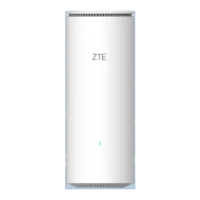

 To Next Page