Need help?
Do you have a question about the Zte ZXHN H167A and is the answer not in the manual?
Read all safety cautions carefully and use only provided accessories.
Ensure proper ventilation, keep device dry, away from heat and magnetic fields.
Power off and unplug before cleaning with a dry cloth.
Describes the indicators on the front panel of the ZXHN H167A.
Shows the interfaces and buttons on the side panel of the ZXHN H167A.
Shows the interfaces and buttons on the back panel of the ZXHN H167A.
Troubleshoot when all indicators are OFF when the equipment is powered ON.
Explains if VDSL2 affects telephone conversation quality or online rates.
Guidance on properly installing telephone extensions or other devices on the VDSL2 line.
Troubleshoot why VDSL2 users may not access the Internet normally.
Reasons for VDSL2 synchronization failure (link down or establishment failure).
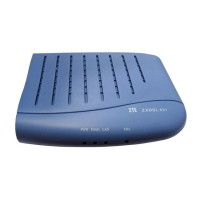
The ZXHN H167A is a VDSL2 access device designed to provide high-speed internet and IPTV services. It supports dual-band concurrent 11ac Wi-Fi, delivering these services to various devices on your home network, including PCs, set-top boxes (STBs), and gaming consoles, through integrated Ethernet and Wi-Fi interfaces.
The primary function of the ZXHN H167A is to act as a gateway for VDSL2/ADSL2+ uplink, enabling broadband internet access and IPTV services. It supports dual-band Wi-Fi, operating on both 2.4 GHz and 5 GHz frequencies, to provide comprehensive wireless connectivity.
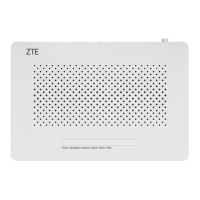
The device features several indicators on its front panel to provide real-time status updates. The "Power" indicator shows whether the device is powered on, off, or undergoing self-detection. A solid green light indicates the device is powered on, while a solid red light suggests self-detection is in progress or has failed. If the light is off, the power is off or not connected.
The "Broadband" indicator reflects the status of the WAN port. If it's off, the equipment is not powered on or the WAN port is disabled. A solid green light signifies that the link is activated.
The "Internet" indicator provides information about the WAN connection. If it's off, no data is detected, and the device is powered off. A flashing green light indicates active data transmission, while a solid green light means the WAN connection is online and the device has a WAN IP address. If the routing connection is up due to PPP dial-on-demand, the green LED remains on. A solid red light on this indicator suggests the WAN connection is dialing up or has failed to get online, or that the device failed to obtain an IP address (e.g., no DHCP response, PPPoE response, or PPP authentication failure).
For wireless connectivity, the device has "2.4GHz" and "5GHz" indicators. If these are off, the respective WLAN RF switch is off. A flashing green light indicates active data transmission on that frequency, while a solid green light means the WLAN RF switch is on.
The "WPS" indicator shows the status of the Wi-Fi Protected Setup function. If it's off, there's no WPS access, or the terminal's WPS access has exceeded 5 minutes. A slow flashing green light indicates that a WLAN terminal is in the WPS accessing process. A fast flashing green light signifies a faulty WPS accessing process for the WLAN terminal, and a solid green light means the WPS function is on.
On the side panel, the device includes "WLAN" and "WPS" buttons. Pressing the "WLAN" button enables or disables the WLAN function, while pressing the "WPS" button enables or disables the WPS function.
The rear panel of the device features several essential interfaces and buttons. An "On/Off" switch controls the power to the device. A "Power" port connects to the power adapter. A "Reset" button allows users to restore factory default settings by holding it for more than 5 seconds during power-on, which then restarts the system automatically. Four "LAN" ports (RJ-45) are available for connecting the modem to computers, STBs, or other network devices. Finally, a "DSL" port (RJ-11) is used to connect to the VDSL2 or ADSL2+ uplink access network.
The ZXHN H167A is designed for ease of use and reliable performance. Its dual-band Wi-Fi capability allows for flexible network setup, accommodating both older 2.4 GHz devices and newer, faster 5 GHz devices. The multiple LAN ports provide wired connectivity options for devices that require stable and high-speed connections, such as desktop computers or gaming consoles.
The WPS function simplifies the process of connecting new wireless devices to the network, eliminating the need to manually enter complex passwords. The clear indicator lights on the front panel allow users to quickly assess the operational status of the device, including power, broadband connection, internet access, and Wi-Fi activity.
For installation, it is recommended to connect the VDSL2 splitter to the telephone cable first, and then connect the phone sets to the splitter interfaces. Connecting a telephone directly before the splitter can lead to connection failures, slow internet speeds, or issues with the ZXHN H167A's connection to the central office. If phone sets must be connected before the splitter, a MicroFilter should be serially connected to minimize interference.
The device is designed to separate voice and data signals using frequency division multiplexing technology, ensuring that phone calls do not affect internet speed or conversation quality.
To ensure optimal performance and longevity, several maintenance guidelines are provided. The device should be placed in a well-ventilated area, away from direct sunlight, heat sources, water, and strong magnetic or electric fields (e.g., microwave ovens, refrigerators). It should be kept dry, and no liquids should be spilled on it. Objects should not be placed on the device to prevent deformation or damage.
For cleaning, the device should be powered off, and all connected cables (power, optical fiber, Ethernet) should be unplugged. Only a soft, dry cloth should be used for cleaning; liquids or sprays are not recommended.
In case of troubleshooting, if all indicators are off when the device is powered on, users should first verify that the power adapter is correctly inserted into a working socket and that the device is switched on. If the indicators remain off, the hardware may be damaged, and users should contact local operators for maintenance rather than attempting to dismantle the equipment themselves.
If VDSL2 users cannot access the internet, it's important to check if the ZXHN H167A is in its normal operational state by observing the indicators. If the device is normal, the issue might be with the computer or application network. If the device is abnormal, the indicators should be checked to identify and resolve the fault. It is also advised to check the VDSL2 telephone cable connectors, ensure the VDSL2 is away from power cables and large electronic devices, confirm no telephone extensions or fax machines are connected between the VDSL2 incoming line and splitter, verify correct splitter installation, and ensure the ZXHN H167A has good heat dissipation.
For VDSL2 synchronization failures (link down), users should check the quality of incoming cables and connectors, ensure correct installation of the ZXHN H167A with minimal taps, and verify the condition of telephone cables and VDSL2 connections. Disconnecting the splitter and directly connecting the ZXHN H167A to the incoming user cable end can help determine if the issue is due to improper installation or line quality. If synchronization is restored, the installation should be re-evaluated. If the problem persists, contacting the operator to check for external line failure or ZXHN H167A failure is recommended. If a splitter problem is identified, the operator should be contacted for maintenance or replacement. Finally, if the issue is due to end office equipment failure, the operator should be called for confirmation. It is also important to note that excessively long connection cables between the splitter and the ZXHN H167A can lead to poor anti-interference performance and synchronization difficulties, so cable length should be minimized.
The device is designed with environmental considerations, encouraging users to reuse or recycle end-of-life equipment through accredited electronics take-back systems to minimize environmental impact and conserve natural resources. It complies with various regulatory standards, including FCC Part 68 for telephone connections and FCC Part 15 for digital devices, ensuring it meets specific technical and safety requirements. The device also adheres to FCC RF radiation exposure limits, requiring a minimum separation distance of 20 centimeters between the radiator and the user's body during operation.
 General
| Device Type | Wireless Access Point |
|---|---|
| Wireless Standards | IEEE 802.11b/g/n |
| Frequency Band | 2.4 GHz |
| Maximum Wireless Speed | 300 Mbps |
| Antenna Type | Internal |
| Antenna Count | 2 |
| Security Protocols | WEP, WPA, WPA2 |
| Firewall | Yes |
| Ethernet Ports | 4 x 10/100Base-T |

 To Next Page