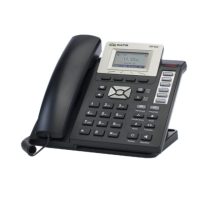
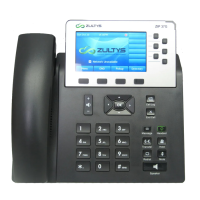
This document serves as a comprehensive reference guide for the Zultys ZIP 36G Business Phone, detailing its various functions, usage features, and basic maintenance aspects. The guide is structured to help users navigate the phone's capabilities efficiently, from making and receiving calls to managing advanced features like call forwarding and conferencing.
The phone's interface is clearly outlined, starting with a "Phone Button Outline" that labels key components. These include "Soft Keys," which are context-sensitive buttons whose functions change based on the phone's current state, displayed on the screen. "Feature/DSS Keys" provide quick access to specific functions or direct station selection. "Navigation Keys" allow users to scroll through menus and lists. Essential controls like "Volume Control," "Transfer," "Redial," and "Send" are clearly marked, along with dedicated buttons for "Call Log," "End Call," "Message," "Headset Key," "Hold," and "Mute." The "Speaker" button activates the speakerphone function.
Placing a Call:
The guide details three methods for placing a call:
- Using the Handset: Users pick up the handset, enter the desired number, and then press the "Send" button or the corresponding soft key.
- Using the Speaker Phone: With the handset on-hook, users enter the number and press the "Speaker" button or the "Send" soft key.
- Using the Headset: If a headset is connected, users press the "Headset" button to activate headset mode, enter the number, and then press the "Send" button or soft key.
Answering a Call:
Similarly, answering calls is straightforward:
- Using the Handset: Simply pick up the handset.
- Using the Speaker Phone: Press the "Speaker" button or the "Answer" soft key.
- Using the Headset: Press the "Headset" button or the "Answer" soft key.
Ending a Call:
To end a call, users can:
- Using the Handset: Hang up the handset or press the "End Call" button/soft key.
- Using the Speaker Phone: Press the "Speaker" button or the "End Call" soft key.
- Using the Headset: Press the "Headset" button or the "End Call" soft key.
Redial:
The redial function offers convenience:
- Pressing the "Redial" button once enters the "Placed Calls" list, allowing users to navigate and select a desired call using the navigation keys and then pressing "Redial" or "Send."
- Pressing the "Redial" button twice when the phone is idle will call the last dialed number.
Call Mute and Un-Mute:
During a call, the "Mute" button allows users to mute the microphone. The message light will flash to indicate that mute is active. Pressing "Mute" again un-mutes the call.
Call Hold and Resume:
To place a call on hold, users press the "Hold" button or the "Hold" soft key during an active call.
To resume a call:
- If only one call is on hold, press the "Hold" button, the "Resume" soft key, or the flashing line key.
- If multiple calls are on hold, users navigate to select the desired call using the navigation keys and then press the "Hold" button, the "Resume" soft key, or the flashing line key.
Call Transfer:
The phone supports two types of call transfer:
- Blind Transfer: During an active call, press the "Transfer" button or "Tran" soft key. The call is placed on hold. Enter the extension or phone number for the transfer destination, then press "Transfer" or "Tran" again. A note specifies that to transfer directly to voicemail, users press "Tran," dial "*86," enter the extension number, and then press "Tran" again.
- Attended Transfer: During an active call, press the "Transfer" button or "Tran" soft key. The call is placed on hold. Enter the extension or phone number for the transfer destination. Press "#." Once the second party is ready, press "Transfer" or "Tran" again to complete the transfer. To cancel a transfer, press the "Cancel" button.
Call Forward:
To enable call forwarding:
- Press the "Menu" soft key when the phone is idle.
- Navigate to "Features" -> "Call Forward."
- Select the desired forward type:
- Always Forward: All incoming calls are unconditionally forwarded.
- Busy Forward: Incoming calls are forwarded when the phone is busy.
- No Answer Forward: Incoming calls are forwarded if not answered after a preset period.
- Enter the extension or phone number to forward calls to.
- For "No Answer Forward," users can adjust the ring time before forwarding using the navigation keys in the "After Ring Time" field.
- Press the "Save" soft key to confirm changes. A forward icon will appear on the screen.
Conference Call:
To initiate a conference call:
- During an active call, press the "Conference" soft key. The current call is placed on hold.
- Enter the extension or phone number of the second party.
- Press "Send" or the "Send" soft key.
- Once the second party answers, press the "Conference" soft key again to join all parties in the conference.
Park and Pickup:
- To park the current call, press the "Park" key. If dedicated "Park" keys are not available, use the "Park" soft key. The "Park ID" will be displayed on the screen.
- To pick up a parked call, press the flashing "Park" key. If dedicated "Park" keys are not available, press the "Pickup" soft key, enter the "Park ID," and then press "Send" or the "Send" soft key.
Voice Message:
When new voice messages are waiting, the "Message" key lights up, and the red status LED flashes. To listen to messages, press the "Message" key and follow the voice prompts.
Volume Adjustment:
- During a call, pressing the "Volume Control" buttons adjusts the receiver volume for the handset, speakerphone, or headset.
- When the phone is idle, pressing the "Volume Control" buttons adjusts the ringer volume.
The guide concludes with contact information for service, including a phone number and email address, ensuring users can get support when needed. This comprehensive overview ensures that users can effectively utilize all the features of their Zultys ZIP 36G Business Phone.

 Need help?
 General

 To Next Page