Need help?
Do you have a question about the Zumimall GX2K and is the answer not in the manual?
Essential steps before connecting the camera, including SD card, Wi-Fi, and router proximity.
Detailed steps for connecting the ZUMIMALL GX2K camera via the mobile app.
How to adjust motion detection sensitivity and related alarm parameters.
Explains how the camera sends alarm notifications upon motion detection.
Instructions for managing recorded video files and alarms.
Setting the time between consecutive alarm notifications to avoid redundancy.
Configuring the duration of video recordings triggered by motion events.
Scheduling specific time periods for the camera to trigger alarms.
How to view and manage multiple ZUMIMALL cameras simultaneously.
Steps for sharing camera access with family members or friends.
Troubleshooting steps for network connectivity problems with the camera.
Instructions for reconnecting the camera to a different Wi-Fi network.
Steps for performing a camera reset to resolve issues.
Guidance on troubleshooting and resolving camera charging problems.
Tips for reducing false motion detection alarms and improving accuracy.
Solutions for when motion is not detected or alarms are not triggered.
Troubleshooting steps when the camera fails to record video upon motion detection.
How to ensure mobile push notifications are received for alarm events.
Troubleshooting for problems playing back locally stored video history.
Solutions for issues related to playing back cloud-stored video recordings.
Steps to troubleshoot and resolve the device going offline.
Tips to improve battery performance and extend usage duration.
Solutions for the ZUMIMALL mobile application crashing or closing unexpectedly.
Troubleshooting steps for problems during ZUMIMALL account registration.
Solutions for problems encountered when sharing the camera with others.
Troubleshooting steps when no sound is heard from the camera during intercom.
Explains and offers solutions for noise during two-way intercom conversations.
Troubleshooting steps for blurry or unclear live video feeds from the camera.
Explains white spots in night vision and how to avoid them.
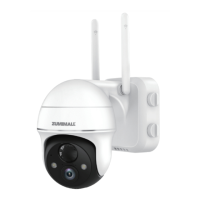
The ZUMIMALL GX2K Pan Tilt Battery Camera is a wireless, outdoor, waterproof, Wi-Fi-enabled security camera designed to enhance your home security. This quick start guide provides comprehensive instructions for setting up, operating, and maintaining your camera, ensuring you get smarter about your security.
The GX2K camera offers robust surveillance capabilities, allowing you to monitor your property with ease. It features a pan-tilt function, enabling horizontal rotation of 355° and vertical rotation of 120°, which you can control directly from the ZUMIMALL application. This wide range of motion ensures comprehensive coverage of your monitoring area, allowing you to adjust the camera's orientation to achieve the best viewing angle.
The camera is equipped with PIR (Passive Infrared) body detection, which triggers alarms and records video clips when motion is detected. This event-recording camera does not support 24/7 continuous recording but focuses on capturing significant events to conserve battery life and storage. When motion is detected, the system reacts by sending alarm notifications with sounds to your ZUMIMALL app, and pictures/videos are automatically stored in a Micro SD card or the cloud.
Two-way audio functionality allows for real-time communication through the camera. By opening the microphone permission in the ZUMIMALL app and long-pressing the intercom button, you can speak through the camera. Releasing the button allows you to listen to speech emitted from the mobile phone, facilitating interaction with visitors or deterring intruders.
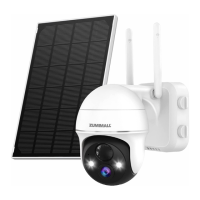
The GX2K camera can be powered by a built-in high-capacity battery, offering 2-3 months of usage based on 15 wake-ups and 10 minutes of video playback per day. For continuous charging and extended operation, the camera is compatible with a solar panel, which converts solar energy into electricity. This feature is particularly useful for outdoor installations where constant power access might be limited.
Setting up the GX2K camera involves a straightforward process. After unboxing, you'll need to download and install the ZUMIMALL app from Google Play or the App Store. Account registration is required to access the app's features. Before connecting the camera, it's recommended to insert a Micro SD card for local video storage or activate the 7-day free cloud service. The camera operates on 2.4GHz Wi-Fi networks and should be placed close to the router (within 10-15ft) during the initial connection for optimal signal strength.
The connection process involves adding the camera to the app, selecting 'Battery Camera,' and following on-screen instructions, which include turning on the camera, resetting it if necessary, inputting your Wi-Fi password, and scanning a QR code displayed on your phone with the camera lens. Once connected, the app provides a 'Network Diagnostic' feature to check Wi-Fi signal strength and offers 'Installation Tips' for optimal placement.
The ZUMIMALL app offers a comprehensive device menu for managing your camera. This includes options for live viewing, accessing device settings, managing messages, exploring albums, and viewing SD card history. You can adjust PIR motion detection sensitivity from 1 to 10, with higher sensitivity leading to longer detection distances but faster battery drain. The app also allows you to set an 'Alarm Interval' to prevent repeated alarms for the same event and configure 'Recording Time' for motion-triggered videos. An 'Alarm Plan' feature enables you to set weekly/daily schedules for when the camera should be active and record alarm videos.
Battery management is crucial for wireless operation. The app will send reminding messages when the power is less than 20%, prompting you to charge the camera. The camera supports multi-device management, allowing you to watch up to four cameras live simultaneously. It also offers multi-user sharing, enabling you to share camera access with others by scanning a QR code or inputting an account ID.
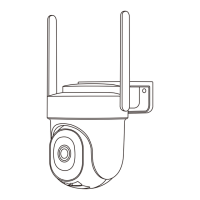
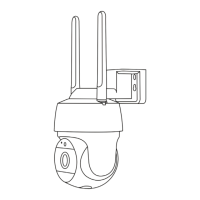
Proper installation and placement are key to the camera's performance and longevity. When installing, fix the bracket to your desired location, fasten the camera, and adjust the viewing angle. It's important to avoid installing the camera vertically towards moving objects, as this may hinder motion detection. Instead, aim for an angle of more than 10 degrees between the PIR sensor and detected objects. The best downward tilt angle for the lens is 15° to achieve optimal alarm detection. Recommended installation height is 8-10 feet above the ground for a detection distance of up to 40 feet.
To minimize false alarms, avoid placing the camera in positions facing strong lights, mirrors, windows, or swimming pools. Keep it away from busy traffic areas and at least 1 meter away from other wireless devices like microwave ovens or Wi-Fi routers to prevent interference.
For solar panel maintenance, ensure there is no blocking on the panel, as even a small obstruction can drastically reduce energy harvesting efficiency. It's advised to install the solar panel angularly to prevent dust and debris accumulation and to wipe it regularly to keep it clean.
If you encounter issues such as being unable to connect to the network, ensure your Wi-Fi is 2.4GHz, check your password for special symbols, and confirm the camera and phone are in the same Wi-Fi environment near the router. For charging issues, use a 5V/2A adapter for 8-10 hours, and ensure the charging cable and power adapter are functional. The charging indicator will be red when charging and blue when fully charged.
For frequent alarm information, reduce motion detection sensitivity, check for objects interfering with the PIR sensor, or enable "Alarm only when people appear" to filter false positives. If alarm videos are not recording, verify the camera is triggered, the Micro SD card is correctly inserted and recognized, or cloud services are active. For issues with alarm pushes, check phone notification settings, enable alarm push in the ZUMIMALL app, turn on push sound in the 'My' interface, ensure motion detection is on, restart your phone, clear cache, and check network connectivity.
If local history playback is unavailable, check the Micro SD card status in settings, reinsert, format, or replace it. For device offline issues, check the camera's power, Wi-Fi network, router, and signal strength. If the camera is far from the router, consider moving the router closer or installing a Wi-Fi extender. If all else fails, delete the camera from the app, reset it, and add it again, ensuring both the device and app are updated.
To address short battery life, reduce motion detection sensitivity, minimize two-way intercom usage and live broadcasts, set alarm intervals and plans, and check for objects triggering the PIR sensor. Be aware that cold weather can reduce battery capacity. If the ZUMIMALL app crashes, re-download the latest version, check your phone's system version, and clear the phone cache.
For account registration problems, ensure the app has access to mobile cellular data and wireless LAN, and that your entered account is unregistered and correctly formatted. Sharing issues may arise if accounts are registered in different countries. If no sound is heard during intercom, open the speaker button in the app, adjust intercom volume, turn on phone media volume, and release the intercom button to listen. For noise during two-way intercom, maintain a certain distance (more than 1-2 meters) between the camera and phone. If live video is blurry, clean the lens, try different resolutions, or re-add the camera after a reset. White spots in night live broadcasts indicate a strong light source directly on the lens; avoid pointing the lens at such sources.
For any further questions or problems, you can contact ZUMIMALL support by providing the camera's SN number and a description of the issue. The SN number can be found in the device information section of the app.
 General
| Two-Way Audio | Yes |
|---|---|
| Battery Capacity | 5200mAh |
| Weather Resistance | IP65 |
| Motion Detection | Yes |
| Night Vision | Yes, up to 33 feet |
| Storage | MicroSD card (up to 128GB), Cloud |
| Connectivity | 2.4GHz Wi-Fi |
| Power Source | Battery-powered |

 To Next Page