2. Press and hold PAIR for 3 seconds to enter pairing mode. LED wil rotate from let to right.
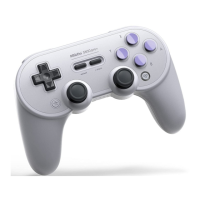
3. Go to your Android devices Bluetooth seting, pair with [8Bitdo SF30 Pro] or [8Bitdo SN30 Proj].
LED will become solid when connection is successful.
4. Controller will auto reconnect to your Android device with the press of START once it has been
paired.
USB Connection: connect the controller to your Android device via USB Cable after step 1.
Windows
1. Press START+X to turn on the controller, LEDs 1.2 will start to blink.
2. Press and hold PAIR for3 Seconds to enter pairing mode. LEDs will rotate from left to right.
3. Go to your Windows devicer Bluetooth setting, pair with [BBltdo SF30 Pro] or [8Bitdo SN30 Pro].
LED will become solid when connection is successful.
4. Controller will auto reconnect to your Windows device with the press of START once it has been
paired.
USB Connection: connect the controller to your Windows device via USB Cable after step 1
macOS
1. Press and hold START+A for l second to power on the controller, LEDs 1.2.3 will start to blink.
2. Press and hold PAIR for 3 seconds to enter pairing mode. LEDs will rotate from left to right.
3. Go to your macOS device’s Bluetooth setting, pair with [Wireless Controller].
LED will become solid when connection is successful.
4. Controller will auto reconnect to your Windows device with the press of START once it has been
paired.
USB Connection: connect the controller to your macOS device via USB Cable after step 1.
T Turbo function
1. Hold the button you would like to set turbo functionality to and then press the STAR button to
activate turbo
functionality.
2. HOME LED will blink when turbo functionality has been applied successfully.
3. All buttons with Turbo functionality activated will cause the HOME LED to blink, showing you that
Turbo
functionality is active on that button.
4. To deactivate turbo function, hold the button with turbo functionality activated press the STAR
button to
deactivate turbo functionality.
The HOME LED will no longer blink if you have successfully disabled turbo
functionality.
Analog sticks are not included.
This does not apply to Switch.
Battery
Status LED indicator
Low battery mode POWER LED blinks
Battery Charging POWER LED stays solid
Battery fully charged POWER LED turns off
Built-in 480 mAh Li-on with16 Hours of play time.



 To Next Page
 Loading...