THIS DEVICE COMPLIES WITH PART 15 OF THE FCC RULES. OPERATION IS SUBJEC
CONDITIONS: (1) THIS DEVICE MAY NOT CAUSE HARMFUL INTERFERENCE AND (2) THIS DEVICE MUST ACCEPT ANY
INTERFERENCE RECEIVED, INCLUDING INTERFERENCE THAT MAY CAUSE UNDESIRED OPERATION.
Federal Communications Commission Requirements
quipment has been tested and found to comply with the limits for Class B Digital Device, pursuant to part 15 of the FCC
Rules. These limits are designed to provide reasonable protection against harmful interference in a residential installation. This
ment generates uses and can radiate radio frequency energy and, if not installed and used in accordance with the
instruction, may cause harmful interference to radio communication. However, there is no guarantee that interference will not
ular installation. If this equipment does cause harmful interference to radio or television reception, which can be
determined by turning the equipment off and on, the user is encouraged to try to correct the interference by one or more of the
Reorient of relocate the receiving antenna.
Increase the separation between the equipment and receiver.
Connect the equipment into an outlet on a circuit different from that to which the receiver is connected.
Consult the dealer or an experienced radio
THE CHANGES OR MODIFICATIONS NOT EXPRESSLY APPROVED BY THE PARTY RESPONSIBLE FOR COMPLIANCE COULD
VOID THE USER’S AUTHORITY TO OPERATE THE EQUIPMENT.
This device complies with Part 15 of the FCC Rules. Operation is subject to the
following two conditions:
(1) This device may not cause harmful interference, and
(2) This device must accept any interference received, including interference that may cause undesired operation.
FCC Radiation Exposure Statement
The equipment complies with
FCC radiation exposure limits set forth for uncontrolled equipment and meets the FCC radio frequency (RF) Exposure Guidelines in
to OET65. The equipment has very low levels of RF energy that it is deemed to comply
without testing of specific
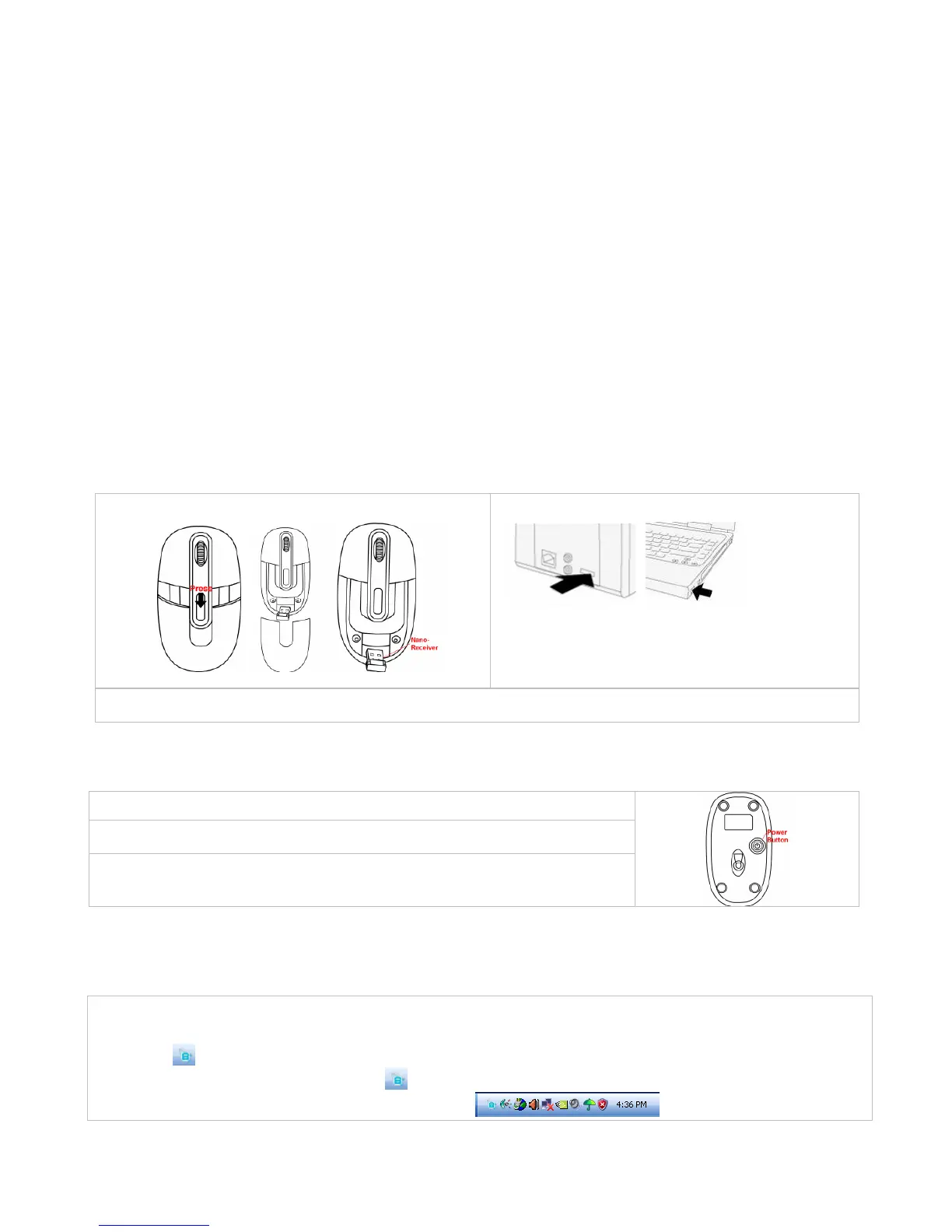
1. Press button on the mouse to remove mouse cover and p
receiver into USB port of your computer or
sure that the positive (+) and negative (
) ends of the battery match the polarity indicators inside the
Power Management of the Mouse
1. To power on the mouse, press the
button for approximate 3 seconds.
button on the bottom of the mouse
activated from sleeping mode easily by moving it around.
river is required. If you
1. Before installing the mouse software, please uninstall any previous
installed mouse software.
Insert enclosed CD to start installati
screen instructions to complete the install
will appear on your desktop,
then you have successfully installed the software.
5. To launch the software, double click the icon
will appear in the taskbar at the right corner of your screen.



 To Next Page
 Loading...