Need help?
Do you have a question about the A4Tech GL-5 and is the answer not in the manual?
Statement on compliance with FCC radiation exposure limits for RF energy.
Explains the 2.4GHz RF wireless technology and its errorless 2-way communication.
Details RF data transmit rate, modulation type, frequency, and ID codes.
Instructions for connecting the receiver and inserting batteries into the keyboard.
Guide to refreshing the ID code for pairing the keyboard and receiver.
Steps to resolve issues if the keyboard is not working, including battery and receiver checks.
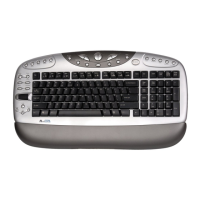
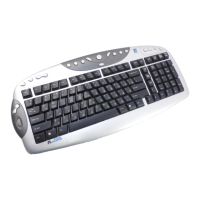
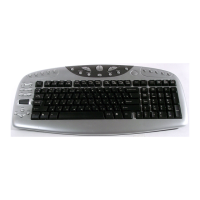
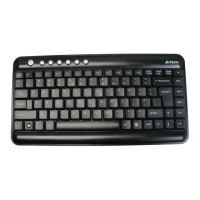
This document describes the A4TECH 2.4G RF Keyboard, model GL-5, a wireless input device designed for use with computers and notebooks. The keyboard leverages advanced 2.4GHz wireless technology to provide a reliable and efficient user experience.
The A4TECH GL-5 is a wireless keyboard that communicates with a computer via a USB receiver using 2.4GHz radio frequency (RF) technology. Its primary function is to allow users to input text and commands into their computer systems without the need for a physical cable connection. This wireless capability offers greater flexibility and reduces cable clutter on the desk. The keyboard is designed for general computing tasks, including typing, navigating operating systems, and executing software commands.
The keyboard incorporates several features aimed at enhancing usability and performance:
2.4GHz Wireless Technology with Errorless 2-Way Communication: This core technology is fine-tuned with an exclusive 1,048,576 ID-codes system. This extensive range of ID codes ensures precise and smooth wireless operation, even in environments where multiple wireless devices are active. It allows many wireless devices to operate simultaneously in the same area without interfering with each other, up to a range of 15 meters. The "Errorless 2-Way Communication Technology" is a significant feature, as it includes error correction capabilities. This not only speeds up data transmission but also increases wireless precision, contributing to a more responsive and reliable typing experience. Furthermore, this efficient communication helps conserve battery power, extending the keyboard's operational life and reducing the frequency of battery replacements.
Wireless Range Optimization: To ensure optimal performance, users are advised to place the USB receiver at least 8 inches (20 centimeters) away from other electrical devices such as computer monitors, Zip drives, or speakers. These devices can generate electromagnetic interference that might affect the wireless signal, potentially impacting the tracking of pointing devices or the overall range of the keyboard. The effective operating distance for the wireless keyboard is up to 15 meters. Maintaining this distance helps ensure optimal communication between the keyboard and the USB receiver. If the cordless device experiences a range of less than 4 meters, it is recommended to replace the batteries with a fresh set and perform the synchronization procedure.
Easy Hardware Installation: Setting up the GL-5 keyboard is straightforward. Users simply plug the USB receiver into an available USB port on their computer or notebook. Once the receiver is connected, the supplied battery needs to be inserted into the keyboard. It is crucial to ensure that the positive (+) and negative (-) ends of the battery match the polarity indicators inside the battery housing. Upon correct battery insertion, the keyboard automatically powers on and is ready for use.
Software Installation and Pairing: The keyboard comes with dedicated software that enhances its functionality. Before installing the keyboard software, any previously installed keyboard software should be uninstalled to prevent conflicts. The software installation process involves inserting the enclosed CD and following the on-screen instructions. Once installed, an icon will appear on the desktop, signifying successful installation. The software can be launched by double-clicking this icon or by navigating through the Start menu (Start -> Programs -> 8 in Right). The icon will also appear in the taskbar at the right corner of the screen for quick access.
ID Code Pairing (Synchronization): While the keyboard's ID code is typically preset at the factory, there are situations where users might need to refresh or re-pair the ID code. This is necessary if the receiver is lost and replaced, or if the keyboard is to be used with a different receiver from the same product series. The pairing process is initiated by right-clicking the software icon in the taskbar and selecting "Pair ID Program." Users then press the "Start Pair ID" button. Following this, the keyboard batteries should be removed and reinserted within 15 seconds. A 6-digit matching code will then be displayed on the menu, confirming successful pairing with the message "Keyboard Pair ID OK." This ensures a secure and unique connection between the keyboard and its receiver.
The A4TECH GL-5 keyboard is designed for relatively low maintenance, but certain practices are recommended to ensure its longevity and optimal performance:
Battery Management: The keyboard operates on batteries, and their condition directly impacts performance. If the wireless range drops below 4 meters, replacing the batteries with a fresh set is the first troubleshooting step. This helps maintain consistent signal strength and responsiveness. The errorless 2-way communication technology is also designed to save valuable battery power, contributing to longer battery life.
Environmental Considerations: To prevent interference and ensure reliable operation, it is important to avoid using the wireless keyboard on a metal desk or a desk with a metal frame. Metals such as iron, aluminum, or copper can shield radio frequency transmissions, leading to slower response times or temporary failures of the keyboard. Maintaining an optimal distance between the keyboard, receiver, and other electrical devices is also a key maintenance practice to prevent electromagnetic interference.
Troubleshooting Guide: The manual provides a simple troubleshooting guide for common issues. If the keyboard is not working, users are advised to:
Software Updates and Uninstallation: Before installing new keyboard software, uninstalling any previous versions is crucial. This prevents software conflicts that could lead to erratic behavior or reduced performance. Keeping the software up-to-date, if updates are provided, can also ensure compatibility with newer operating systems and potentially introduce performance enhancements or bug fixes.
In summary, the A4TECH GL-5 2.4G RF Keyboard is a user-friendly wireless input device that emphasizes reliable connectivity, ease of installation, and efficient power management through its advanced wireless technology. Adhering to the recommended usage and maintenance guidelines will ensure a smooth and productive experience for the user.
 General
| Connection Type | Wired |
|---|---|
| Interface | USB |
| Backlit | Yes |
| Number of Keys | 104 |
| Type | Gaming |
| Special Features | Waterproof |

 To Next Page