5
Connecting the Wireless Mouse ID Code
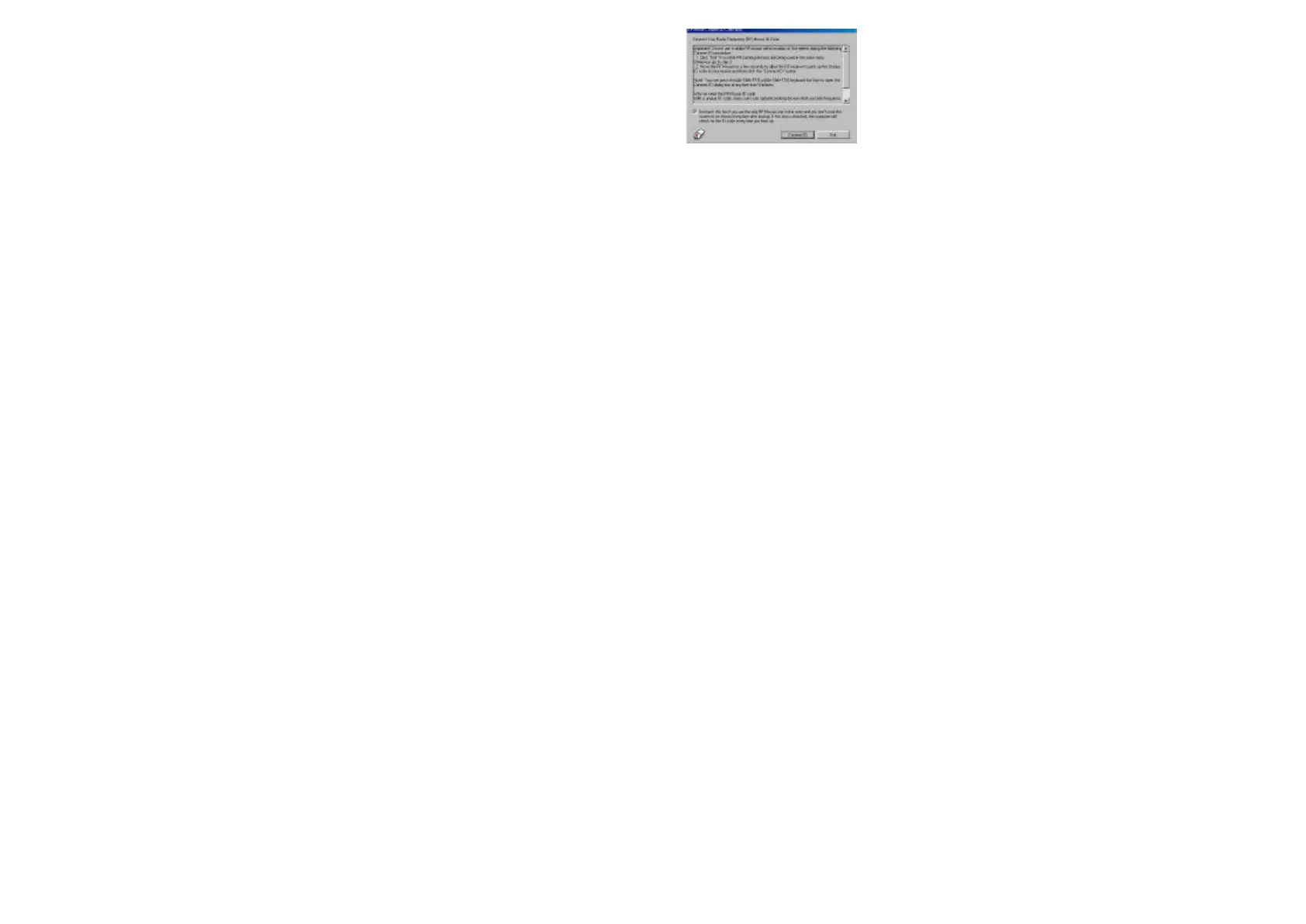
When the driver installation is finished your computer reboots and the Wireless Mouse window (shown on the right)
appears.
CONNECT ID: Move the Wireless Mouse for a few seconds to establish a connection, then click Connect ID. The
unique ID code of your mouse is recognized and another RF pointing device will not function on your computer.
Exit: Click Exit if no other RF pointing devices are within 3 meters range or if you want other RF pointing devices to be
able to access your computer.


 To Next Page