Your RealPad has been designed for ease of use. When you rst turn it on, you will
be guided through a simple set-up process. There are 5 steps with descriptions for
each. Please note: not all steps are required and can be skipped by tapping on the
skip button located at the bottom of each page.
Step 1:
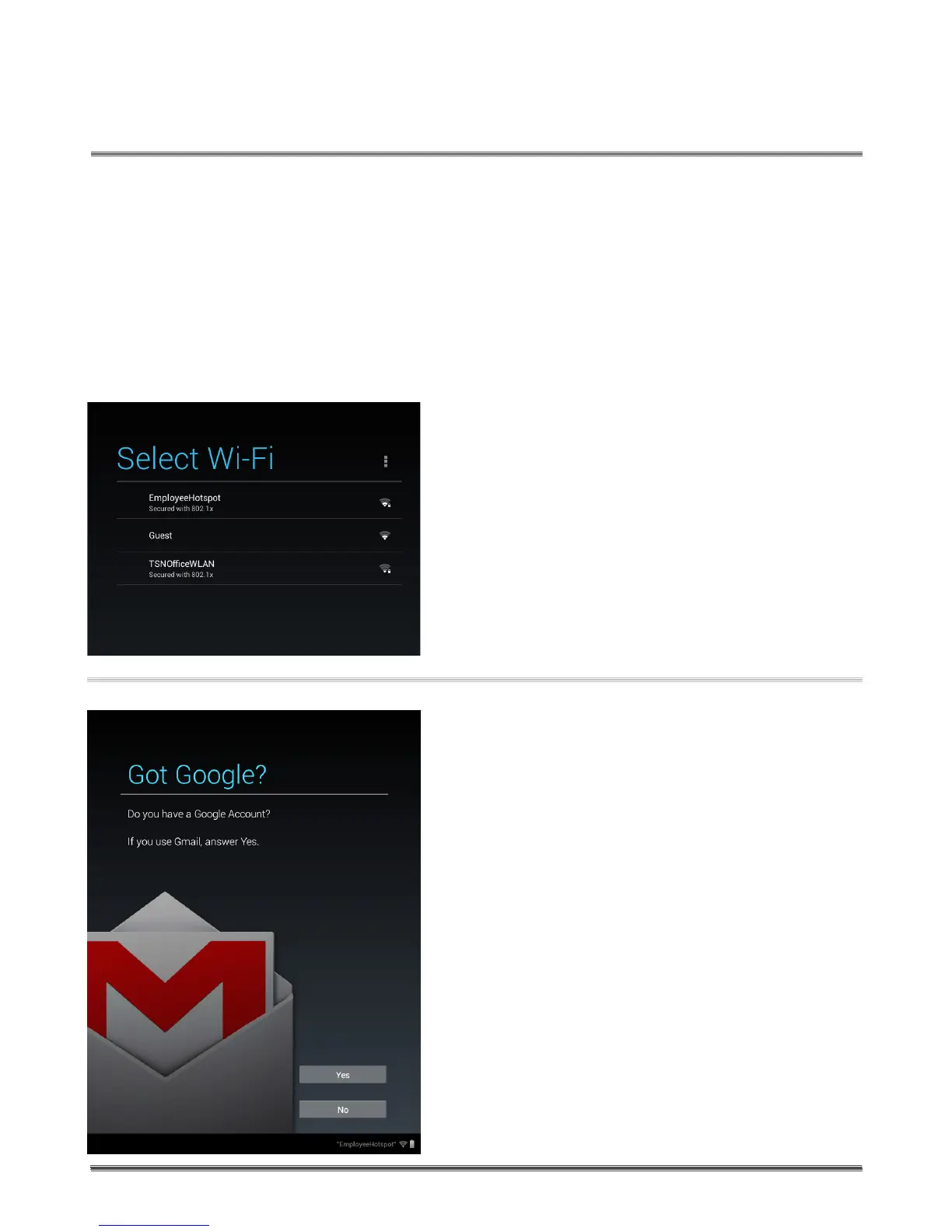
Choose your language and set up your Wi-Fi.
In this step, you will choose your language
and connect to your Wi-Fi network. Choose
your Wi-Fi network from the list of available
networks by tapping on it. Then enter the
password for the network, if required. Not all
Wi-Fi networks require a password. You’ll nd
helpful information about connecting to
Wi-Fi networks in our Real Help Video
“Connecting My Wi-Fi” available in the
Real Help folder on your RealPad.
Step 2:
Set up your Google Account or
connect to an existing Account.
A Google Account is a user account that
provides access to Google-owned services
such as YouTube, Google Hangouts, Google
Documents, Gmail and the Google Play Store.
12
Initial Setup
RealPad
TM
Initial Setup


 To Next Page