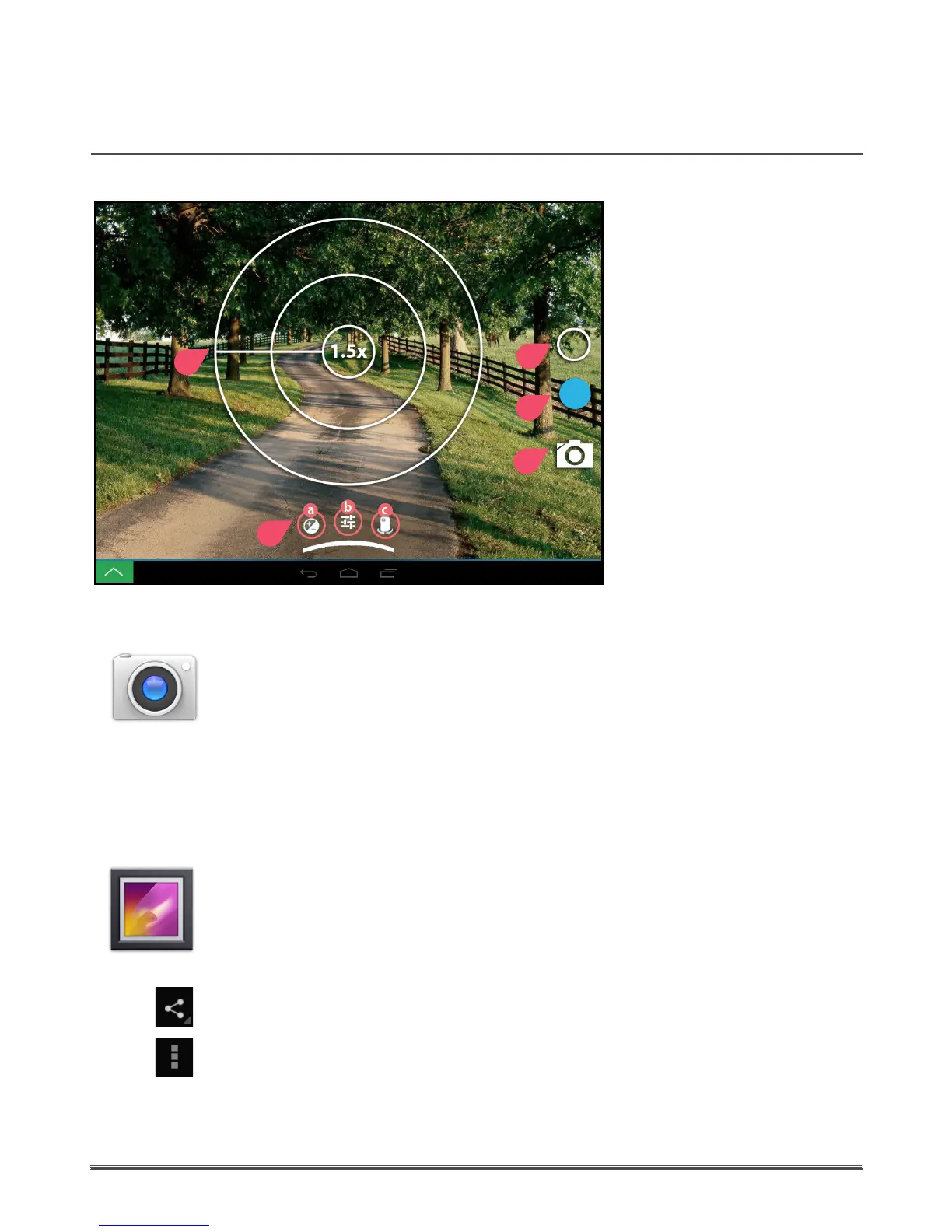
Camera Shortcuts
1. Camera Settings
2. Take Photo/Video
3. Toggle between
Camera & Video
4. Zoom In & Out
(must pinch screen
to show zoom)
5. Camera Features
a. Exposure
b. More Options
c. Switch between
Front/Back Camera
Taking Photos & Videos
1. Point the camera on the back of your tablet at the subject you
want to photograph.
2. Tap the camera icon to take a still image. Tap the video icon
to start to shoot a video. Click the video icon again (now a red
square) to stop lming.
3. To use the zoom feature, simply pinch the screen.
Slide ngers apart to zoom out.
Viewing Your Photos & Videos
To view your photos, tap the Camera & Pictures folder on your Home
Screen. Tap the Gallery icon. Click the photo or video thumbnail you
wish to view or share to bring it full screen. When you view images,
you can zoom in and out by pinching or sliding two ngers apart.
Click the share icon in the upper right hand corner to share it on social
media (Twitter, Facebook, etc.) or to email it to your friends and family.
Click the options icon to delete, edit, crop or set a picture as wallpaper.
RealPad
TM
App Basics - Camera, Photos and Videos
26
App Basics - Camera, Photos and Videos
1
2
3
You’ll nd helpful information about taking and sharing photos and videos in our Real Help Videos
“Photo Basics” and “Video Basics” available in the Help folder on your RealPad.
4
5


 To Next Page