2.Press the【☰】Button to enter the Video Menu.
3.Press the【☰】Button again to enter the Settings Menu.
4.Press the [UP] or [DOWN] button to select the Date/Time
setting option,select【OK】to confirm and press the【OK 】Button.
NOTE:
1.Menus cannot be accessed while the camera is
recording.Please stop the recording before attempting to access
the menu.
2.Once the time and date is set it can be stamped onto your
footage using the Date Stamp setting.Please see section Date
Stamp.
4.Operation Mode
The dash cam operates has 3 modes: Video Recording Mode
/Photo Mode/Playback Mode. Select desired mode by pressing
【
M
】
button.
4.1 Video Recording Mode
When the Car DVR is connected to your vehicle's 12v power
supply,the Car DVR will automatically power up and begin
recording when you start your vehicle. There is a flashing red dot
in the upper left corner of the screen, which means the camera is
recording video. Press
【
OK
】
to stop recording and then the
camera goes to standby mode.
4.1.1 Locked Recording
Locked Recording saves the current video file and protects it
from being overwritten.To manually start a Locked Recording
follow the instructions below.
1.During recording press the
【
M
】
button.
2.To unlock the footage,press the【M】button again.
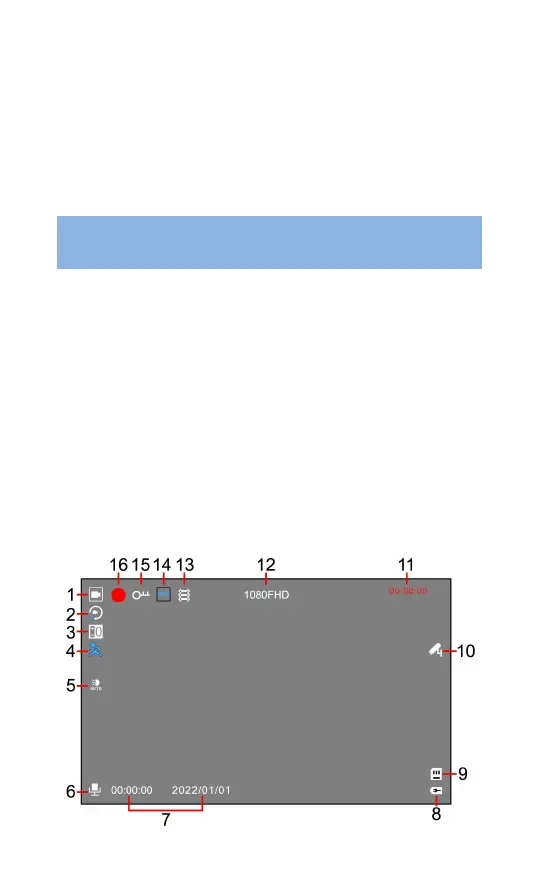
4.1.2 Recording Screen


 To Next Page