4. System Setup
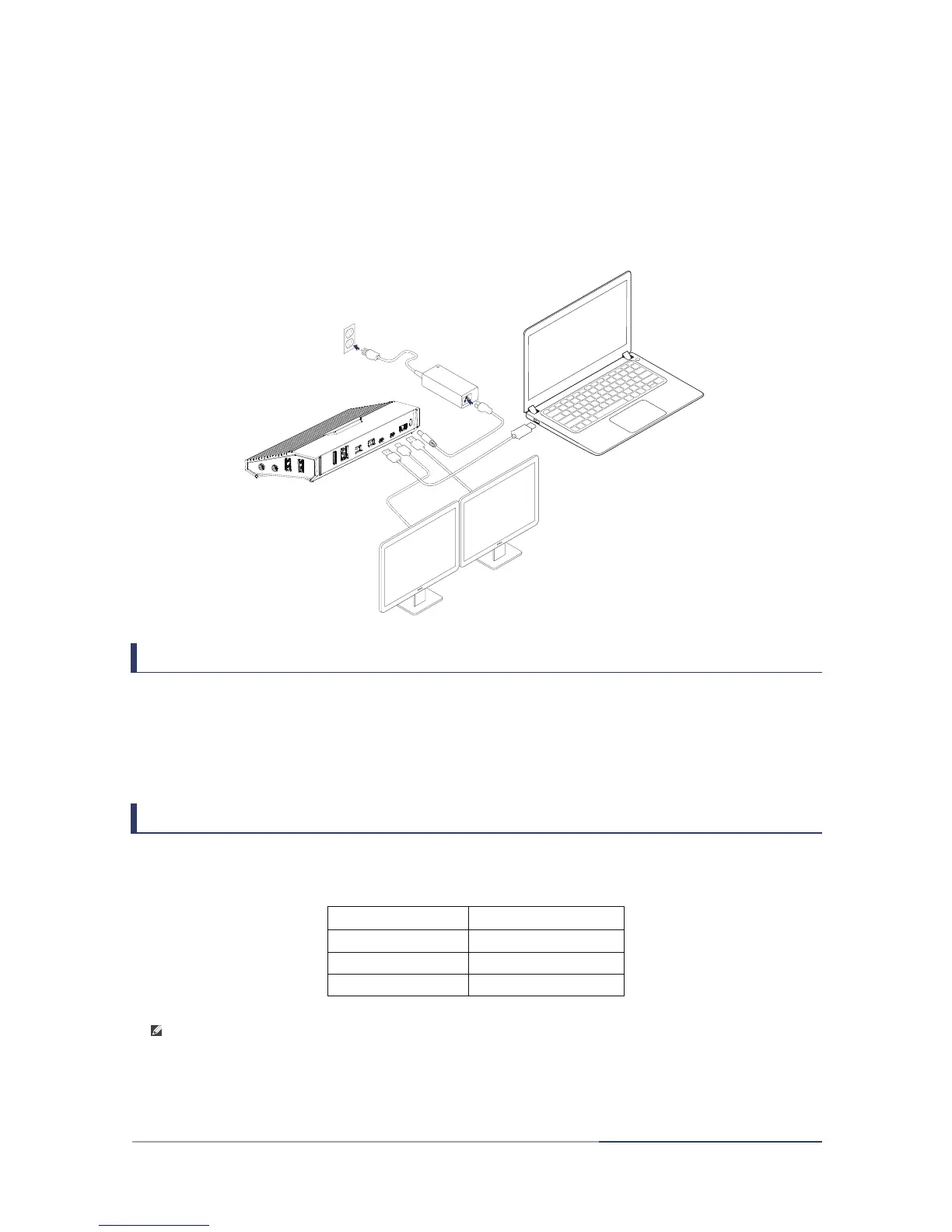
1. Connect docking station to power.
2. Connect docking station to your computer[a][b]
• Connect the Thunderbolt
TM
3 port on your laptop to the Thunderbolt
TM
3 port with
laptop charging icon on the docking station using the included Thunderbolt
TM
3
cable or a certified cable with the Thunderbolt
TM
3 logo.
Note:
a. Your computer will ask for authentication of new attached Thunderbolt
TM
device.
See section 7 for details.
b. Before using the dock station, check the firmware and software of Thunderbolt
TM
3
in your computer is the latest version. Checking Procedure is in Section 8.
Warning:
To reduce the risk of electric shock, fire, or damage to the equipment, use only the
power adapter included with the docking station.
3
3. Install driver
• The necessary drivers for this dock will be automatically installed. For Thunderbolt
TM
3 driver, please contact the manufacturer of your computer for latest Thunderbolt
TM
3
driver or software.
4. Setup overview
4
DisplayPort
4k@60Hz
-
4k@60Hz
Thunderbolt
TM
3
-
4k@60Hz
4k@60Hz
5. Operating System
Windows OS: 7/ 8.0&8.1/10 (32-bit or 64-bit)
Mac OS: 10.12 (Sierra) or later
6. Multi-Display[a]
Thunderbolt
TM
3 supports DP Alternate Mode over USB-C
TM
. The docking station supports up
to two displays. The following table is the resolution supported for each port.
Note:
a. The number of displays that are natively supported over a Thunderbolt
TM
3 dock
depends on the design of the laptop. It is not changeable by software or a
Thunderbolt
TM
3 dock.


 To Next Page