5
7. Thunderbolt 3 Authentication
1. When a new Thunderbolt
TM
device is connected, the message will show up at bottom
right corner. Click “OK”.
2. After Click “OK”, the following message will show up asking if user allow this app to
make change to the computer. Click “Yes”.
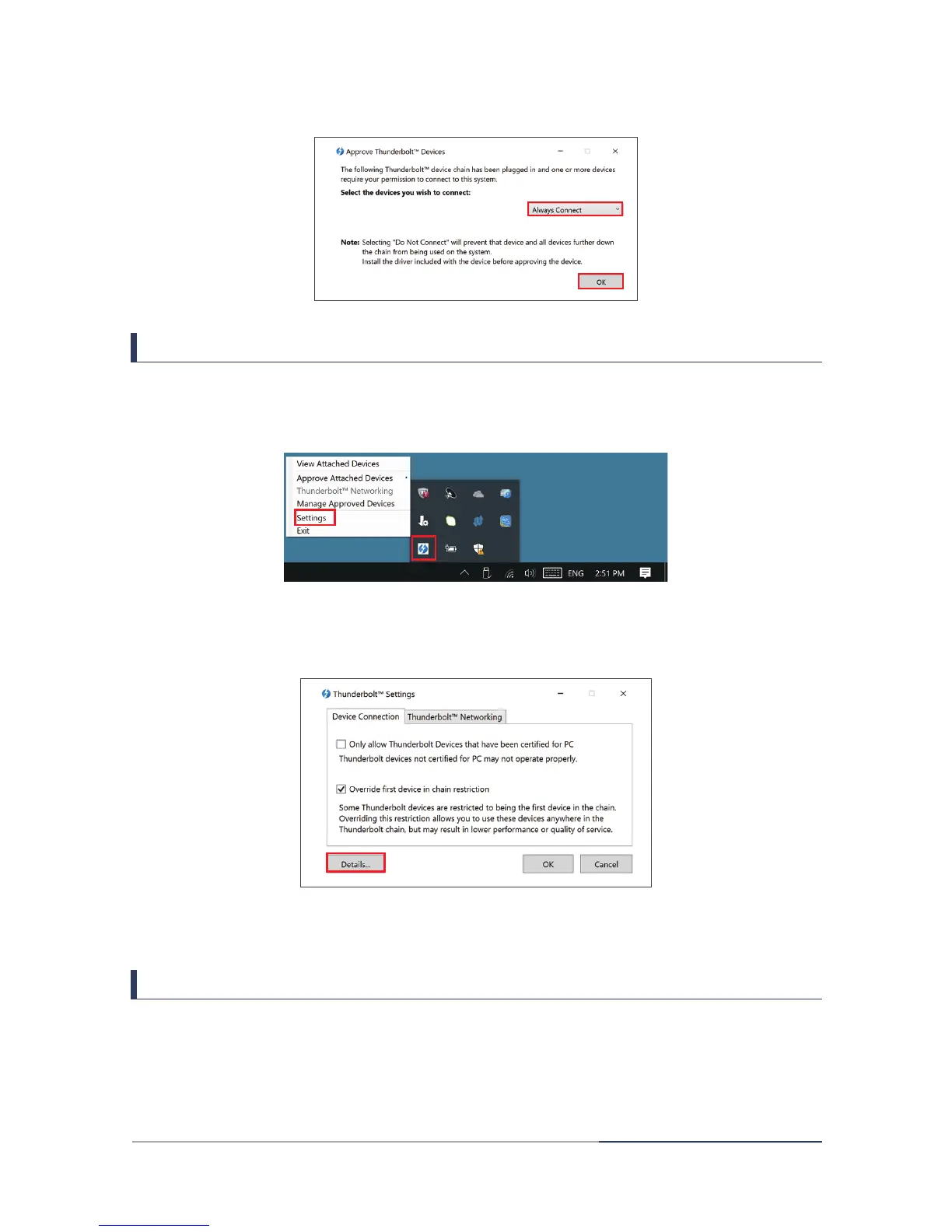
3. User should see the following window after clicking “Yes” in previous window. Make sure
the connected device is “XXX, Thunderbolt 3 Dock”.
4. Click drop down menu and select “Always Connect”.
1.
5. Click “OK” and Finish the authentication.
6
XXX, TBT-3
4.
5.
8. Check Firmware and Software Version
1. In the system tray, right click on the Thunderbolt
TM
icon.
2. In the list, select “Settings”.
3. Select “Details” in the Settings.
4. Check software and firmware version, contact your laptop maker for firmware information.
1.
2.
3.
9. Contact for Thunderbolt
TM
Information
https://thunderbolttechnology.net/
www.intel.com/content/www/us/en/io/thunderbolt/thunderbolt-technology-general.html


 To Previous Page