To Next Page


M
Miss Michaela BeanAug 10, 2025
What to do if Acer Flat Panel TV has no display?
- DDylan SantosAug 10, 2025
If your Acer Flat Panel TV shows no display, consider replacing the LCD Cable.

What to do if Acer Flat Panel TV has no display?
If your Acer Flat Panel TV shows no display, consider replacing the LCD Cable.
How to fix Acer Flat Panel TV with no back light?
To address the issue of no back light on your Acer Flat Panel TV, consider a replacement of the CCFT Cable.
What to do if the main board of Acer Flat Panel TV is broken?
If you are experiencing issues with the main board of your Acer Flat Panel TV, consider replacing it.
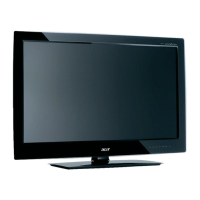
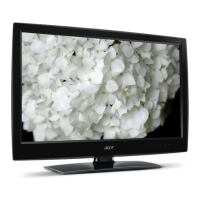
This document describes the Acer LCD TV AL2671W, a versatile display designed for entertainment and various applications.
The Acer LCD TV AL2671W functions primarily as a television, offering a wide display for an immersive viewing experience. It is HDTV ready, supporting a resolution of 1280 x 768. Beyond standard television viewing, it boasts advanced features like Picture-In-Picture (PIP), Picture-By-Picture (PBP), and Picture-On-Picture (POP) modes, allowing simultaneous viewing of multiple programs or sources. This functionality is particularly useful for multitasking or monitoring several inputs at once. The device also serves as a display for personal computers and notebooks, connecting via D-Sub or DVI ports, making it suitable for both entertainment and productivity. Audio capabilities are enhanced with SRS WOW technologies, providing excellent sound quality with 3D sound, TruBass, and a wider sound field. The TV includes a built-in tuner for receiving antenna or cable signals and offers multiple AV, Component, and S-Video inputs for connecting various external devices such as DVD players, VCRs, camcorders, video game consoles, and other AV equipment. It also features audio input/output ports and a headphone jack for private listening. Parental Control features, including V-Chip technology and various rating systems (MPAA, TV, Canadian English, and Canadian French), are integrated to restrict access to inappropriate content, ensuring a safe viewing environment for children.
The Acer LCD TV AL2671W is designed for user-friendly operation, primarily through its remote control and on-screen display (OSD) navigation. Power On/Off: The TV can be powered on by a switch on the bottom or via the power button on the remote control or front panel. Channel Changing: Channels can be selected directly using the number keys on the remote or sequentially with the channel up/down buttons. Holding the channel up/down button allows for continuous scrolling. Volume Adjustment: Volume is controlled using the Vol +/- buttons on the remote or front panel. Source Selection: The remote control includes dedicated buttons (TV, AV, Component, PC) to toggle between different input sources, making it easy to switch between television, DVD, PC, or other connected devices. OSD Navigation: The OSD menu, accessed via the "Menu" button on the remote or front panel, provides access to advanced settings and picture adjustments. Navigation within the OSD is intuitive, using the directional pad to scroll through options and adjust settings like brightness, contrast, tint, color, and sharpness. The "OK" button confirms selections. Empowering Key (e key): This unique feature allows users to quickly access either "Scenario Mode" or "Favorite Channels," depending on the user's preference set in the OSD. Scenario Mode: This mode offers pre-defined audio and video settings optimized for different viewing scenarios such as Standard, Movie, Game, Sports, and Concert. Each mode adjusts parameters like brightness, contrast, saturation, gamma correction, and sound enhancements (SRS WOW, TruBass, 3D Stereo) to provide the best experience for the content being viewed. Favorite Channels: Users can store up to five favorite channels for quick access. Pressing and holding the "e" key for more than 2 seconds stores the current channel. A quick press of the "e" key brings up the favorite channel list, and subsequent presses toggle through the stored channels.
The manual provides clear guidelines for the care and maintenance of the Acer LCD TV AL2671W to ensure its longevity and optimal performance. Cleaning: The TV should be cleaned with a soft, moist cloth after being powered off and unplugged. Liquid or aerosol cleaners are not recommended. Remote Control Care: The remote control should be handled with care to prevent damage from dropping, direct sunlight, or moisture. Batteries should be removed if the remote will not be used for an extended period to prevent leakage and disposed of according to local regulations. Servicing: Users are advised not to attempt servicing the product themselves, as this could expose them to dangerous voltage points. All servicing should be referred to qualified service personnel under specific conditions, such as a damaged power cord, liquid spills, exposure to rain/water, abnormal operation, physical damage, or a distinct change in performance. Environmental Protection: The product is manufactured in compliance with strict global environmental regulations and is ISO 14001 certified. Users are encouraged to recycle the product and its components, including lamps containing mercury, according to local laws. Information on lamp disposal and environmental protection is available through specified industry alliances and the Acer website. Troubleshooting: The manual includes a troubleshooting section to help users resolve common issues such as no picture or sound, unclear picture, dark/light/tinted picture, or a non-functional remote control. This section provides practical solutions before contacting service personnel, covering checks for power connections, input sources, antenna connections, volume/mute settings, headphone connections, signal reception, interference, color/brightness/sharpness adjustments, and remote control battery/sensor issues.
 Display
| resolution | 1280 x 768 pixels |
|---|---|
| brightness | 450 nits |
| contrast ratio | 600:1 |
| display colors | 16.7 M |
| viewing angle | H:170 ; V:170 |
| response time | 16 ms (gray to gray) |
 Power
Power| input voltage | 100V to 240V AC |
|---|---|
| max power consumption | 150 W |
| power saving mode consumption | 5 W |
 Ports & Interfaces
| AV1 | RCA for CVBS, S-video, Audio R/L |
|---|---|
| AV2 | RCA for CVBS, S-video, Audio R/L |
| AV3 (front) | RCA for CVBS, Audio R/L |
| Component1 | Component (YCbCr/PbPr), Audio R/L |
| Component2 | Component (YCbCr/PbPr), Audio R/L |
| PC D-sub | Yes |
| DVI-D (HDCP) | Yes |
| PC audio-in | Yes |
| audio-out | Yes |
| headphones | Yes |
 Audio System
| 3D surround | Yes |
|---|---|
| speakers | 5 W + 5 W |
| SRS WOW | Yes |
 Weight and Dimensions
| dimensions | 828 x 484 x 248 mm |
|---|---|
| swivel angle | +/- 20 degrees |
| weight | 14 kg / 30 lbs |