EasyManua.ls Logo

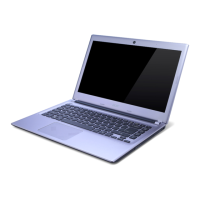
Acer Aspire 4350 - User Manual

Acer Aspire 4350
150 pages
Print Icon
To Next Page IconTo Next Page
Loading...
Aspire 4750 and 4750G Series
Service Guide
PRINTED IN TAIWAN
Service guide files and updates are available
on the ACER/CSD web; for more information,
please refer to http://csd.acer.com.tw

Table of Contents

Questions and Answers

  • R
    rosscharlesAug 19, 2025
    What to do if Acer Aspire 4350 touchpad doesn't work?
    • M
      Melissa MarshallAug 19, 2025
      If the touchpad on your Acer Laptop isn’t working, try the following actions one at a time: reconnect the touchpad cables, replace the touchpad, or replace the system board.
  • L
    Lisa NguyenAug 21, 2025
    What to do if the internal keyboard does not work or an unexpected character appears on Acer Aspire 4350?
    • M
      Michael GutierrezAug 21, 2025
      If the internal keyboard on your Acer Laptop does not work or an unexpected character appears, make sure that the flexible cable extending from the keyboard is correctly seated in the connector on the system board.
  • I
    Ian ValdezAug 25, 2025
    What to do if my Acer Aspire 4350 Laptop has no beep, the power-on indicator turns off and LCD is blank?
    • J
      Jacob MaxwellAug 25, 2025
      If your Acer Laptop shows no beep, the power-on indicator turns off, and the LCD is blank, the cause might be the power source (battery pack and power adapter). Ensure every connector is connected tightly and correctly. Try reconnecting the DIMM, LED board, and system board. You can also refer to "Power System Check".
  • D
    Dennis MossAug 26, 2025
    What to do if my Acer Laptop has no beep, the power-on indicator turns on and LCD is blank?
    • C
      Chris WhiteAug 27, 2025
      If your Acer Laptop shows no beep, the power-on indicator turns on but the LCD is blank, the cause might be the power source (battery pack and power adapter). Reconnect the LCD connector, hard disk drive, LCD inverter, ID, LCD cable, LCD Inverter, and LCD System board. Refer to "Power System Check".
  • R
    Rebecca Gilbert MDAug 28, 2025
    How to fix 'System battery is dead' on Acer Aspire 4350 Laptop?
    • M
      michaelwalkerAug 28, 2025
      If the Acer Laptop's system battery is dead, replace the RTC battery and run the BIOS Setup Utility to reconfigure the system time, then reboot the system.
  • C
    Chad MayAug 30, 2025
    How to fix Acer Aspire 4350 keyboard when one or more keys don't work?
    • U
      ugonzalezAug 30, 2025
      If one or more keys on your Acer Laptop keyboard are not working, try reconnecting the keyboard cable.
  • W
    williamscodySep 1, 2025
    What to do if an error occurs with the internal diskette drive on Acer Laptop?
    • T
      Traci SheaSep 1, 2025
      If an error occurs with the internal diskette drive on your Acer Laptop, the drive may not be functioning properly. Reconnect the diskette connector on the system board.
  • J
    Jennifer JordanSep 3, 2025
    What to do if the keyboard cable connection is correct on Acer Aspire 4350?
    • J
      Joseph BurnsSep 3, 2025
      If the keyboard cable connection is correct on your Acer Laptop, run the Keyboard Test.
  • M
    Michelle RodriguezSep 5, 2025
    What to do if the tests detect a keyboard problem on Acer Aspire 4350?
    • A
      Angel MyersSep 5, 2025
      If the tests detect a keyboard problem with your Acer Laptop, do the following one at a time: reconnect the keyboard cables, replace the keyboard, or replace the main board.
  • S
    Sydney VelezSep 8, 2025
    What to do if memory errors occur on Acer Laptop?
    • J
      Jonathon BeltranSep 8, 2025
      If memory errors stop system operations, show error messages, or hang the Acer Laptop, boot from the diagnostics diskette and start the diagnostic program (please refer to main board).

Summary

Revision History

Legal Information

Copyright

States the copyright ownership and usage restrictions for the publication.

Disclaimer

Outlines limitations of warranties and responsibilities for the guide's content.

Conventions

Preface

Chapter 1 System Specifications

Features

Summary of computer features: platform, memory, display, graphics, storage, audio, communication, I/O ports, environment, and dimensions.

System Block Diagram

Diagram illustrating the computer's internal hardware architecture and component connections.

Your Acer Notebook Tour

Guides users through the notebook's physical layout and key components on the top view.

Hotkeys

Explains the key combinations used to control system functions like brightness and volume.

Notebook Views

Describes external views (front, rear, left, right, base) of the notebook, identifying ports and indicators.

Hardware Specifications and Configurations

Detailed specifications for processor, BIOS, system memory, LAN, Bluetooth, storage, and other hardware components.

AC Adaptor and System Power Management

Details AC adapter specifications and explains system power management states (ACPI modes).

Chapter 2 System Utilities

BIOS Setup Utility Overview

Explains access and navigation of the BIOS Setup Utility for hardware configuration.

BIOS Utility Navigation

Instructions for using keys to navigate BIOS menus and change parameters.

BIOS Screen Details

Details the content and function of BIOS screens: Information, Main, Security, Boot, Exit.

BIOS Flash Utility and HDD Password Removal

Procedures for updating BIOS and removing hard disk drive passwords.

Chapter 3 Machine Disassembly and Replacement

Disassembly Requirements and Process Overview

Lists necessary tools and outlines the stages for disassembling the notebook.

External Module Disassembly

Flowchart and steps for removing external components like battery, ODD, and back cover.

Component Removal Procedures

Step-by-step guides for removing key components: Battery, Optical Drive, Back Cover, HDD, WLAN, DIMM.

Main Unit Disassembly

Flowchart for disassembling the notebook's main internal components.

Internal Component Removal

Procedures for removing Keyboard, Upper Case, Touchpad, Speakers, Power Button, Bluetooth, RTC Battery, USB Board, Main Board.

Heatsink, CPU, and LCD Module Removal

Guides for removing Heatsink, CPU, LCD Module, Bezel, Brackets, FPC Cable, Web Camera, Microphone, and Antennas.

Chapter 4 Troubleshooting

Troubleshooting Procedure and System Checks

Procedure for diagnosing problems and outlines system checks for various components.

Error Message Index and Symptom Analysis

Lists error messages, their causes, and actions based on symptoms.

Handling Intermittent and Undetermined Problems

Guides for diagnosing and isolating intermittent and unclear system problems.

Chapter 5 Connector Locations

Main Board Connector Identification

Diagrams identifying connectors on the top and bottom views of the main board.

Password Clearing and BIOS Recovery

Procedures for clearing BIOS passwords and recovering BIOS using crisis disk.

Chapter 6 FRU (Field Replaceable Unit) List

FRU List Overview and Exploded Diagram

Provides FRU lists for repairs and RMA, including an exploded diagram of components.

FRU Lists by Component Category

Detailed FRU lists for Adapters, Battery, Boards, USB, Touchpad, Cables, Chassis, Speakers, ODD, CPU, HDD, Heatsink, Keyboard.

Appendix A Model Definition and Configuration

Aspire 4750;4750 G Series Model Configurations

Details common specifications and regional configurations for various Aspire 4750/4750G models.

Appendix B Test Compatible Components

Hardware Device Test Results

Lists compatible hardware devices and peripherals tested for the computer system.

Memory Card Compatibility

Lists compatible memory card types, including Memory Stick, SD Card, and XD Card.

Appendix C Online Support Information

Acer Online Support Resources

Describes online technical support services, website resources, and downloadable technical materials from Acer.

Acer Aspire 4350 Specifications

General IconGeneral
Optical DriveDVD-Super Multi DL drive
MemoryUp to 4GB DDR3 SDRAM
Storage320GB or 500GB HDD
Display14.0" HD (1366 x 768) LED-backlit TFT LCD
Operating SystemWindows 7 Home Basic
NetworkingWi-Fi 802.11b/g/n, Ethernet LAN
PortsHDMI, VGA, Ethernet, Headphone/Microphone combo jack
Battery6-cell Li-ion battery

Related product manuals