EasyManua.ls Logo

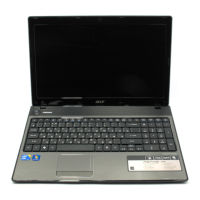
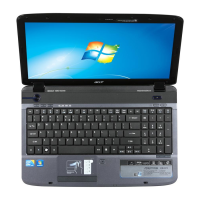
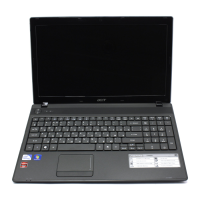
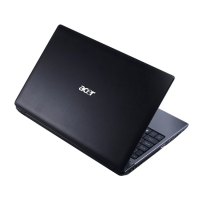
Acer Aspire 5741, 5741G - User Manual

Acer Aspire 5741, 5741G
258 pages
Print Icon
To Next Page IconTo Next Page
Loading...
Aspire 5741/5741G Series
Service Guide
PRINTED IN TAIWAN
Service guide files and updates are available
on the ACER/CSD web; for more information,
please refer to http://csd.acer.com.tw

Table of Contents

Questions and Answers

  • S
    Shelly AndersonAug 13, 2025
    How to fix Acer Aspire 5741, 5741G when it won't turn on?
    • A
      Angela CopelandAug 13, 2025
      If your Acer Laptop isn't powering on, ensure the power cable is securely connected to both the laptop and the electrical outlet. Try removing any extension cables or surge protectors, plugging the laptop directly into a known good outlet. Disconnect the power and open the casing to check the Thermal Unit and fan airways are free of obstructions. Also, remove any external and non-essential hardware, and uninstall any recently installed software.
  • A
    anna95Aug 17, 2025
    What to do if my Acer Aspire 5741, 5741G has no display?
    • D
      deborahfieldsAug 17, 2025
      If your Acer Laptop screen is blank, first, ensure the internal display is selected by pressing Fn+F5. Confirm the laptop has power by checking if the fans start or the status LEDs light up. Then, drain any stored power by removing the power cable and battery, holding the power button for 10 seconds, and reconnecting the power. You can also connect an external monitor and switch between displays using Fn+F5. Try disconnecting all external devices, memory cards, and CD/DVDs, and reseat the memory modules. Removing the drives can also help.
  • N
    natalie78Aug 21, 2025
    How to fix sound problems on Acer Aspire 5741, 5741G Laptop?
    • M
      marie03Aug 21, 2025
      To resolve sound problems on your Acer Laptop, try rebooting the computer first. Check the Device Manager to ensure the audio device is properly installed. If the audio driver was recently updated, roll it back to the previous version or remove and reinstall it. Make sure all volume controls are set to a mid-range level. Navigate to Start? Control Panel? Hardware and Sound? Sound to ensure Speakers are selected as the default audio device. You can also select Speakers and click Configure to start Speaker Setup. Remove and reinstall any recently installed hardware or software.
  • Z
    zhendersonAug 25, 2025
    Why does my Acer Laptop randomly lose BIOS settings?
    • C
      charles88Aug 26, 2025
      If your Acer Laptop is losing BIOS settings randomly, and the computer is more than a year old, consider replacing the CMOS battery. Also, run a complete virus scan using up-to-date software. If HDD information is missing from the BIOS, the drive may be defective and require replacement. In some cases, replacing the motherboard might be necessary.
  • M
    morganreedAug 28, 2025
    What to do if the HDD is not operating correctly on my Acer Laptop?
    • A
      Alex RivasAug 28, 2025
      If your Acer Laptop's HDD isn't working correctly, start by disconnecting all external devices. Run a complete virus scan with updated software. You might also try running the Windows Vista Startup Repair Utility. Restart the computer and press F2 to enter the BIOS Utility to check the BIOS settings. Ensure all cables and jumpers on the HDD and ODD are correctly set. Remove any recently added hardware and software. Run Windows Check Disk by entering chkdsk /r from a command prompt.
  • J
    Jonathan AdamsSep 1, 2025
    How to troubleshoot abnormal video display on Acer Laptop?
    • A
      Aaron EscobarSep 1, 2025
      To troubleshoot abnormal video display issues on your Acer Laptop, begin by rebooting the computer. If permanent lines or dark spots are present, the LCD may be faulty. Adjust the brightness to its highest level and check that the display resolution is correctly configured. If the issue arose after a driver update, roll back the video driver to the previous version or remove and reinstall the video driver. Also, verify the device is properly installed in the Device Manager.
  • J
    Jennifer MillsSep 4, 2025
    What to do if external mouse fails on Acer Laptop?
    • M
      Mary GraySep 4, 2025
      If your external mouse isn't working with your Acer Laptop, try using an alternative mouse. If it's wireless, replace the batteries and ensure a stable connection. For USB connections, try a different USB port. Test the mouse with another program to check its operation. Restarting the computer can sometimes resolve the issue. Remove any recently added hardware and software. Lastly, restore system and file settings from a known good date using System Restore.
  • J
    James SmithSep 9, 2025
    How to solve microphone problems on Acer Laptop?
    • G
      George TurnerSep 9, 2025
      To solve microphone issues on your Acer Laptop: * Check that the microphone is enabled. * Right-click on the Recording tab and select Show Disabled Devices. * If the microphone appears, right-click on it and select Enable. * Select the microphone, click Properties, and then select the Levels tab. * Increase the volume to the maximum setting and click OK. * Select the microphone and click Configure.

Summary

Chapter 1: System Specifications

System Overview

Overview of features, OS, platform, memory, display, graphics.

Component Details

Details on storage, optical drive, audio, communication, privacy, I/O.

Physical and Power Specifications

Dimensions, weight, power subsystem, controls, environment.

Hardware Configuration and Interfaces

Detailed specs, BIOS, LAN, drives, interfaces.

Notebook Tour and Diagrams

System block diagram and external component views.

Chapter 2: System Utilities

BIOS Setup Utility and Navigation

Guide to BIOS setup, navigation, and basic functions.

BIOS Configuration Options

Main, Security, Boot, and Exit menus.

BIOS Update and Recovery

Utilities for BIOS flashing and recovery.

Password and Boot Management

Utilities for password removal and boot sequence selection.

System Configuration Tools

Using DMITools and LAN MAC EEPROM Utility.

Chapter 3: Machine Disassembly and Replacement

Disassembly Preparation and Overview

Requirements, pre-disassembly steps, and process overview.

External Component Removal

Steps to remove external modules like battery, ODD, etc.

Main Unit Disassembly

Steps to remove internal components like keyboard, mainboard, CPU.

LCD Module Disassembly and Reassembly

Steps to remove and replace LCD parts.

Chapter 4: Troubleshooting

Common Problems and General Solutions

Guide to diagnosing and resolving common issues.

Display and Video Troubleshooting

Steps for no display and abnormal video.

Component Failure Troubleshooting

Steps for LCD, keyboard, touchpad, speaker, ODD, WLAN, thermal failures.

Drive and System Configuration Issues

Troubleshooting HDD, ODD, and BIOS settings.

POST Code Reference

Table of POST codes and their meanings.

Chapter 5: Jumper and Connector Locations

Motherboard Component Layout

Identification of jumpers and connectors on top and bottom views.

Board-Level Component Details

Specifications for USB/B, Power, 3G/B, CR/B boards.

BIOS Recovery and Password Clearing

Procedures for BIOS recovery and password reset.

Chapter 6: FRU (Field Replaceable Unit) List

Component Exploded Diagrams

Visual breakdown and part numbers for system assemblies.

FRU Part Number Listings by Category

Lists FRUs by category and part number.

Appendix A: Model Definition and Configuration

Aspire 5741 Model Configurations

Details specific configurations for Aspire 5741 models.

Aspire 5741 G Model Configurations

Details specific configurations for Aspire 5741G models.

Appendix B: Test Compatible Components

Windows 7 Compatibility Test Results

Lists components tested with Windows 7 environment.

Appendix C: Online Support Information

Acer Support Resources

Information on accessing support, guides, and downloads.

Acer Aspire 5741, 5741G Specifications

General IconGeneral
RAMUp to 8 GB DDR3
StorageUp to 640 GB HDD
Optical DriveDVD-Super Multi DL drive
LANGigabit Ethernet
WebcamAcer Crystal Eye webcam
ProcessorIntel Core i3 / i5
GraphicsIntel HD Graphics
Display15.6-inch HD (1366x768) LED-backlit TFT LCD
Operating SystemWindows 7 Home Premium
Battery6-cell Li-ion battery
Weight2.6 kg
Dimensions381 x 253 mm
ConnectivityWi-Fi
Ports3 x USB 2.0, 1 x HDMI, 1 x VGA, 1 x Ethernet
ChipsetIntel HM55 Express
Wireless802.11b/g/n Wi-Fi
Card Reader5-in-1 card reader (SD, MMC, MS, MS PRO, xD)

Related product manuals