EasyManua.ls Logo

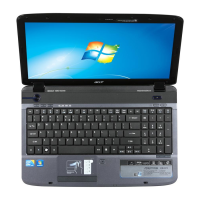
Acer ASPIRE 5742 - User Manual

Acer ASPIRE 5742
292 pages
Print Icon
To Next Page IconTo Next Page
Loading...
Aspire 5742/5742G/5742Z/5742ZG Series
Service Guide
PRINTED IN TAIWAN
Service guide files and updates are available
on the ACER/CSD web; for more information,
please refer to http://csd.acer.com.tw

Table of Contents

Questions and Answers

  • T
    Thomas DavisAug 14, 2025
    How to fix Acer ASPIRE 5742 Laptop when it won't power on?
    • S
      Shane GibbsAug 14, 2025
      If your Acer Laptop isn't powering on, try these steps: First, check that the power cable is properly connected to both the laptop and the electrical outlet. Remove any extension cables or surge protectors between the laptop and the outlet, and plug the laptop directly into a known good electrical outlet. Disconnect the power and open the casing to check the Thermal Unit and fan airways are free of obstructions. Remove all external and non-essential hardware that aren't necessary to boot the computer. Also, remove any recently installed software.
  • F
    frank90Aug 17, 2025
    What to do if my Acer ASPIRE 5742 has no display?
    • K
      Kathy KellerAug 18, 2025
      If your Acer Laptop screen is blank, try the following: Ensure the internal display is selected by pressing Fn+F5. Verify the laptop has power by checking if the fans start or the status LEDs light up. Drain any stored power by removing the power cable and battery, then hold the power button for 10 seconds. Connect an external monitor and switch between displays using Fn+F5. Disconnect power and all external devices, remove any memory cards and CD/DVD discs, and restart the computer. Reseat the memory modules and remove the drives.
  • A
    Alexis WilliamsAug 21, 2025
    How to troubleshoot sound problems on Acer ASPIRE 5742?
    • P
      Patrick KaufmanAug 21, 2025
      To troubleshoot sound problems on your Acer Laptop, try the following: Reboot the computer. Check the Device Manager to ensure the audio device is properly installed. If you recently updated the audio driver, roll it back to the previous version. Remove and reinstall the audio driver. Ensure all volume controls are set mid-range. Select Speakers and click Configure to start Speaker Setup, then follow the onscreen prompts. Remove any recently installed hardware or software. Restore system and file settings from a known good date using System Restore. As a last resort, reinstall the Operating System.
  • D
    destinyschmidtAug 25, 2025
    Why is my Acer ASPIRE 5742 Laptop video display abnormal?
    • S
      Sarah JohnsonAug 25, 2025
      If your Acer Laptop is showing an abnormal video display, try these steps: Reboot the computer. If there are permanent vertical/horizontal lines or dark spots in the same location, the LCD is faulty. If there is extensive pixel damage, the LCD is faulty and should be replaced. Adjust the brightness to its highest level. Check that the display resolution is correctly configured. If updated, roll back the video driver to the previous version. Remove and reinstall the video driver. Check the Device Manager to ensure that the device is properly installed, there are no device conflicts, and no hardware is listed under Other Devices.
  • D
    Dr. James SteinAug 27, 2025
    What to do if HDD is not operating correctly on Acer ASPIRE 5742 Laptop?
    • J
      Justin VargasAug 27, 2025
      If the HDD on your Acer Laptop isn't working correctly, try these steps: Disconnect all external devices. Run a complete virus scan using up-to-date software. Run the Windows Vista Startup Repair Utility. Restart the computer and press F2 to enter the BIOS Utility. Ensure all cables and jumpers on the HDD and ODD are set correctly. Remove any recently added hardware and associated software. Run the Windows Disk Defragmenter. Run Windows Check Disk by entering chkdsk /r from a command prompt. Restore system and file settings from a known good date using System Restore.
  • E
    Elizabeth BrownAug 31, 2025
    How to fix external mouse failure on Acer ASPIRE 5742 Laptop?
    • C
      Chelsea NixonAug 31, 2025
      If your external mouse isn't working with your Acer Laptop, try these solutions: Try an alternative mouse. If it's wireless, insert new batteries and ensure a good connection. If it's a USB connection, try another USB port. Test the mouse in an alternative program to verify its operation. Restart the computer. Remove any recently added hardware and associated software. Check the Event Viewer for errors. If you recently updated the mouse driver, roll it back to the previous version.
  • S
    sararamirezSep 3, 2025
    Why does Acer ASPIRE 5742 Laptop randomly lose BIOS settings?
    • C
      Charles KnightSep 3, 2025
      If your Acer Laptop is randomly losing BIOS settings: If the computer is more than one year old, replace the CMOS battery. Run a complete virus scan using up-to-date software. Disconnect and reconnect the power and data cables between devices. If HDD information is missing from the BIOS, the drive may be defective and should be replaced. Replace the Motherboard.
  • H
    hannah02Sep 7, 2025
    How to resolve microphone record failure on Acer ASPIRE 5742 Laptop?
    • U
      ulindseySep 7, 2025
      To fix microphone recording issues on your Acer Laptop: Check that the microphone is enabled. Right-click on the Recording tab and select Show Disabled Devices. Right-click on the microphone and select Enable. Select the microphone, click Properties, select the Levels tab, and increase the volume. Test the microphone hardware.
  • R
    Robin EricksonSep 10, 2025
    What to do if ODD is not operating correctly on Acer Laptop?
    • M
      Michael JohnsonSep 12, 2025
      If the ODD on your Acer Laptop isn't working correctly, try these steps: Reboot the computer and retry the operation. Try an alternate disc. Check that the ODD device is displayed in the Devices with Removable Storage panel. Check that there are no yellow exclamation marks against the items in IDE ATA/ATAPI controllers.

Summary

System Specifications

Core System Features and Components

Details on Operating System, CPU, Chipset, System Memory, Display, and Audio features.

Peripheral and Connectivity Specifications

Covers Graphics, Storage, Optical Media Drive, Webcam, Wireless, Networking, Privacy, and Power Adapter/Battery.

Physical Characteristics and Software

Details on Dimensions, Input/Output ports, Optional items, Warranty, and Software list.

System Block Diagram

UMA and Discrete Configurations

Visual representation of system architecture for UMA and Discrete graphics configurations.

Hardware Specifications and Configurations

Processor, Memory, and Chipset Details

Detailed specifications for CPU, Memory controller, and Chipset.

Component Interfaces and Modules

Specifications for Bluetooth, Audio, LED, LCD, USB, HDMI, and other interfaces.

System Board and Power Information

Details on major system board chips, I/O ports, AC adapters, and power management.

System Utilities

BIOS Setup and Management

Guide to accessing, navigating, and configuring BIOS settings.

BIOS Flash and Recovery Utilities

Procedures for updating BIOS, removing passwords, and recovery.

Machine Disassembly and Replacement

Disassembly Preparation and Requirements

Tools needed and pre-disassembly safety instructions.

Component Removal and Replacement Procedures

Step-by-step guides for removing major components like CPU, LCD, HDD, and Mainboard.

Troubleshooting Common Issues

Problem Diagnosis and Resolution Steps

Guides for addressing issues like power, display, input, audio, and hardware failures.

System Stability and Error Code Reference

Information on intermittent problems, undetermined issues, and POST code descriptions.

Jumper and Connector Locations

Board-Level Component Identification

Diagrams showing jumper and connector locations on various boards.

FRU Catalog and Diagrams

Exploded Views of Major Assemblies

Visual breakdowns of Main, Lower, LCD, and LED assemblies with part numbers.

Field Replaceable Unit (FRU) Part List

Comprehensive list of FRU parts including adapters, batteries, boards, and components.

Model Configuration and Compatibility

Model Specifications and Part Numbers

Details on specific model configurations, part numbers, and regional variations.

Compatible Components and Test Results

List of tested compatible components and system environment test results.

Online Support Information

Acer ASPIRE 5742 Specifications

General IconGeneral
Bus typeDMI
SteppingK0
Tjunction90 °C
Processor cache3 MB
Processor cores2
Processor modeli3-370M
System bus rate2.5 GT/s
Processor familyIntel® Core™ i3
Processor seriesIntel Core i3-300 Mobile Series
Processor socketSocket 988
Processor threads4
Processor codenameArrandale
Processing Die size81 mm²
Processor frequency2.4 GHz
Processor cache typeSmart Cache
Processor lithography32 nm
Processor manufacturerIntel
Processor front side bus- MHz
PCI Express slots version2.0
Processor operating modes64-bit
ECC supported by processorNo
PCI Express configurations1x16
Thermal Design Power (TDP)35 W
CPU multiplier (bus/core ratio)18
Maximum number of PCI Express lanes16
Number of Processing Die Transistors382 M
Motherboard chipsetIntel® HM55 Express
HDD speed5400 RPM
HDD interfaceSATA
Optical drive typeDVD Super Multi
Card reader integratedYes
Total storage capacity500 GB
Compatible memory cardsMMC, SD
Number of HDDs installed1
Display diagonal15.6 \
Display resolution1366 x 768 pixels
Native aspect ratio16:9
Internal memory4 GB
Memory clock speed1066 MHz
Internal memory typeDDR3-SDRAM
Maximum internal memory8 GB
Memory layout (slots x size)2 x 2 GB
Discrete graphics card model-
Maximum graphics card memory- GB
On-board graphics card modelIntel® HD Graphics
On-board graphics card base frequency500 MHz
On-board graphics card dynamic frequency (max)667 MHz
TypePC
Video in0
Dimensions (WxDxH)381 x 253 x 25 mm
Audio systemHD Audio
Speaker power2 W
Video capturing speed30 fps
Front camera resolution (numeric)1.3 MP
Cabling technology10/100/1000Base-T(X)
Networking featuresGigabit Ethernet, WLAN
Operating system installedWindows 7 Home Premium
Sustainability certificatesENERGY STAR
Battery capacity4400 mAh
Battery life (max)4.5 h
Number of battery cells6
Charging port typeDC-in jack
USB 2.0 ports quantity3
Cable lock slot typeKensington
Product colorBlack
Pointing deviceTouchpad
Processor codeSLBUK
Processor ARK ID49020
Processor package sizerPGA 37.5x 37.5, BGA 34x28 mm
Graphics & IMC lithography45 nm
Supported instruction setsSSE4.1, SSE4.2
Weight and Dimensions IconWeight and Dimensions
Depth253 mm
Width381 mm
Weight2600 g
Height (rear)34 mm
Height (front)25 mm

Related product manuals