EasyManua.ls Logo

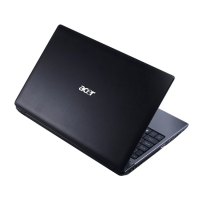
Acer Aspire 5935 Series - User Manual

Acer Aspire 5935 Series
224 pages
Print Icon
To Next Page IconTo Next Page
Loading...
Aspire 5935 Series
Service Guide
PRINTED IN TAIWAN
Service guide files and updates are available
on the ACER/CSD web; for more information,
please refer to http://csd.acer.com.tw

Table of Contents

Questions and Answers

  • D
    Donna DavidsonAug 17, 2025
    How to fix Acer Laptop power on issue?
    • J
      Jessica WilliamsAug 17, 2025
      If your Acer Laptop isn't powering on, start by ensuring the power cable is securely connected to both the laptop and the electrical outlet. Eliminate potential issues by removing any extension cables or surge protectors, plugging the laptop directly into a known good outlet. As an additional step, disconnect the power, open the casing, and verify that the thermal unit and fan airways are free from any obstructions. You may also want to remove all external and non-essential hardware that aren't necessary to boot the computer to rule out hardware conflicts. Finally, consider uninstalling any recently installed software that may be causing a conflict.
  • J
    jason21Aug 22, 2025
    What to do if Acer Aspire 5935 has no display?
    • J
      Joseph DunnAug 22, 2025
      If your Acer Laptop screen is blank, first ensure the computer has power by checking for fan activity or lit status LEDs. Then, try to make sure that the internal display is selected by pressing Fn+F5. You can also try draining any stored power by removing the power cable and battery, then holding the power button for 10 seconds. Reconnect the power and reboot. Another helpful step is to connect an external monitor and again use Fn+F5 to switch between displays. Also, disconnect power and all external devices, including any memory cards or CD/DVDs, and restart the computer. As a final step, try reseating the memory modules or removing the drives.
  • K
    Kimberly LoveAug 25, 2025
    Why is my Acer Aspire 5935 Laptop video display abnormal?
    • M
      Michelle HickmanAug 26, 2025
      If the video display on your Acer Laptop appears abnormal, first, adjust the brightness to its highest level. If the display is still too dim, or if you see permanent vertical/horizontal lines or dark spots in the same location, or extensive pixel damage (different colored spots in the same locations), the LCD is likely faulty and should be replaced. Ensure that the display resolution is correctly configured. If you've recently updated your video driver, try rolling it back to the previous version. You can also try removing and reinstalling the video driver. Check the Device Manager to ensure the device is properly installed, and that there are no red Xs or yellow exclamation marks.
  • H
    herbert91Aug 27, 2025
    How to fix internal microphone failure on Acer Aspire 5935 Laptop?
    • N
      Nicole JohnsonAug 28, 2025
      If the internal microphone on your Acer Laptop is not working, first check that the microphone is enabled by navigating to Start? Control Panel? Hardware and Sound? Sound and selecting the Recording tab. Right-click on the Recording tab and select Show Disabled Devices. Then, right-click on the microphone and select Enable. Select the microphone, click Properties, and select the Levels tab. Increase the volume to the maximum setting and click OK. Finally, test the microphone hardware.
  • J
    Jennifer RodriguezAug 30, 2025
    What causes random loss of BIOS settings on Acer Aspire 5935?
    • M
      Michelle CarrollAug 30, 2025
      If your Acer Laptop is experiencing a random loss of BIOS settings, and the computer is more than one year old, replace the CMOS battery. Run a complete virus scan using up-to-date software. If the computer is experiencing HDD or ODD BIOS information loss, disconnect and reconnect the power and data cables between devices. If HDD information is missing from the BIOS, the drive may be defective and should be replaced. Replacing the motherboard is also a possible solution.
  • C
    Christopher LeeSep 2, 2025
    What to do if HDD not operating correctly on Acer Aspire 5935 Laptop?
    • J
      Jennifer SteinSep 2, 2025
      If the HDD on your Acer Laptop is not operating correctly, disconnect all external devices. Run a complete virus scan using up-to-date software. Run the Windows Vista Startup Repair Utility. Restart the computer and press F2 to enter the BIOS Utility. Check the BIOS settings are correct and that CD/DVD drive is set as the first boot device on the Boot menu. Ensure all cables and jumpers on the HDD and ODD are set correctly. Remove any recently added hardware and associated software. Run the Windows Disk Defragmenter.
  • J
    john75Sep 8, 2025
    What to do for ODD failure on Acer Aspire 5935 Laptop?
    • J
      joseyoungSep 8, 2025
      If your Acer Laptop is experiencing ODD failure, reboot the computer and retry the operation. Try using an alternate disc. Check that the ODD device is displayed in the Devices with Removable Storage panel.
  • E
    Emily DawsonSep 10, 2025
    How to fix thermal unit failure on Acer Aspire 5935?
    • R
      Renee SmithSep 12, 2025
      If your Acer Laptop's thermal unit is failing, check the fan cable is well connected. Replace the fan. Seat the CPU heat sink well. Replace the CPU.
  • J
    Julie MillerSep 13, 2025
    What to do if modem function fails on Acer Aspire 5935?
    • K
      Kenneth GeorgeSep 13, 2025
      To fix modem function failure on Acer Laptop, connect it well, seat it well, or replace the Modem card.
  • M
    michael44Nov 19, 2025
    How to troubleshoot sound problems on Acer Laptop?
    • R
      rkennedyNov 19, 2025
      If you're experiencing sound problems on your Acer Laptop, start by simply rebooting the computer. Verify that the audio device is properly installed by checking the Device Manager (Start? Control Panel? System and Maintenance? System? Device Manager). If you've recently updated your audio driver, try rolling it back to the previous version. Alternatively, remove and then reinstall the audio driver. Make sure that all volume controls are set to a mid-range level. Also, check that Speakers are selected as the default audio device (Start? Control Panel? Hardware and Sound? Sound). You can configure your speakers by selecting Speakers and clicking Configure to start Speaker Setup, then follow the on-screen prompts. As a last resort, try removing any recently installed hardware or software, or...

Summary

Chapter 1 System Specifications

Chapter 2 System Utilities

BIOS Setup Utility

Explains the purpose and activation of the BIOS Setup Utility for system configuration.

Chapter 3 Machine Disassembly and Replacement

External Module Disassembly Process

Details the process for removing external components like battery, ODD, HDD, and WLAN.

Removing the Keyboard

Step-by-step instructions for removing the keyboard from the upper cover.

Removing the Upper Cover

Step-by-step instructions for removing the upper case of the notebook.

Removing the Mainboard

Step-by-step instructions for removing the mainboard from the lower cover.

Chapter 4 Troubleshooting

Common Problems

Provides a table of common computer problems and corresponding troubleshooting pages.

Power On Issue

Troubleshooting steps for when the system does not power on.

No Display Issue

Troubleshooting steps for when the display does not work.

LCD Failure

Troubleshooting steps for when the LCD panel fails.

HDD Not Operating Correctly

Troubleshooting steps for when the Hard Disk Drive is not operating correctly.

ODD Failure

Troubleshooting steps for when the Optical Disk Drive fails.

Thermal Unit Failure

Troubleshooting steps for when the thermal unit fails.

Chapter 5 Jumper and Connector Locations

Chapter 5 Clearing Password Check and BIOS Recovery

Chapter 6 FRU (Field Replaceable Unit) List

Appendix A Model Definition and Configuration

Acer Aspire 5935 Series Specifications

General IconGeneral
BrandAcer
ModelAspire 5935 Series
CategoryLaptop
LanguageEnglish

Related product manuals