EasyManua.ls Logo

Acer Aspire 5349 - User Manual

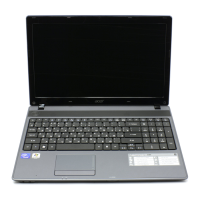
Acer Aspire 5349
208 pages
Print Icon
To Next Page IconTo Next Page
Loading...
Aspire 5349, 5749 & 5749Z
SERVICEGUIDE

Table of Contents

Questions and Answers

  • C
    Christy FrederickJul 26, 2025
    How to fix Acer Aspire 5349 that won't turn on?
    • H
      hkingJul 26, 2025
      If your Acer Laptop isn't powering on, ensure the power cable is securely connected to both the laptop and the electrical outlet. Remove any extension cables or surge protectors, plugging the laptop directly into a known working outlet. Disconnect the power and check inside the casing for obstructions in the thermal unit and fan airways. Also, remove any unnecessary external hardware and recently installed software.
  • P
    parkerfrankAug 3, 2025
    What to do if my Acer Laptop has no display?
    • M
      Michael WheelerAug 3, 2025
      If your Acer Laptop screen is blank, first, ensure the laptop is getting power by checking if the fans start or if the status LEDs are lit. Make sure that internal display is selected by pressing Fn+F5. Try draining any stored power by disconnecting the power cable and battery, then holding the power button for 10 seconds. Reconnect the power and reboot. Connect an external monitor and switch between displays using Fn+F5. Disconnect all external devices and reseat the memory modules.
  • T
    tmcclureAug 9, 2025
    Why is my Acer Aspire 5349 microphone not working?
    • E
      Erin CollinsAug 10, 2025
      If your Acer Laptop's microphone isn't working, first check that the microphone is enabled in your system settings. Then, go to the microphone properties, select the Levels tab, and increase the volume to the maximum setting. Finally, test the microphone hardware.
  • C
    Collin WilliamsAug 17, 2025
    How to fix Acer Aspire 5349 Laptop internal speaker failure?
    • B
      Bryce DavisAug 17, 2025
      To troubleshoot an internal speaker failure on your Acer Laptop, try rolling back the audio driver to a previous version or removing and reinstalling the audio driver. Ensure all volume controls are set to a mid-range level. Configure the speakers in your system settings. You can also try restoring your system from a restore point or reinstalling the operating system.

Summary

Chapter 1 Hardware Specifications

Chapter 2 System Utilities

BIOS Setup Utility and Navigation

Explains how to access and navigate the BIOS Setup Utility.

BIOS Information and Main Settings

Describes the BIOS Information tab and main system settings.

BIOS Advanced, Security, and Power Settings

Details configuration options for Advanced, Security, and Power settings within the BIOS.

BIOS Boot, Exit, Flash, and Password Management

Covers BIOS boot order, exit options, flash utilities, recovery, and password management procedures.

Chapter 3 Machine Maintenance Procedures

Internal Component Maintenance

Procedures for internal components: USB, HDD, WLAN, Bluetooth, Thermal, Mainboard, CPU, PCH, DIMM.

Display Assembly Maintenance

Covers LCD module, bezel, panel, hinge, LVDS cable, and camera module removal/installation.

Chapter 4 Troubleshooting

Power and Display Issues

Guides for resolving power on problems and no display issues.

LCD and Keyboard Failures

Troubleshooting steps for LCD failures and keyboard malfunctions.

Chapter 5 Jumper and Connector Locations

BIOS Password Management and Recovery

Procedures for clearing BIOS passwords and recovering the BIOS using a crisis disk.

Chapter 7 Model Definition and Configuration

Acer Aspire 5349 Specifications

General IconGeneral
RAM2 GB DDR3
Storage320 GB HDD
GraphicsIntel HD Graphics
ProcessorIntel Pentium B960
Display15.6-inch, 1366 x 768 pixels
Battery6-cell Li-ion
Weight2.6 kg
Dimensions381 x 253 x 34 mm
Operating SystemWindows 7 Home Basic / Home Premium

Related product manuals