EasyManua.ls Logo

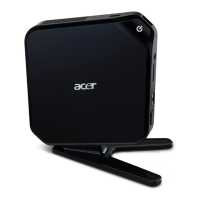
Acer Aspire R3610 - User Manual

Acer Aspire R3610
71 pages
Print Icon
To Next Page IconTo Next Page
Loading...
Acer
A s p i r e R 3 6 1 0
Service Guide
PRINTED IN TAIWAN
Service guide files and updates are available
on the ACER/CSD web; for more information,
please refer to http://csd.acer.com.tw

Questions and Answers

  • C
    Carlos MaciasAug 17, 2025
    What to do if Acer Desktop shows Keyboard Error Or No Keyboard Present?
    • M
      Margaret ZimmermanAug 17, 2025
      If your Acer Desktop displays a 'Keyboard Error Or No Keyboard Present' message, it means the system can't initialize the keyboard. Ensure the keyboard is correctly connected and that no keys are being pressed during the Power-On Self-Test (POST).
  • C
    Craig ReyesAug 20, 2025
    What to do if my Acer Aspire R3610 Desktop shows HARD DISK INSTALL FAILURE?
    • A
      andersonnicoleAug 20, 2025
      If your Acer Desktop displays the message 'HARD DISK INSTALL FAILURE', it indicates that the system cannot find or initialize the hard drive controller or the drive itself. Make sure the controller is correctly installed. If you don't have any hard drives installed, ensure the Hard Drive Selection in Setup is set to NONE.
  • C
    Cynthia HendersonAug 22, 2025
    Why does my Acer Desktop say CMOS Checksum Error - defaults loaded?
    • D
      Danielle SchmittAug 22, 2025
      If your Acer Desktop displays 'CMOS Checksum Error - defaults loaded', it means the checksum of the CMOS is incorrect, so the system loads the default equipment configuration. This error may indicate that the CMOS has become corrupt or that the battery is weak. Check the battery and replace it if necessary.
  • J
    James WatsonAug 25, 2025
    What does 'Keyboard is locked out - Unlock the key' mean on Acer Desktop?
    • J
      Joe FisherAug 26, 2025
      If your Acer Desktop says 'Keyboard is locked out - Unlock the key', this usually means that one or more keys were pressed during the keyboard tests. Ensure no objects are resting on the keyboard.
  • M
    michael96Aug 27, 2025
    What to do if Acer Desktop says Floppy disk(s) fail?
    • S
      sarahruizAug 28, 2025
      If your Acer Desktop reports 'Floppy disk(s) fail', the system can't find or initialize the floppy drive controller or the drive. Ensure the controller is correctly installed. If no floppy drives are installed, make sure the Diskette Drive selection in Setup is set to NONE or AUTO.
  • M
    Michael WilliamsAug 30, 2025
    How to fix BIOS ROM checksum error on Acer Desktop?
    • M
      morgan32Aug 30, 2025
      If your Acer Desktop displays 'BIOS ROM checksum error - System halted', it means the checksum of the BIOS code in the BIOS chip is incorrect, indicating the BIOS code may have become corrupt. Contact your system dealer to replace the BIOS.
  • K
    Kenneth GarciaSep 1, 2025
    What to do if Acer Desktop displays CMOS Battery Failed?
    • B
      Bruce MillerSep 1, 2025
      If your Acer Desktop displays 'CMOS Battery Failed', it means the CMOS battery is no longer functional. Contact your system dealer for a replacement BIOS.
  • R
    Russell SchmidtSep 4, 2025
    How to correct display switch setting on Acer Desktop?
    • U
      uroseSep 4, 2025
      If your Acer Desktop has a 'Display switch is set incorrectly', it means the display switch on the motherboard can be set to either monochrome or color. Determine the correct setting, then either turn off the system and change the jumper or enter Setup and change the Video selection.
  • S
    Samantha MurraySep 6, 2025
    What does 'Primary master hard disk fail' mean on Acer Aspire R3610?
    • I
      itorresSep 7, 2025
      If POST detects an error in the primary master IDE hard drive of your Acer Desktop, it will show 'Primary master hard disk fail'.
  • P
    Paula MooreSep 9, 2025
    What does 'Secondary slave hard disk fail' mean on Acer Aspire R3610?
    • B
      barrerasheilaSep 9, 2025
      If POST detects an error in the secondary slave IDE hard drive of your Acer Desktop, it will show 'Secondary slave hard disk fail'.

Summary

Chapter 1 System Tour and Components

System Features and Specifications

Overview of OS, CPU, Chipset, Memory, Graphics, Storage, BIOS, and Adapter.

Motherboard Layout and Block Diagram

Component identification on the motherboard and system architecture diagram.

Front and Rear Panel Interfaces

Description of external connectivity ports on the front and rear panels.

Power Management Functions

Explanation of ACPI features and power saving modes.

Chapter 2 System Utilities and BIOS Configuration

CMOS Setup Utility Guide

Introduction, entry procedure, and navigation for BIOS setup.

BIOS Setup Menu Options Overview

Summary of the main BIOS configuration categories.

Key BIOS Configuration Settings

Details on Product Info, Standard, Advanced, Peripherals, Power, Health, Security.

Saving and Exiting BIOS Setup

Procedures for loading defaults, saving changes, and exiting BIOS.

Chapter 3 System Disassembly and Component Removal

Disassembly Requirements and Procedures

Lists required tools, safety precautions, and pre-disassembly steps.

Removing External Components

Step-by-step guide for removing the side panel and front daughterboard.

Removing Internal Components

Procedures for removing CPU cooler, fan, WLAN, HDD, and memory modules.

Chapter 4 System Troubleshooting

Hardware Diagnostic Procedures

General approach and guidelines for troubleshooting hardware issues.

POST Process and Checkpoints

Explanation of the Power-On Self-Test and its checkpoint codes.

POST Error Messages and Symptoms

Mapping of error messages and symptoms to potential solutions.

Undetermined Problems Troubleshooting

Systematic steps for diagnosing and resolving unresolved issues.

Chapter 5 Jumper and Connector Information

Jumper Setting Guidelines

Instructions on how to configure motherboard jumpers for system settings.

Front Panel and Rear I;O Pinouts

Pinout details for USB, LAN, Audio, DCIN, and VGA connectors.

Internal Connector Pinouts

Pinout details for HDMI, eSATA, SATA, Card Reader, and S/PDIF connectors.

Chapter 6 FRU (Field Replaceable Unit) List

FRU Ordering Information and Notes

Guidelines for ordering parts and important notices.

Aspire R3610 Exploded Diagram

Visual breakdown of the system's parts for identification.

FRU Part Number Listings

Detailed list of replaceable parts categorized by type.

Acer Aspire R3610 Specifications

General IconGeneral
Tcase85.2 °C
Bus typeFSB
SteppingC0
Tjunction100 °C
Processor cache1 MB
Processor cores2
Processor model330
System bus rate- GT/s
Processor familyIntel Atom®
Processor socketBGA 437
Processor threads4
Processing Die size52 mm²
Processor frequency1.6 GHz
Processor cache typeL2
Processor lithography45 nm
Processor manufacturerIntel
Processor front side bus533 MHz
Processor operating modes64-bit
ECC supported by processorNo
Thermal Design Power (TDP)8 W
Processor core voltage (AC)1.25 - 1.40 V
Number of processors installed1
CPU multiplier (bus/core ratio)12
Number of Processing Die Transistors94 M
Audio systemHigh Definition Audio
Product typePC
Motherboard chipsetNVIDIA® ION™
Audio output channels7.1 channels
Internal memory2 GB
Internal memory typeDDR2-SDRAM
HDD interfaceSATA II
Card reader integratedYes
Total storage capacity250 GB
Trial software-Microsoft Office 2007 + Microsoft Works 8.5. -McAfee Internet Security Suite 2009.
Bundled software-Oberon GameZone. -eSobi. -Adobe Reader. -Acer Arcade Deluxe. -Acer eRecovery Management. -MyWinLocker. -Nero 9 Essentials.
Operating system installedWindows 7 Home Premium
Networking featuresGigabit Ethernet, WLAN
Wireless technology802.11 b/g/Draft-N
Serial ports quantity0
USB 2.0 ports quantity6
CertificationFCC, CE, BSMI, CCC, C-Tick, ETL
Power supply65 W
Processor codeSLG9Y
Processor ARK ID35641
Processor package size22 x 22 mm
Supported instruction setsSSE2, SSE3, SSSE3
Weight and Dimensions IconWeight and Dimensions
Depth180 mm
Width30 mm

Related product manuals