28
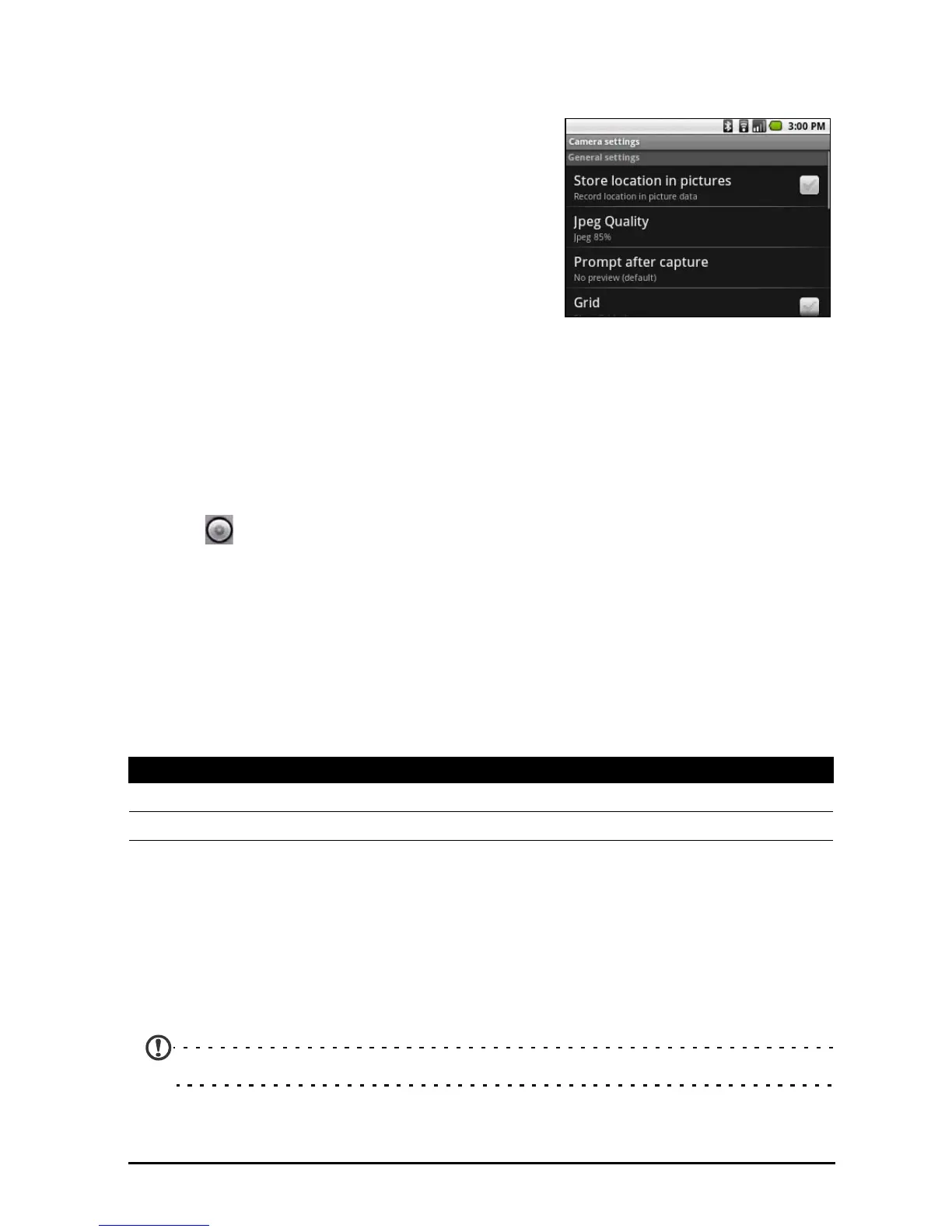
Camera settings menu
Tap the Menu button to open the Camera settings menu.
•
Store location picture
• Jpeg quality
• Prompt after capture
•Grid
• Enable shutter sound
• Antibanding
• Resolution
• White balance / lighting
• Select effect
• Scene mode
• Flash mode
Taking a photo
1. Ensure you have adjusted the parameters described above.
2. Frame your subject and steady your smartphone.
3. Zoom in or out as needed.
4. Tap
to take a picture.
Shooting a video
Turn on camcorder mode by sliding the mode switch to camcorder mode.
1. Frame your subject and steady your smar
tphone and zoom in or out as
needed.
2. Tap the Reco
rd button to begin recording. Tap again to stop recording.
Supported formats
Viewing photos and videos
After you have taken your photo or video, it is automatically saved.
Once you have taken a photo or video, you can view it in Gallery by tapping the
th
umbnail icon in the upper right corner. Alternatively, open the Applications
tab and tap Gallery. From Gallery you can share the file directly using various
services.
Note: Share options vary depending on the file type.
Type Formats
Image JPEG
Video MPEG-4, H.263


 To Next Page