
 Need help?
Do you have a question about the Acer C741 and is the answer not in the manual?
Initial steps to power on the device and start the setup process.
Guide to choosing the default language and keyboard input method.
Instructions for establishing an internet connection for setup.
Process for agreeing to the user agreement and system updates.
Overview of initial login procedures for new users.
Steps to create a Google account for device access.
Option to use the Chromebook without a Google account.
Information on enrolling the Chromebook in an enterprise environment.
Instructions for logging in with an existing Google account.
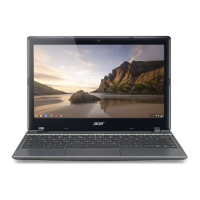
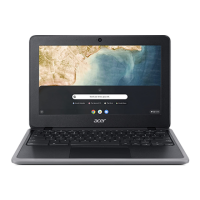
Identification of components visible on the front of the Chromebook.
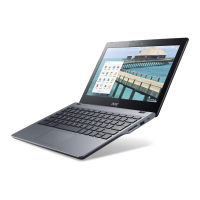
Overview of the keyboard layout and primary input devices.
Explanation of special keys and their functions for system control.
Useful key combinations for faster task completion.
Details on using the touchpad for navigation and interaction.
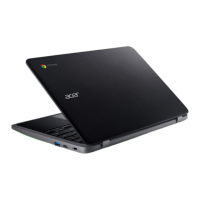
Description of ports and connectors on the left side of the device.
Description of ports and indicators on the right side of the device.
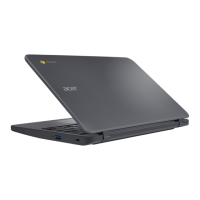
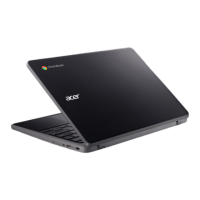
Identification of components located on the underside of the Chromebook.
Information on compatible applications and software types.
Guidance on downloading and finding new applications.
Details on compatibility and usage of Microsoft Office applications.
Instructions on locating and managing stored files.
Methods for moving files from external storage devices.
Explanation of the role and necessity of a Google account.
Guidance on configuring parental controls and child accounts.
Instructions for accessing built-in help resources on the Chromebook.
Information on where to find official support for Chrome OS.
This document serves as the user's manual for the Acer Chromebook 511, covering models C741, C741L, C741LT, and C741T. It provides comprehensive guidance on setting up, using, and maintaining the device, ensuring users can maximize its features and functionality. The manual begins with essential setup instructions, including initial power-on, language selection, and network connection. It emphasizes the importance of accepting the Terms of Service to ensure the Chromebook receives necessary system updates and the latest Chrome OS features.
For first-time users, the manual details the sign-in process, offering options to create a new Google Account, browse as a guest, or sign in with an existing Google Account. It highlights that signing in with a primary Google Account establishes the user as the owner, granting them the ability to change certain Chrome settings. The manual also touches upon enterprise enrollment as an optional step for devices used in organizational settings.
A significant portion of the manual is dedicated to a detailed tour of the Acer Chromebook 511, providing a visual and functional breakdown of its components. The front view section identifies the microphone, webcam, and screen. The microphone is described as an internal component for sound recording, while the webcam facilitates video communication, with an indicator light to show when it's active. The screen is noted for displaying computer output and supporting both touch and non-touch options, depending on the specific model.
The keyboard view section offers an in-depth look at the keyboard and touchpad. The keyboard is presented as the primary input device for data entry. The touchpad, a touch-sensitive pointing device, mimics a computer mouse. It supports various gestures: a single press anywhere on the pad for a click, a two-finger tap or an Alt-click for a right-click, and a two-finger swipe for vertical and horizontal scrolling. The manual also explains the drag-and-drop functionality, which involves selecting an item with one finger and moving it with a second finger before releasing both. The power button, located on the keyboard, is clearly identified for turning the computer on and off.
Function keys and common keyboard shortcuts are thoroughly explained to enhance user efficiency. The manual lists dedicated function keys for actions such as navigating previous and next pages, reloading the current page, entering full-screen mode, switching between windows, adjusting screen brightness, and controlling volume (mute, volume down, volume up). A search key is also included for accessing the Apps panel. Common keyboard shortcuts are provided for tasks like taking screenshots, toggling caps lock, and projecting the screen, with a note directing users to a comprehensive list accessible via a specific key combination.
The manual then moves to the physical ports and slots on the left and right sides of the Chromebook. The left view details a USB Type-C port with DC-in, which connects to the power adapter and other USB Type-C devices, supporting DisplayPort™ over USB-C™. A headset/speaker jack is present for audio devices, and a standard USB port for other USB devices. A microSD card slot is also identified for inserting microSD cards. The manual provides specific information about USB 3.2 Gen 1, noting that compatible ports are blue, and emphasizes using certified devices for optimal performance. It also elaborates on USB Type-C capabilities, including transfer speeds, audio/video output support, and charging specifications, recommending certified Acer power adapters or USB Power Delivery devices.
The right view section describes a SIM card slot (optional) for Nano SIM cards, with a diagram illustrating the SIM ejection process. A battery indicator light is explained: amber for charging and blue for fully charged in AC mode. Another USB Type-C port with DC-in is present, mirroring the functionality of the one on the left side. A Kensington lock slot is also included for connecting a Kensington-compatible security lock, providing a physical security option for the device.
The bottom view of the Chromebook highlights the speakers for stereo audio output and drain holes. The drain holes are a maintenance feature designed to allow liquid spilled on the keyboard to drain out from the underside of the housing, offering a degree of protection against accidental spills.
The "Frequently asked questions" section addresses common user queries. It clarifies that Chromebooks use apps from the Google Play Store and web-based applications, rather than traditional software. It guides users on how to download apps and confirms compatibility with Microsoft® Word, Excel®, and PowerPoint® through the Google Play Store or web versions, noting additional functionality with a Microsoft 365 subscription. The manual explains where to find files (the Files app) and how to transfer local files using external storage devices. It also reiterates the importance of Google Account information for signing into the Chromebook and accessing Google services. For parental controls, it advises signing in with the child's personal Google Account.
Finally, the manual provides resources for further assistance, directing users to the Chromebook Help app (Explore app) on their device and the official Google support website for Chrome OS. This comprehensive guide ensures users have all the necessary information to effectively use, troubleshoot, and maintain their Acer Chromebook 511.
 General
| Operating System | Chrome OS |
|---|---|
| Storage | 32GB eMMC |
| Display | 11.6-inch HD (1366 x 768) IPS |
| Weight | 1.3 kg (2.65 lbs) |
| Ports | 2 x USB 3.0, HDMI, Headphone/microphone combo jack |
| Wireless | 802.11ac Wi-Fi |




 To Next Page