English
Using the Shortcut Menu
-------------------------------------------------------------------------------------------------------------
Note:
The following content is for general reference only. Actual product specications
may vary.
The OSD (onscreen display) can be used to adjust the settings of your LCD monitor. Press
the MENU key to open the OSD. You can use the OSD to adjust the picture quality, OSD
position and general settings. For advanced settings, please refer to following page:
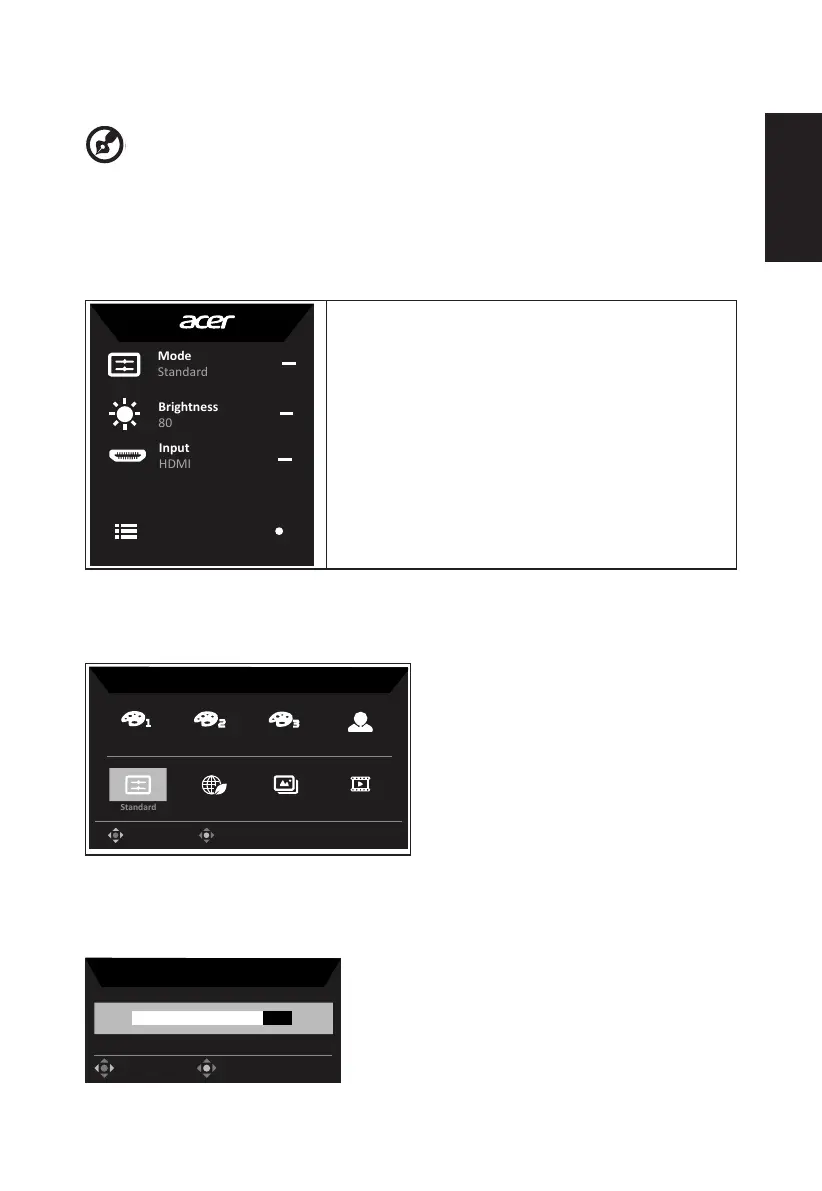
Main page
1. Hot Key1 (Modes, Brightness, Volume, Gamma,
Contrast, Blue Light, Over Drive,VRB,PIP/PBP)
2. Hot Key2 (Modes, Brightness, Volume, Gamma,
Contrast, Blue Light, Over Drive,VRB,PIP/PBP)
3. Input selection
4. Menu OSD
Hot key1 (default : Standard mode)
To choose scenario mode game mode(sRGB,Rec.709
,
HDR
,
User
,
Standard, ECO,
Graphics,Movie)
sRGB
Rec.709
HDR
User
Graphics
ECO
Hot key2 (default: Brightness)
Open the Brightness control and select your preferred brightness setting . When you are
done, press the joystick to quit current page and store.
Brightness
80
OK
Adjust


 To Next Page