
 Need help?
Do you have a question about the Acer Chromebook 516 GE and is the answer not in the manual?
Guide through powering on, language, network, and sign-in.
Creating a Google Account or browsing as a guest.
Internal microphones, webcam, and screen details.
Power button, keyboard layout, and speaker locations.
Dedicated keys for system controls like brightness and volume.
Efficient task completion using key combinations.
Gestures for cursor movement, clicking, and scrolling.
USB Type-C, Ethernet, and headset/speaker jack.
USB Type-A, HDMI, USB Type-C ports, and lock slot.
Location and function of ventilation and cooling fans.
Identification of ventilation and speaker placement.
Information on Chromebook software and app availability.
Locating, finding, and transferring files on the Chromebook.
Google Account use and child setup procedures.
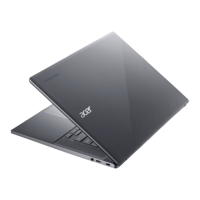
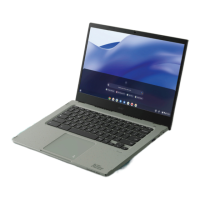
The Acer Chromebook 516 GE is a portable computing device designed for a seamless and secure web-centric experience, powered by Chrome OS. This user manual provides comprehensive guidance on setting up, operating, and maintaining the device, ensuring users can maximize its capabilities.
Upon first turning on the Chromebook by pressing the power button, users are greeted with a "Welcome" screen. The initial setup involves selecting the preferred language from a drop-down list, with an option to choose a keyboard input method if multiple are available for the selected language. Connecting to a network is a crucial step, allowing the Chromebook to access the internet. If the network is protected, a password will be required. After establishing a network connection, users must accept the Terms of Service. This action triggers the automatic download of any available system updates, ensuring the device runs on the latest Chrome OS features.
For first-time users, the Chromebook offers options for signing in. Users can create a new Google Account, which grants access to a suite of Google web services like Gmail, Google Drive, and Google Calendar. Alternatively, users can choose to browse as a guest, allowing them to use the Chromebook without a Google Account. This flexibility caters to different user needs, from personal productivity to casual browsing.
The Acer Chromebook 516 GE features a thoughtful design with various components contributing to its functionality. The front view of the device highlights the internal microphones, essential for sound recording and voice communication. A webcam is integrated for video communication, accompanied by a light that indicates when the webcam is active, ensuring user privacy. The screen serves as the primary output display for the Chromebook.
The keyboard view reveals several key elements. The power button, located on the keyboard, is used to turn the Chromebook on and off. The keyboard itself is the main input device for entering data. Stereo audio output is provided by the speakers. A touch-sensitive pointing device, the touchpad, functions as a mouse. Pressing down anywhere on the touchpad acts as a left-click, while tapping with two fingers or pressing and holding Alt on the keyboard while tapping with one finger simulates a right-click. Two-finger swiping allows for vertical and horizontal scrolling. The drag-and-drop function is achieved by selecting an item with one finger and moving it with a second finger, then releasing both to drop. This gesture is particularly useful for managing files, windows, and icons.
The left side of the Chromebook hosts several ports. A USB Type-C port with DC-in connects to the provided power adapter and supports USB devices with a Type-C connector, also supporting DisplayPort™ over USB-C™. An Ethernet (RJ-45) port allows for connection to 10/100/1000Mbps/2.5Gbps-based networks. A headset/speaker jack accommodates audio devices such as speakers, headphones, or headsets with microphones. A battery indicator light shows amber when the battery is charging and blue when fully charged in AC mode.
On the right side, there is a USB port for connecting to USB devices. An HDMI port supports high-definition digital video connections. Another USB Type-C port with DC-in is present, offering similar functionality to the one on the left, connecting to the power adapter and USB devices, and supporting DisplayPort™ over USB-C™. A Kensington lock slot provides a security option for connecting a Kensington-compatible security lock.
The rear and bottom views of the Chromebook emphasize ventilation and cooling fans, which are crucial for maintaining optimal operating temperatures. Users are advised not to cover or obstruct these openings to ensure proper cooling. The bottom also houses additional speakers for stereo audio output.
The Chromebook incorporates dedicated function keys and key combinations to access various hardware and software controls. These include keys for navigating to the previous page, reloading the current page, entering full-screen mode, switching to the next window, and taking screenshots. Brightness control keys allow users to decrease or increase screen brightness. Audio control keys include mute, volume down, and volume up. A dedicated Launcher key provides quick access to the Apps panel.
Common keyboard shortcuts enhance productivity. Ctrl + takes a screenshot. Alt + toggles caps lock. Alt + projects the screen. For a comprehensive list of keyboard shortcuts, users can press Ctrl + Alt + /.
The manual addresses common user queries. Chromebooks primarily run apps from the Google Play Store and web-based applications, offering a wide range of options for productivity, creativity, entertainment, and gaming. Users can find more apps through the Google Play Store or directly on the web. While Chromebooks work with Microsoft® Office, users typically access these applications via their web versions.
All user files are stored in the Files app, accessible by clicking the Launcher icon and searching for "Files." Local files can be transferred using compatible external storage devices like USB thumb drives or removable hard drives. Files, photos, and videos can also be uploaded to Google Drive, making them accessible after setting up the Chromebook with a Google Account.
A Google Account is essential for signing into the Chromebook, as it integrates with Google services like Gmail and Drive, automatically signing the user into various apps and services. For parental controls, it is crucial to sign in using the child's personal Google Account, which can be created during the sign-in process. A child's school account can be added after device onboarding.
For further assistance, users can access Chromebook Help by opening the Explore app on their device. Additional support and information about Chrome OS are available at google.com/support/chromebook/.
While the manual does not explicitly detail extensive maintenance features, it implicitly guides users on best practices. The emphasis on not obstructing the ventilation and cooling fan openings (found on both the rear and bottom of the device) is a key maintenance instruction to prevent overheating and ensure the longevity of the device. The automatic system updates mentioned during the initial setup are a crucial maintenance feature, ensuring the operating system remains secure and up-to-date without manual intervention. The ability to transfer files to Google Drive also serves as a form of data backup and management, contributing to the overall health and usability of the device. The design of the Chromebook, with its web-centric nature, inherently reduces the need for complex software maintenance often associated with traditional operating systems.
 General
| Display Size | 16 inches |
|---|---|
| Resolution | 2560 x 1600 |
| Graphics | Intel Iris Xe Graphics |
| Operating System | Chrome OS |
| Battery Life | Up to 9 hours |
| Display | IPS, 120Hz refresh rate |
| Wireless | Wi-Fi 6E, Bluetooth 5.2 |
| Battery | 65 Wh |
| RAM | 8 GB |
| Storage | 256GB SSD |
| Weight | 1.7 kg |
| Webcam | 1080p |
| Keyboard | Backlit |
| Processor | Intel Core i5-1240P |
| Ports | 2 x USB-C, 2 x USB-A, HDMI, 3.5mm headphone jack |


 To Next Page