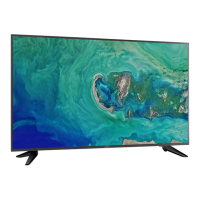
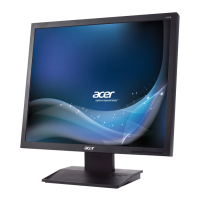
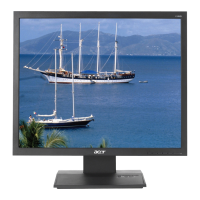
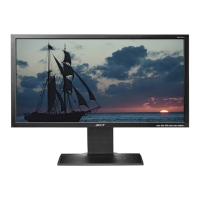
This document serves as a Quick Start Guide for the Acer LCD monitor, specifically the DM1 series-DM431K model, providing essential information for its safe setup, operation, and maintenance. The monitor is designed for video and visual display of information obtained from electronic devices, offering a clear and vibrant viewing experience for various applications, from everyday computing to multimedia consumption.
Function Description
The Acer LCD monitor functions as a display unit for computers and other compatible electronic devices. It receives video signals through various input ports and translates them into visual images on its screen. The monitor is equipped with external controls that allow users to navigate an On-Screen Display (OSD) menu, enabling customization of display settings such as brightness, contrast, color temperature, and input source selection. Some models may also include integrated speakers for audio output, enhancing the multimedia experience without the need for external audio devices. The monitor supports multiple input types, including VGA, DisplayPort (DP), and HDMI, ensuring compatibility with a wide range of devices. Its design focuses on delivering a high-quality visual output suitable for both work and entertainment.
Usage Features
The Acer LCD monitor offers a user-friendly experience with several features designed for convenience and optimal performance.
- Easy Setup: The monitor is designed for straightforward assembly and connection. Users can easily attach the monitor to its stand by aligning screw holes and securing them firmly. Connecting the monitor to a computer involves simply plugging in the appropriate signal cable (VGA, DP, or HDMI) and the power cord. An optional audio cable can be connected for sound if the monitor has built-in speakers.
- Intuitive External Controls: The monitor features a set of easily accessible external controls, typically located on the bottom or side bezel. These controls include a Power button for turning the monitor on/off, an Enter button for selecting options in the OSD, OSD functions/Up button for navigating menus and adjusting settings, an Input source switching/Right button for selecting the video input, an Empowering Key/Down button for scenario modes and menu navigation, and a Volume Key/Left button for adjusting audio levels. The LED indicator provides visual feedback on the monitor's power status (blue for on, amber for standby/power saving).
- On-Screen Display (OSD) Menu: The OSD menu is a central feature for customizing the monitor's performance. It allows users to adjust a wide array of settings, including:
- Display Settings: BlueLight filter, Brightness, Contrast, Black Boost, Colour Temp, Modes (e.g., sRGB, Grayscale), Gamma, Super Sharpness, HDR. These settings enable users to fine-tune the visual output to their preferences or specific content requirements.
- Color Management: 6-axis Hue and 6-axis Saturate provide advanced control over color accuracy and vibrancy.
- Input Selection: Users can manually select the input source (VGA, DP, HDMI) or enable Auto Source detection.
- Audio Settings: Volume control and options related to audio input if applicable.
- OSD Settings: Language, OSD Timeout, Transparency, OSD Lock, Wide Mode.
- Advanced Features: DDC/CI On/Off, ACM On/OFF, OD (Overdrive), PIP/PBP (Picture-in-Picture/Picture-by-Picture) for multitasking, Hot Key Assignment for quick access to frequently used functions, HDMI Black Level adjustment, and Quick Start Mode.
- Reset and Information: Options to reset settings to factory defaults and view monitor information.
- Multiple Input Options: With VGA, DP, and HDMI input sockets, the monitor offers broad compatibility with various generations of computers, laptops, and other media devices, making it versatile for different setups.
- Audio Capabilities: For models equipped with integrated speakers, the monitor can provide audio output, simplifying desk setups by reducing the need for separate speakers. An audio input socket allows connection to the computer's line-out port.
- Energy Efficiency: The monitor is designed with energy efficiency in mind, featuring power consumption modes for "On," "Sleep," and "Off" states to help reduce electricity usage. It complies with relevant ecodesign requirements for energy-related products.
- Firmware Upgradeability: The monitor includes a USB-only upgrade menu, allowing users to update the firmware, which can improve performance, add new features, or fix bugs, ensuring the monitor remains up-to-date.
Maintenance Features
Proper maintenance ensures the longevity and optimal performance of the Acer LCD monitor. The guide provides clear instructions for safe handling and care.
- Screen Cleaning: To clean the LCD monitor screen, users are advised to first turn off the monitor and unplug the power cord. A non-solvent cleaning solution should be sprayed onto a rag, not directly onto the screen, and then used to gently clean the screen. This prevents liquid from entering the monitor and causing damage.
- Environmental Considerations: The monitor should be stored and operated within specified temperature and humidity ranges to prevent damage. It should not be placed near windows where it could be exposed to rain, moisture, or direct sunlight, as these elements can severely damage the unit.
- Handling Precautions: Users are cautioned against applying pressure to the LCD screen, as excessive force can cause permanent damage to the display. The monitor should also not be stored outside the recommended temperature range (-20° to 60° C / -4° to 140° F).
- Authorized Servicing: To ensure safety and prevent voiding warranties, users are explicitly instructed not to remove the cover or attempt to service the unit themselves. Any servicing should be performed by an authorized technician. This is crucial for addressing issues like frayed signal cables, liquid spills, or physical damage to the monitor or its case.
- Regulatory Compliance: The monitor adheres to various regulatory standards, including FCC rules for digital devices (Class B), CE declaration of conformity (EMC, Low Voltage, RoHS, and Ecodesign directives), and Canadian ICES-3(B)/NMB-3(B). These compliances ensure the device operates safely and minimizes interference with other electronic equipment.
- Shielded Cables: To maintain compliance with EMC regulations and prevent interference, all connections to other computing devices must be made using shielded cables.
- Proper Disposal: The product packaging includes a symbol indicating that the monitor should not be disposed of with general household waste. Instead, it must be handed over to a designated collection point for the recycling of waste electrical and electronic equipment. This practice helps conserve natural resources and ensures environmentally sound recycling, protecting human health and the environment. Information on local recycling options can be obtained from city offices, waste disposal services, or the retailer.
By following these guidelines, users can ensure their Acer LCD monitor operates efficiently and safely for an extended period, providing a reliable display solution for their computing needs.

 Need help?
 General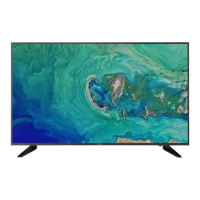

 To Next Page