6 -
English
Using the dock
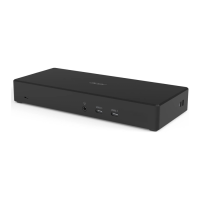
Acer USB Type-C Dock M501 allows you to set up your desk so you can use your
notebook with an external keyboard and mouse, and up to three displays.
Note: If your computer supports charging from its USB port, you can charge
your notebook's battery through the Acer USB Type-C Dock M501.
Connecting a notebook to Acer USB Type-C Dock M501
Your notebook must support full function USB Type-C connection. A certified Acer
notebook is recommended for fullest compatibility.
Note: For optimal compatibility, the latest firmware will be upgraded during
the Chrome OS is upgraded if need.
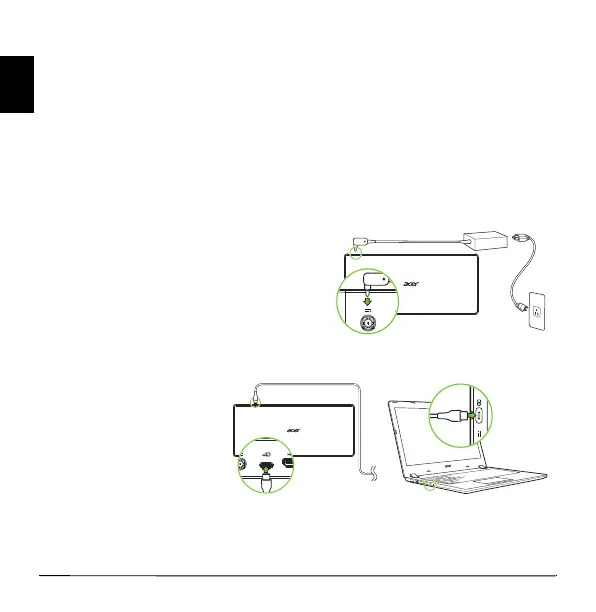
1. Plug in the AC adapter.
• Please use the adapter provided with
the dock to achieve the full supported
functions.
• Press the power button.
2. Connect your notebook via USB Type-C
to the dock.
• When using the USB
Type-C connector
connecting to the
dock, gently push it
into the tunnel to the
port. You will feel a
click indicating it is
connected.
Disconnecting the notebook
To disconnect your notebook from the dock, simply unplug the USB Type-C cable
from your notebook or the dock.


 To Next Page