EasyManua.ls Logo

Acer X1529HK Series - User Manual

Acer X1529HK Series
61 pages
Print Icon
To Next Page IconTo Next Page
Loading...
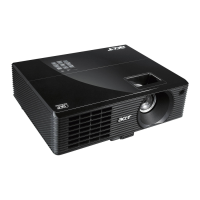
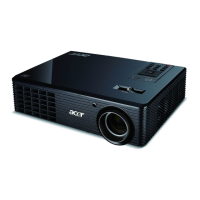
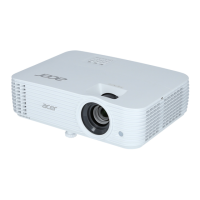
Acer DLP Projector
X1529HP/MF529/Q59F/EF565/EV-F60/
M459/BS-429/X1529HK/MF529K/Q59FK/
EF565K/EV-F60K/M459K/BS-429K/
H6542PK/E355DPK/HE-805PK/GM525PK/
H6531PK+/VH-425PK/H6542K/E355DEK/
HE-805EK/GM525EK/H6531EK+/VH-
425EK/H6543BDK/E356DK/HE-806K/
GM526K/H6547BDK/VH-426K/
H6543BDK+/H6547BDK+/E356D/HE-806/
GM526/X1526PK/D655FPK/V58FPK/
AF608PK/EV-F58PK/M456PK/BS-425APK/
DX525APK/KW320APK/H6542PK/X1526K/
D655FEK/V58FEK/AF608EK/EV-F58EK/
M456EK/BS-425AEK/DX525AEK/
KW320AEK/H6542EK/X1629HP/MU529/
Q59U/EU565/EU566/DX629/BS-529/
X1629HK/MU629K/Q59UK/EU565K/
EU566K/DX629K/BS-529K/H6543BD/
E357D/HE-807/GM527/H6542BD+/VH-
427/A1P2104
Series User's Guide
Copyright © 2021. Acer Incorporated.
All Rights Reserved.
Acer Projector User's Guide
Original Issue: 05/2021

Questions and Answers

  • M
    mcdanielamberAug 17, 2025
    How to fix Acer X1529HK image is too small or too large?
    • J
      John CampbellAug 17, 2025
      To resolve an image that's too small or too large on your Acer Projector: * Adjust the zoom lever on the top of the projector. * Move the projector closer to or further from the screen. * Press 'MENU' on the control panel or remote control. Go to 'Image' > 'Aspect Ratio' and try different settings.
  • C
    Christopher RobinsonAug 20, 2025
    Why the screen of the notebook computer is not displaying my presentation on Acer Projector?
    • S
      Spencer LambertAug 20, 2025
      If your notebook computer's screen isn't displaying your presentation on the Acer Projector: * If you are using a Microsoft® Windows® based notebook: Some notebook PCs may deactivate their own screens when a second display device is in use. Each has a different way to be reactivated. * If you are using an Apple® Mac® OS based notebook: In System Preferences, open Display and select Video Mirroring 'On.'
  • D
    dixonguyAug 22, 2025
    How to fix Acer X1529HK Projector image is unstable or flickering?
    • R
      Rita HuntAug 22, 2025
      If the image on your Acer Projector is unstable or flickering: * Change the display color setting on your computer.
  • R
    Robert MartinAug 26, 2025
    What to do if no image appears onscreen on Acer X1529HK?
    • W
      Wendy TuckerAug 26, 2025
      If no image appears on the screen from your Acer Projector: * Make sure all the cables are correctly connected. * Ensure none of the connector pins are bent or broken. * Make sure the projector is switched on.
  • N
    Nicholas KennedyAug 28, 2025
    How to fix Acer X1529HK image has slanted sides?
    • R
      ricardobrownAug 28, 2025
      To correct slanted sides on your Acer Projector's image: * If possible, reposition the projector so that it is centered on the screen and below the bottom of the screen. * Press the Keystone correction keys on the control panel or remote control until the image becomes square. * Press 'MENU' on the control panel or remote control to open the OSD menu. Go to 'Image' > 'Auto Keystone' or 'Image' > 'Manual Keystone' to make adjustments.
  • K
    kimberlychangAug 31, 2025
    What to do if Acer Projector stops responding to all controls?
    • L
      Lynn BakerAug 31, 2025
      If your Acer Projector stops responding to controls: * If possible, turn off the projector, then unplug the power cord and wait at least 30 seconds before reconnecting power. * Make sure that the control panel lock function is disabled.
  • N
    nelsonkristenSep 2, 2025
    How to fix Acer Projector image is out of focus?
    • J
      John LeblancSep 2, 2025
      To correct an out-of-focus image on your Acer Projector: * Adjust the focus ring on the projector lens. * Make sure the projection screen is within the required distance.
  • K
    katelynhernandezSep 5, 2025
    What to do if Acer X1529HK image has vertical flickering bar?
    • S
      simmonsdavidSep 5, 2025
      If your Acer Projector displays an image with a vertical flickering bar: * Check and reconfigure the display mode of your graphics card to make it compatible with the projector.
  • S
    stephanie20Sep 12, 2025
    How to fix Acer Projector image is stretched when displaying a 'widescreen' DVD title?
    • M
      Matthew LangSep 12, 2025
      If the image is stretched when displaying a 'widescreen' DVD title on your Acer Projector, you may need to adjust the following settings: * If you play a 4:3 format DVD title, please change the format to 4:3 with the projector OSD. * If the image is still stretched, you will also need to adjust the aspect ratio. Set up the display format to 16:9 (wide) aspect ratio on your DVD player.
  • U
    umorrisonSep 13, 2025
    How to fix Acer X1529HK Projector image is reversed?
    • M
      Molly McbrideSep 13, 2025
      To correct a reversed image on your Acer Projector: * Select 'Image' > 'Projection Mode', 'Image' > 'Projection Location' on the OSD and adjust the projection direction.

Summary

Safety and Comfort Information

Cleaning and Disconnection Safety

Guidelines for powering off, cleaning, and safely disconnecting the projector.

Electrical Power Usage

Safe Electrical Power Practices

Rules for using power cords, extension cords, and preventing circuit overload.

Product Servicing and Safety

Servicing and Safety Precautions

When to seek professional servicing and general safety warnings.

Operational Safety and Installation

Safe Operation and Installation Practices

Guidelines for lamp life, disassembly, placement, and installation safety.

Initial Setup and Precautions

Usage Notes and Precautions

Essential usage notes and precautions for maximizing projector life and safe operation.

Product Features Overview

Key Projector Features

Highlights of the DLP projector's capabilities and technologies.

Projector Overview

Projector Outlook and Connections

Diagrams and descriptions of the projector's front, upper, and rear interfaces.

Control Panel Operations

Control Panel Layout and Functions

Explanation of the buttons and indicators on the projector's control panel.

Remote Control Guide

Remote Control Layout and Functions

Detailed layout and function descriptions for the projector's remote control.

MHL Feature Introduction

MHL Remote Control Usage

How to use the remote control to operate smart devices via MHL connection.

Getting Started: Projector Connection

Connecting the Projector to Devices

Diagrams illustrating how to connect various devices to the projector.

Turning the Projector On

Turning the Projector Off

Installation Menu

Onscreen Display (OSD) Menus

Color Settings

Image Adjustments

Advanced Color Adjustments

Advanced Image Settings

Image Projection Settings

Image Fine-Tuning

System Settings

Performance and Security

Security Management

Administrator and Startup Security

3 D Display Configuration

Acer Splash Downloader Tool

Troubleshooting Common Issues

Image Display Troubleshooting

Resolving common issues related to image display and projection.

Troubleshooting Projector Problems

Projector Responsiveness and Lamp Issues

Solutions for projector control issues and lamp failure symptoms.

Ceiling Mount Installation

Specifications

Compatibility Modes

Acer X1529HK Series Specifications

General IconGeneral
Display TechnologyDLP
Lamp Life (Standard)4000 hours
Aspect Ratio16:9
Keystone CorrectionVertical ±40°
Input InterfaceHDMI
Output InterfacePC Audio (3.5mm) x 1
Power SupplyAC 100 - 240 V, 50/60 Hz
Projection Size30" ~ 300" (76 cm ~ 762 cm)

Related product manuals