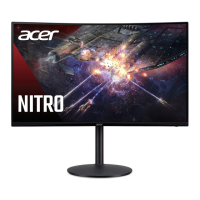
Need help?
Do you have a question about the Acer XZ321QU and is the answer not in the manual?
Read and follow all warnings and instructions for safe operation.
Crucial warnings about water, stability, ventilation, and electrical hazards.
When to contact qualified service personnel for repairs.
Proper connection of the adapter and AC power cord.
Functions of power button and hotkeys.
Modifying brightness, contrast, and other visual parameters.
Solutions for display or connectivity problems.
This document is a user guide for an Acer LCD Monitor, providing comprehensive instructions for safe use, setup, operation, and troubleshooting.
The Acer LCD Monitor is a display device designed for general computer use. It connects to a computer via various signal cables (HDMI, DisplayPort, Mini DisplayPort, MHL) to display visual output. The monitor supports multiple display modes and resolutions, including VESA, IBM, and MAC timing tables, with refresh rates up to 144Hz for QHD resolution. It features power-saving modes to reduce energy consumption when not actively in use. The monitor also incorporates DDC (Display Data Channel) protocol for plug-and-play functionality, allowing it to automatically communicate its capabilities to the host system.
Setup and Installation: The monitor requires connection to a power source via an AC adapter and power cord. Signal cables (HDMI, DP, MHL) connect the monitor to the computer's graphics card. Optional USB cables can be connected for data transfer and fast charging. The monitor's power outlet should be easily accessible.
Screen Position Adjustment: Users can adjust the monitor's height and tilt to optimize their viewing position. The height adjustment allows for a vertical movement of up to 120mm. The tilt function offers a range from -5° to 25° of recline for the angle of elevation.
User Controls: The monitor features a power button and multiple function keys, including a joystick-like toggle button on the backside of the display bezel. These controls allow users to navigate the On-Screen Display (OSD) menu and access various settings.
OSD Menu Navigation: The OSD menu is accessed by pressing the MENU key. The joystick button is used to move the cursor in four directions and select desired options. The OSD is organized into several pages:
Hotkeys: The monitor features customizable hotkeys for quick access to frequently used functions. Hot Key 1 and Hot Key 2 can be assigned to various settings like Modes, Brightness, Volume, Gamma, Contrast, Blue Light, Over Drive, PIP/PBP. Hot Key 3 is dedicated to Input Switch.
FreeSync Technology: The monitor supports FreeSync, which dynamically adjusts the display refresh rate to match the content frame rate from a compatible graphics source. This feature aims to provide stutter-free and low-latency display updates, enhancing the gaming experience.
MPRT (Motion Picture Response Time): This feature controls dynamic picture clarity. When enabled, it can make moving images appear cleaner. However, it has certain limitations: it is not supported in PIP/PBP mode or when HDR is set to "Auto." Enabling FreeSync will automatically disable MPRT. Adjusting Brightness, Blue Light, or ACM will also disable MPRT. MPRT function does not affect the brightness of the Logo, Aim Point, Message, and Input Icon. If the input timing is less than 75Hz, MPRT will be automatically turned off and grayed out.
HDR (High Dynamic Range): The monitor can detect and process HDR signals when set to "Auto." When HDR is active, the Modes will also automatically switch to "HDR," and certain parameters like ACM, Gamma, Contrast, Blue Light, and Black Boost will be grayed out and disabled.
Super Sharpness: This technology enhances image clarity by boosting the pixel density of the original source, making images sharper.
Power Saving: The monitor enters a "Power Saving" mode, indicated by an amber-colored power LED, when it receives a control signal from the display controller. It recovers from this state within approximately 3 seconds upon detecting a control signal or user input (keyboard/mouse activation).
Cleaning: The monitor should always be unplugged before cleaning. A soft cloth should be used to wipe the screen and the cabinet's front and sides.
Troubleshooting: The user guide provides a troubleshooting section for common issues, specifically for HDMI/DP Mode. It lists problems, LED statuses, and suggested remedies. For example, if there is no picture visible and the LED is blue, remedies include adjusting brightness/contrast, checking the power switch, verifying AC power cord connection, checking the video signal cable, and ensuring the computer is on and not in power-saving mode.
Product Servicing: Users are advised not to attempt servicing the product themselves to avoid dangerous voltage points and other risks. All servicing should be referred to qualified service personnel. Specific conditions that warrant professional servicing include a damaged power cord or plug, liquid spills, exposure to rain or water, physical damage from dropping, or a distinct change in performance.
Environmental Responsibility: Acer emphasizes its commitment to environmental protection and recycling. Information on IT equipment recycling and disposal instructions is provided, encouraging users to recycle the electronic device to minimize pollution and protect the environment. Links to Acer's sustainability website are included for more details on WEEE regulations and other environmental initiatives.
Safety and Comfort Guidelines: The guide includes extensive information on user safety and comfort, covering:
The monitor is designed with user experience in mind, offering a range of adjustments and features to ensure both optimal performance and user well-being.
 General
| Panel type | VA |
|---|---|
| Display diagonal | 31.5 \ |
| Display technology | LED |
| Native aspect ratio | 16:9 |
| Contrast ratio (dynamic) | 100000000:1 |
| Contrast ratio (typical) | - |
| Display number of colors | 16.78 million colors |
| Display brightness (typical) | 300 cd/m² |
| Supported graphics resolutions | 2560 x 1440 |
| USB hub | Yes |
| RMS rated power | 14 W |
| Number of speakers | 2 |
| Product color | Black |
| Market positioning | Gaming |
| USB hub version | 3.2 Gen 1 (3.1 Gen 1) |
| VGA (D-Sub) ports quantity | 0 |
| USB Type-A downstream ports quantity | 4 |
| Tilt angle range | -5 - 25 ° |
| Panel mounting interface | 100 x 100 mm |
| AC input voltage | 100 - 240 V |
| Power consumption (off) | 0.45 W |
| Power consumption (standby) | 0.5 W |
| Power consumption (typical) | 43 W |
| Harmonized System (HS) code | 85285210 |
 Weight and Dimensions
| Width (without stand) | - mm |
|---|---|
| Weight (without stand) | - g |

 To Next Page