Setting parameters 1
1. Please carefully set the engraving parameters
5
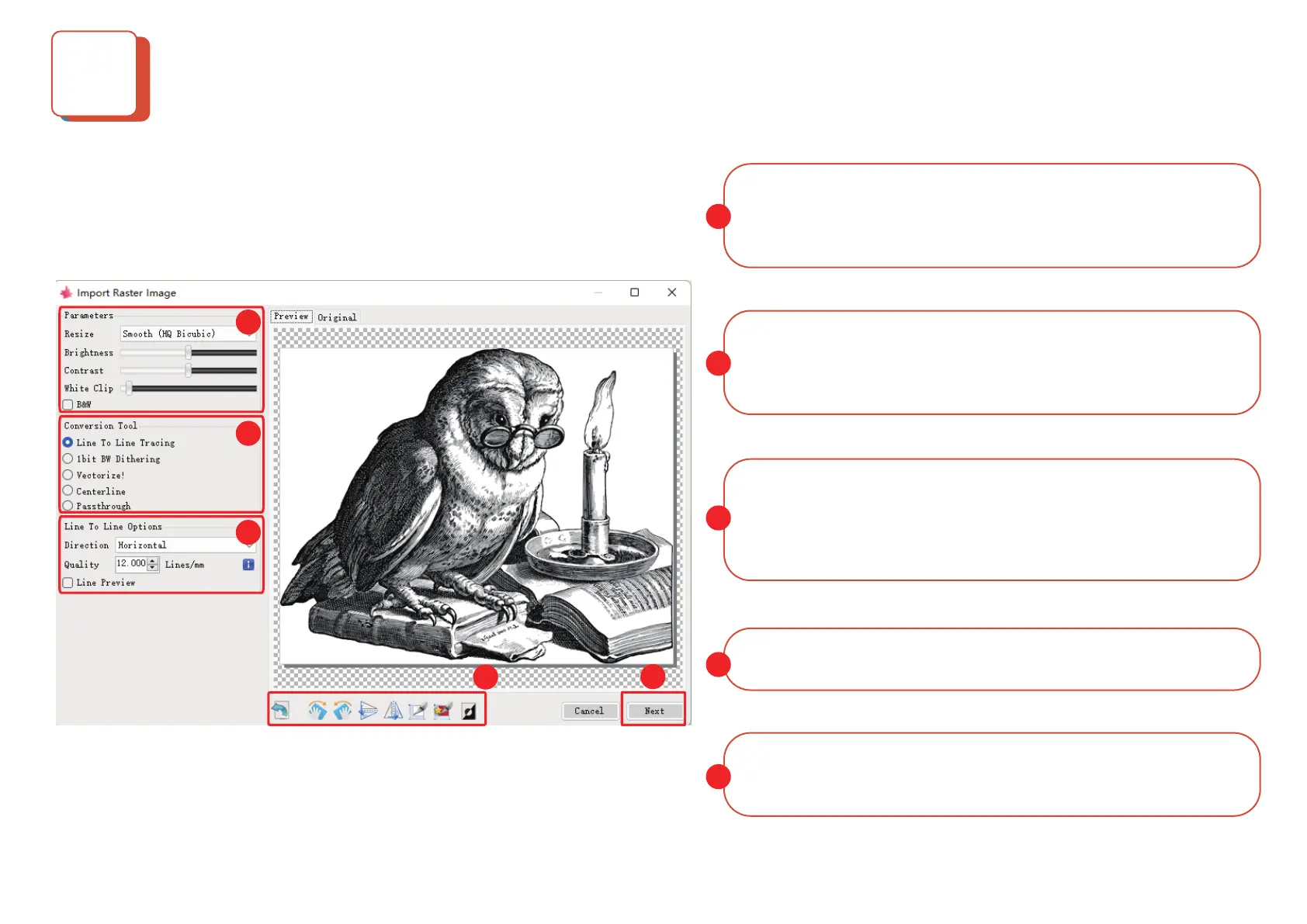
LaserGRBL can adjust the brightness, contrast, and other attributes of the target
image. When the parameters are adjusted, you can see the actual eect in the
preview window on the right and can try to adjust it to what you think is
satisfactory.
1
1
The engraving mode is usually selected as "progressive tracking" and "1bit jitter".
1-bit jitter is more suitable for engraving grayscale images. If you want to cut,
please select vector or centerline engraving mode and choose no ll.
2
Engraving quality essentially refers to the line width of the laser scan. This
parameter depends primarily on the size of the laser spot of the engraver. The Z1
engraver applies a square spot of .08mm. Therefore, the recommended engrav-
ing quality range is 8-20 (commonly 12).
3
At the bottom of the preview window, you can also rotate, mirror, and cut the
image.
4
After completing the above settings, click next to enter the engraving speed,
engraving energy, engraving speed to set the size of the engraving
5
2
3
4
5


 To Next Page
 Loading...