Need help?
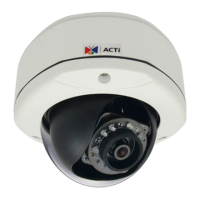
Do you have a question about the ACTi D21F and is the answer not in the manual?
This document serves as a comprehensive hardware manual for the ACTi Box Camera Series, encompassing models D21 (D21F / D21V), D22 (D22F / D22V), E21 (E21F / E21V), E22 (E22F / E22V), E23, E24, and E25. It provides essential information for the safe and effective installation, configuration, and maintenance of these network cameras. The manual emphasizes that while there are various models, their installation procedures are largely similar, allowing for a unified approach to setup.
The primary function of these devices is to provide video surveillance, with different models offering varying capabilities such as day/night functionality, fixed or vari-focal lenses, and different levels of Wide Dynamic Range (WDR) and low-light sensitivity (SLLS). The cameras are designed for both indoor and outdoor installations, with outdoor setups requiring additional waterproof housing and heavy-duty brackets.
Key usage features include connectivity via a standard RJ45 Ethernet port, supporting Power over Ethernet (PoE) for simplified power and data transmission. The cameras are equipped with a Power LED to indicate successful power-on and system operation, which can be optionally disabled via a URL command. For models utilizing DC iris lenses, a dedicated DC Iris Port is available for connection.
A critical feature for managing these cameras is the Reset Button. This button serves multiple purposes, primarily to restore the camera to its factory default settings. This is particularly useful in scenarios where the administrator's password has been forgotten, or if there are IP address, subnet mask, or filter-related issues preventing access to the camera's settings. It can also be used to resolve connectivity problems or abnormal video quality. The reset procedure involves disconnecting power, pressing and holding the reset button, reconnecting power while holding the button, and then releasing it after a specified duration.
For initial setup and network integration, the manual details how to connect the camera to a PC and configure its IP address. In networks with a DHCP server, the camera will automatically obtain an IP address, and the IP Utility software can be used to discover the camera's assigned IP. If no DHCP server is present, the camera defaults to a static IP address of 192.168.0.100 with a default HTTP port of 80. In such cases, the PC's IP address must be manually configured to match the camera's network segment for communication. The IP Utility is a lightweight software tool that not only discovers cameras but also provides detailed information such as MAC addresses, serial numbers, and firmware versions, and allows for quick configuration of multiple devices simultaneously. This utility streamlines the process of assigning unique IP addresses to multiple cameras in a network where no DHCP server is available, preventing conflicts that would arise if all cameras retained the default IP.
Accessing the camera's firmware is done via a web browser. While various browsers can be used, the manual highlights that Microsoft Internet Explorer offers full functionality, particularly for features like live video area resizable, video overlay-based configurations (motion detection regions, privacy mask regions), and PTZ control. For other browsers, the basic VLC media player needs to be installed to view live video feeds. The manual also notes that the camera manufacturer does not guarantee VLC player compatibility due to its third-party nature. Upon successful connection to the camera's IP address in the browser, a Web Configurator interface appears, prompting for login credentials. The default account is "Admin" with a password of "123456". Further operations and detailed configurations are covered in the separate Firmware User Manual.
Maintenance features primarily revolve around safety and proper handling. The manual provides "Precautions" that emphasize reading all safety and operating instructions, heeding warnings, and referring all servicing to qualified personnel. It explicitly states not to attempt servicing the device oneself to avoid dangerous voltages and other hazards. Cleaning the device requires disconnecting it from the power supply. The manual also warns against using unrecommended attachments or accessories and against exposing the device to water or moisture, unless it's specifically designed for outdoor use with appropriate waterproof housing. In cases of damage, such as a damaged power cord, liquid spills, or exposure of inner parts to water, the device should be disconnected immediately, and servicing should be referred to qualified personnel. After any service or repair, a safety check should be performed by the technician to ensure proper operating condition. The document also includes FCC/CE regulations, noting that the equipment complies with Class B digital device limits and provides reasonable protection against harmful interference in commercial environments.
 General
| Model | D21F |
|---|---|
| Form Factor | Dome |
| Maximum Video Resolution | 1920 x 1080 |
| Maximum Frame Rate | 30 fps |
| Sensor Type | CMOS |
| Video Compression | H.264, MJPEG |
| Frame Rate @ 1080p | 30 fps |
| Ingress Protection | IP66 |
| Vandal Proof | IK10 |
| Product Type | Security Camera |
| Camera Technology | IP |
| Connectivity Technology | Cable |
| Image Sensor Type | Progressive Scan CMOS |
| Lens Type | Fixed lens |
| Minimum Illumination | 0.05 Lux (Color) |
| Day/Night | Yes |
| Network Interface | Ethernet (RJ-45) |
| Protocols | HTTP, HTTPS, DHCP, DNS, DDNS, RTP, RTSP, PPPoE, SMTP, NTP, UPnP, IPv4, IPv6 |
| Power Supply | PoE (IEEE 802.3af) |
| Power Source | PoE |
| Operating Temperature | -10°C to 50°C (14°F to 122°F) |
| Features | WDR, Motion Detection, Privacy Masking |
| Sensor Resolution | 2MP |

 To Next Page