13.
Connect ACTIONPRO X7 to smartphone
●
''
ActionViewer
' is not connected to X7
●
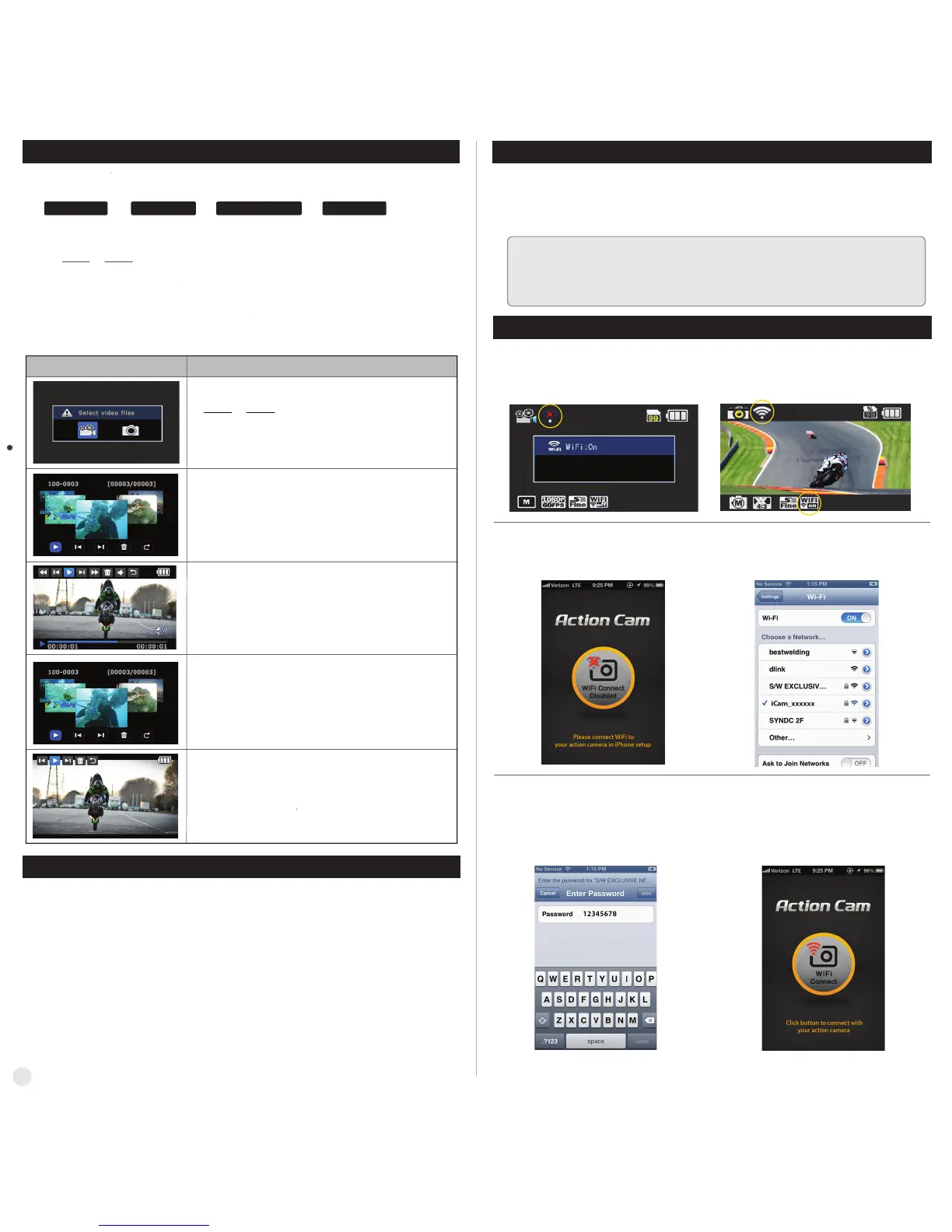
Setup WiFi connection between the camera and
the smartphone.
●
Enter 'Setup' of smartphone.
●
Select 'iCam_xxxxxx' in WiFi setting.
●
Run '
ActionViewer
' application in smartphone.
●
Click 'Connect' button in application to connect
ACTIONPRO X7
●
Smartphone screen will display live screen of
the camera.
●
Default password is '12345678'
●
Turn on 'WiFi APP' function in
ACTIONPRO X7
●
Wait 1 min to activate WiFi signal
in the camera. (For the first time connection)
●
WiFi signal is activated.
●
WiFi is ready to connect.
10. Playback mode
Playback mode
Operation
●
LCD will show the low battery icon when the battery is too low and close to the cut off level.
●
The camera will save the file, if it is recording, and then turn off.
Then, you must recharge your battery.
●
It will take about 3.5 hours for full charging by USB.
●
You can use an AC charging adapter (optional accessory) for quick charging.
It will take about 2.5 hour for full charging.
11. Recharging battery
1. Turn off the camera.
2. Connect the camera USB port to your computer via USB cable.
3. Status LED will be turned on and battery recharging will be started.
4. LED will be turned off when it is fully charged.
1. In playback mode, press ON/OFF button to select the file type to playback
( video or photo )
2. Thumbnail of recorded file will be displayed.
Press SETUP/MODE button to use control panel, and select the file by
pressing ON/OFF button.
3. While the file is playing, you can press SETUP/MODE button to use control panel and
select the file by pressing ON/OFF button.
●
Press MODE button and hold for two seconds to change to playback mode.
●
Mode changes as
( video mode → photo mode → playback mode → video mode ) in turn.
●
User can view recorded video or photo through LCD screen of the camera.
●
In playback mode, select the file type to playback
( video or photo )
●
Press
SETUP/MODE
button choose file type
●
Press
ON/OFF
button to select
●
Thumbnail of video files. Select the file to play
●
Press
SETUP/MODE
button to use control panel
●
Press ON/OFF button to select
●
Video playback
●
Press
SETUP/MODE
button to use control panel
●
Press ON/OFF button to select
●
Thumbnail of photo files. Select the file to display.
●
Press
SETUP/MODE
button to use control panel
●
Press ON/OFF button to select
●
Photo playback
●
Press
SETUP/MODE
button to use control panel
●
Press ON/OFF button to select
●
Utilizing WiFi function of ACTIONPRO X7, user can control the camera through smartphone.
●
Compatible with iOS ver. 5.0 or better, Android OS Jelly Bean or better.
●
Before connect the camera, download 'ActionViewer' application from smartphone app store.
●
Search for 'ActionViewer' in iPhone App Store or Google Play Store
12. Smartphone control
* While smartphone is connected to the camera, camera button operation will be disabled.
* Select all settings of the camera before connect to your smartphone.
* ''ActionViewer'' features will be upgraded through application update through
your smartphone.
4
OFF APP RC EXIT



 To Next Page
 Loading...