141
ADOBE FRAMEMAKER 7.0
Classroom in a Book
6
In the status bar, Shift-click the Previous Page button ( ) to go back to page 1.
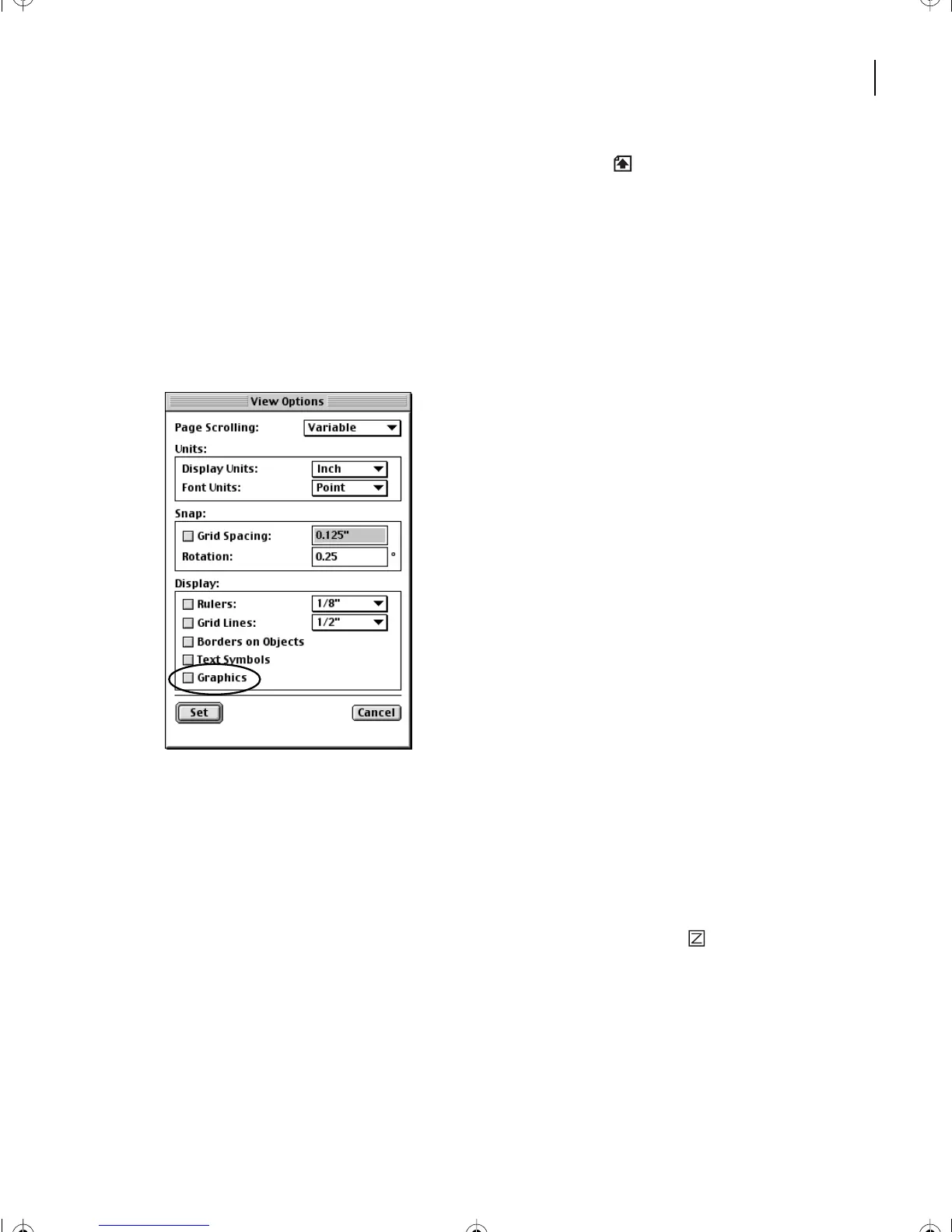
Turning off the display of graphics
Throughout this lesson, you’ll select and edit text. To make pages display faster, and to
make it easier to see the selected text, you’ll turn off the display of graphics.
1
Choose View > Options.
2
Turn off Graphics and click Set.
The graphics temporarily disappear from the document. (They won’t appear in print
either.) They are not deleted—when you finish editing the text, you’ll redisplay the
graphics.
3
If you like, page through the document to see how it looks without graphics. When
you’re finished, go back to page 1.
4
If you find the text too small to read, click the Zoom In button ( ) in the status bar
until the text is legible.
L06.fm Page 141 Saturday, July 6, 2002 11:51 AM



 To Next Page