167
ADOBE FRAMEMAKER 7.0
Classroom in a Book
To select a single cell, you can Control-click the cell (Windows and UNIX) or Option-
click it (Mac OS). Notice that the cursor changes into a resizing arrow
()
when it rolls over
the selection handle, which appears on the cell’s right edge at its middle vertical point.
14
Choose Edit > Cut.
15
Click in the top body cell in the column and choose Edit > Paste.
16
Save the document.
Formatting text in table cells
When you inserted a new table, its cells used a predetermined paragraph format (as
defined in its table format). To change the text properties in the table, you can change the
paragraph formats the table uses. You’ll begin formatting the table by changing the table
text to a smaller font.
1
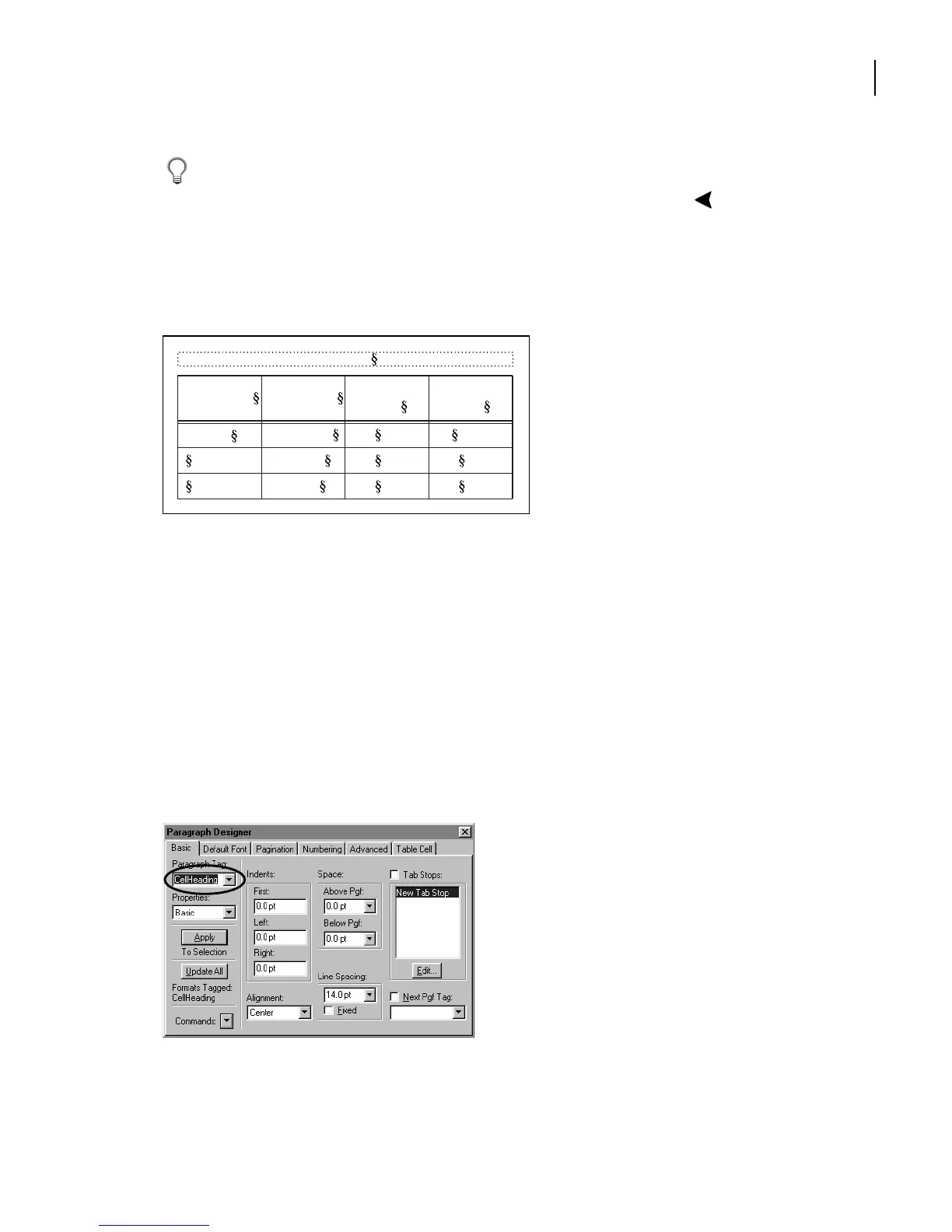
Click any text in the heading row and choose Format > Paragraphs > Designer.
The paragraphs in the heading cells use the CellHeading paragraph format.
Table 1:
Image Size Publication
Resolution
(ppi)
Line Screen
(lpi)
Art book 350 175
Newspaper 160 80
Magazine 266 133
5 x 5 in.



 To Next Page