171
ADOBE FRAMEMAKER 7.0
Classroom in a Book
15 Save the document.
Resizing columns
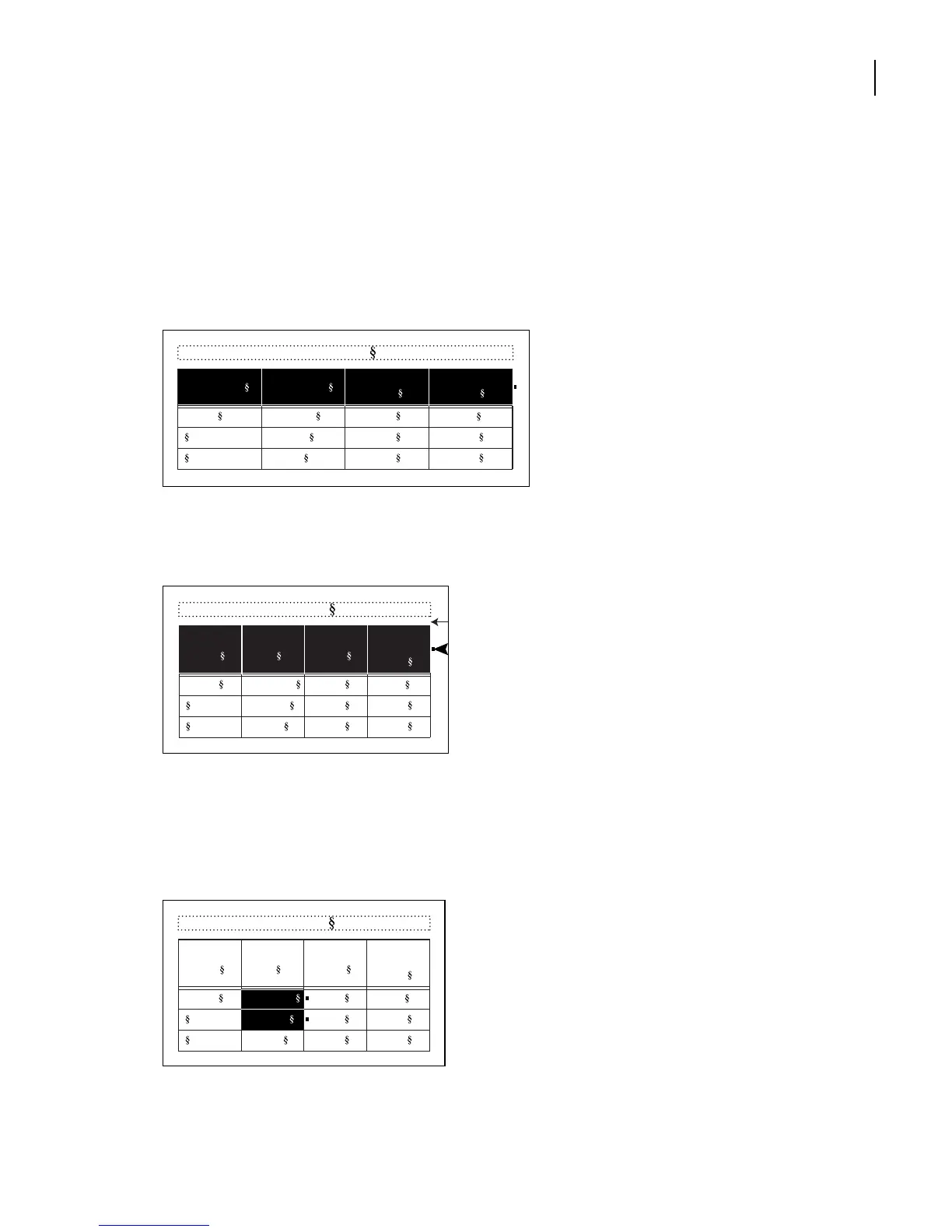
Now that the text formats are finished, you’ll resize the columns.
1 Drag from the first cell in any row to the last to select an entire row.
2 Drag the cell selection handle to the left by a full column width. All the columns
are resized.
Now that the table is narrow enough, it moves back into the body text area.
However, the second column is now too narrow, so you’ll widen it.
3 Drag down to select one or more cells in the second column.
Table 1:
Image Size Publication
Resolution
(ppi)
Line Screen
(lpi)
5 x 5 in. Newspaper
Magazine
Art book
160
266
350
80
133
175
Table 1:
Image
Publicatio
n
Resolution
(ppi)
Line
Screen
(lpi)
Magazine
Art book
160
266
350
80
133
175
5 x 5 in. Newspaper
Size
Table 1:
Publicatio
n
Resolution
(ppi)
Line
Screen
(lpi)
Magazine
Art book
160
266
350
80
133
175
5 x 5 in. Newspaper
Image
Size



 To Next Page