175
ADOBE FRAMEMAKER 7.0
Classroom in a Book
Changing table ruling
The table’s ruling (currently a thin line around the table and between body rows, and a
double line between the heading and the body) is determined by the table format’s Ruling
properties, which let you choose from a variety of ruling patterns. You’ll remove most of
the table ruling, but you’ll add a thick rule at the bottom of the table to separate it from
the text that follows it.
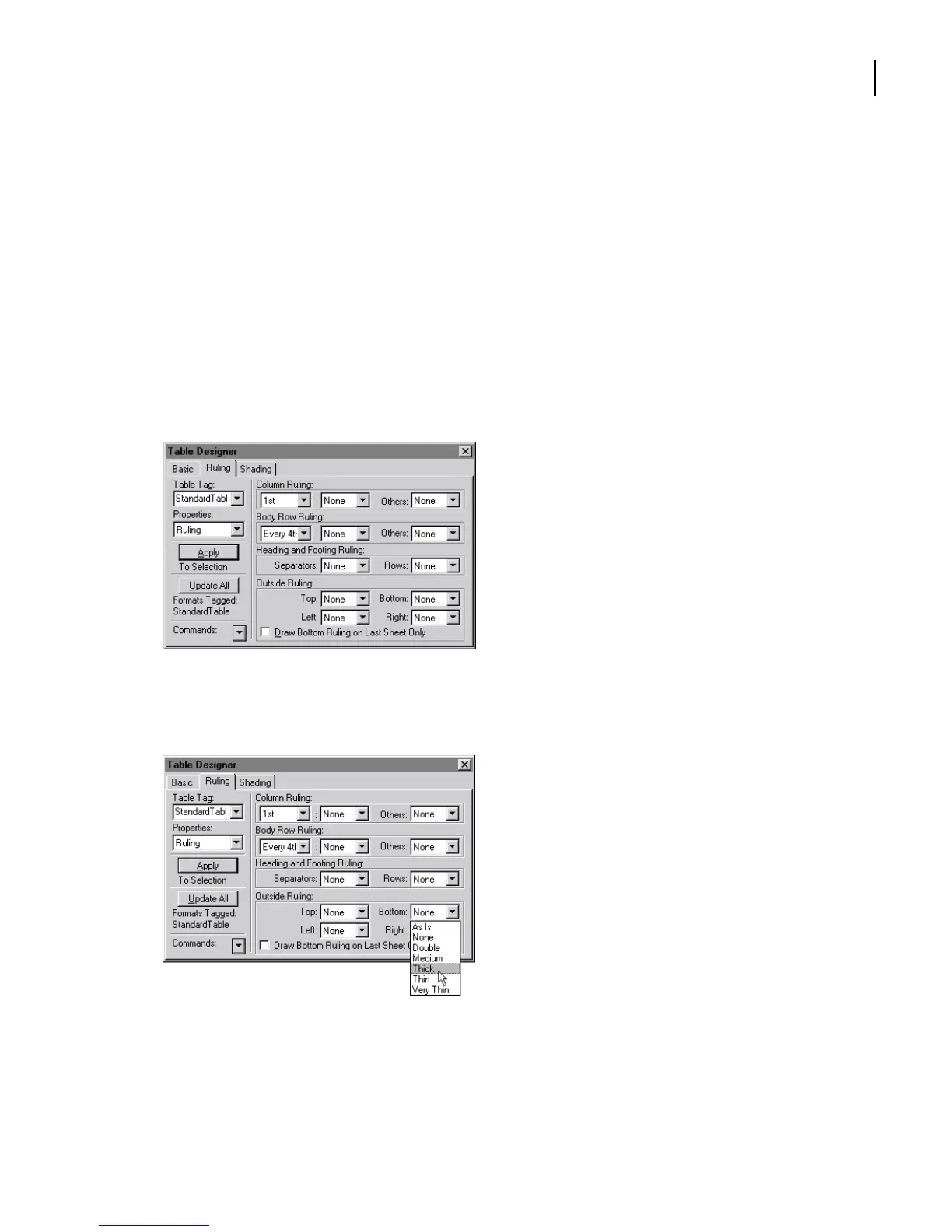
1 In the Table Designer, choose Ruling from the Properties pop-up menu.
2 In every pop-up menu that shows Thin or Double, choose None to remove the table
ruling.
3 Click Update All. All the ruling is removed from the table.
4 Choose Thick from the Bottom pop-up menu and click Update All.
5 Choose View > Borders to hide the dotted cell borders and View > Text Symbols to
hide text symbols.



 To Next Page