177
ADOBE FRAMEMAKER 7.0
Classroom in a Book
10 Close the Custom Ruling and Shading dialog box.
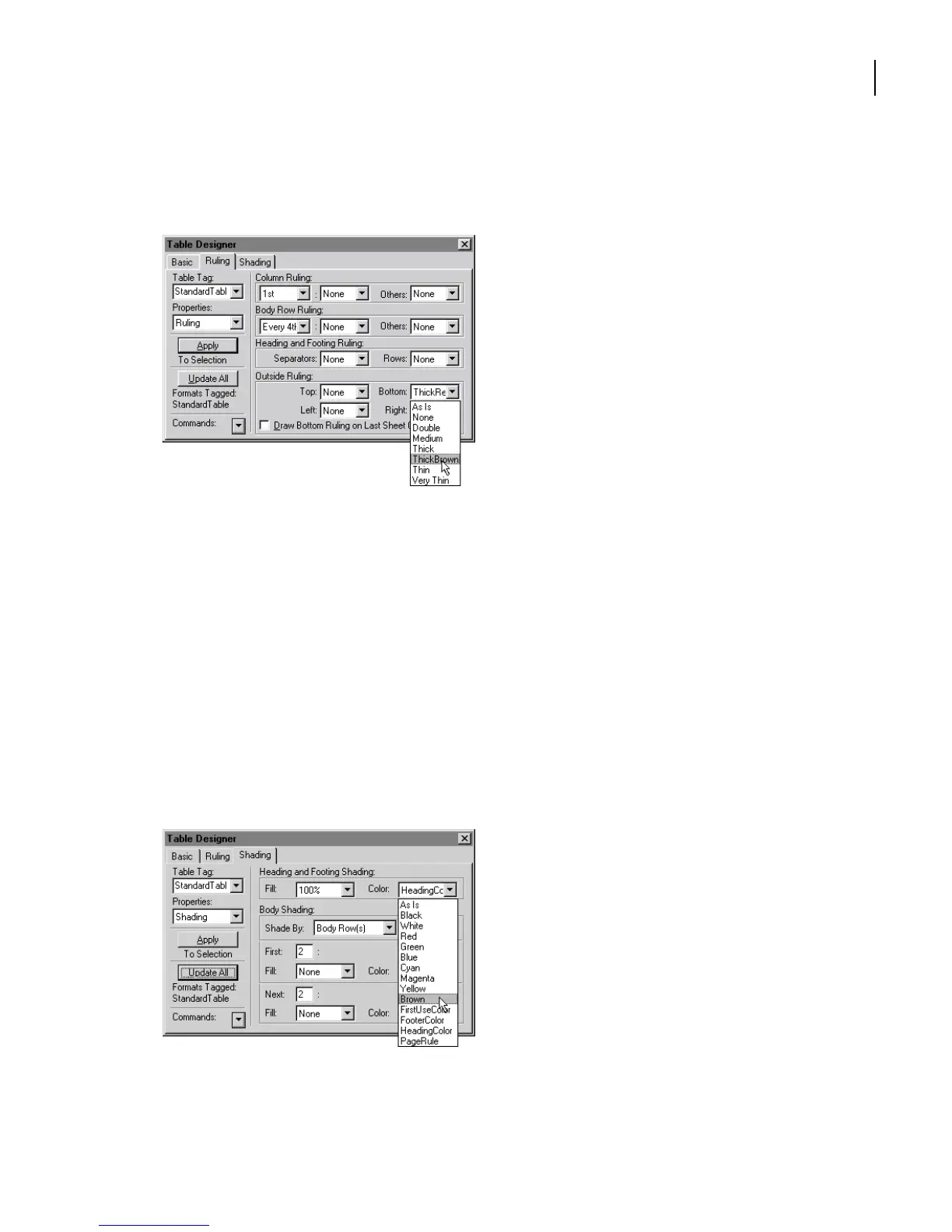
11 Choose ThickBrown from the Bottom pop-up menu of the Table Designer.
12 Click Update All.
13 Save the document.
Changing table shading
The table’s shading is determined by the format’s Shading properties. The table doesn’t
currently use any shading, but you’ll shade the heading row in the same color you used
for the bottom ruling.
1 Choose Shading from the Properties pop-up menu in the Table Designer.
2 In the Heading and Footing Shading area, choose 100% from the Fill pop-up menu
and Brown from the Color pop-up menu.



 To Next Page